44
Calling
Making a Call
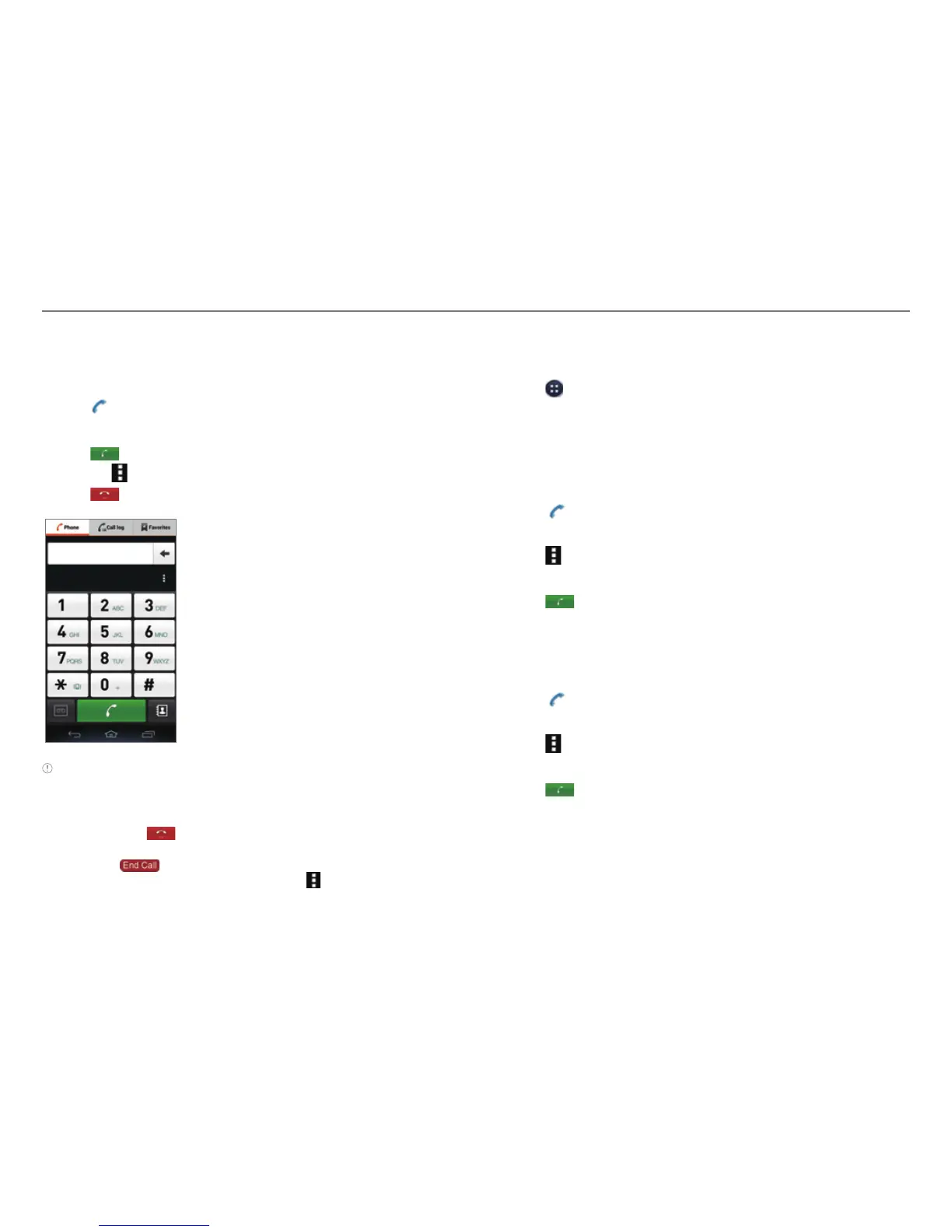
1. Tap Phone.
2. Enter a phone number.
3. Tap
at the bottom of the screen.
x Tap
to access settings.
4. Tap
to end a call.
Note
x Tap and hold a speed dial number to make a call. If the speed dial
number is two digits, tap the first digit, and then tap and hold the
second digit.
x You must tap
to end a call. If you are using other functions
during a call, drag the area at the top of the screen downward, and
then tap .
x Available items that appear when you tap differ depending on
how you dial the number (manually or via speed dial).
Making a Call by Voice
You can make a call or open an application with your voice.
1. Tap
> Voice Dialer.
2. Say a command.
Adding a Pause or a Wait to a Phone Number
To Add Pause
1. Tap Phone.
2. Enter the phone number.
3. Tap
> Add 3-sec pause.
4. Enter the additional number.
5. Tap
.
x The additional numbers will be entered automatically
after 3 seconds.
To Add Wait
1. Tap Phone.
2. Enter the phone number.
3. Tap
> Add wait.
4. Enter the additional numbers.
5. Tap
.
6. Tap Yes when the Send following tones? message appears
on the screen.
CALLING & MESSAGING



 To Next Page