54
COMMUNICATION
Setting up a Google Account
Registering a Google Account
1. Tap > Settings > Accounts & sync.
2. Tap ADD ACCOUNT > Google.
3. Tap New to create a new account.
x Tap Existing if you have a Google account.
4. Follow the on-screen instructions.
Note
x You must sign in to your Gmail account to use applications that
require a Google account.
x You can add other accounts, such as Facebook, Picasa or Twitter.
Synchronzing Google Accounts
1. Tap > Settings > Accounts & sync.
2. Select and tap an account.
3. Tap the check box next to Sync Gmail.
x Sync Calendar: Sync calendar entries with a Google
account.
x Sync Contacts: Sync contacts with a Google account.
x Sync Gmail: Sync mails with a Google account.
x Sync Google Photos: Sync photos with a Google
account.
x Sync Google Play Books: Sync books with a Google
account.
x Sync Web: Sync bookmarks with a Google account.
Using Gmail
Viewing Gmail Messages
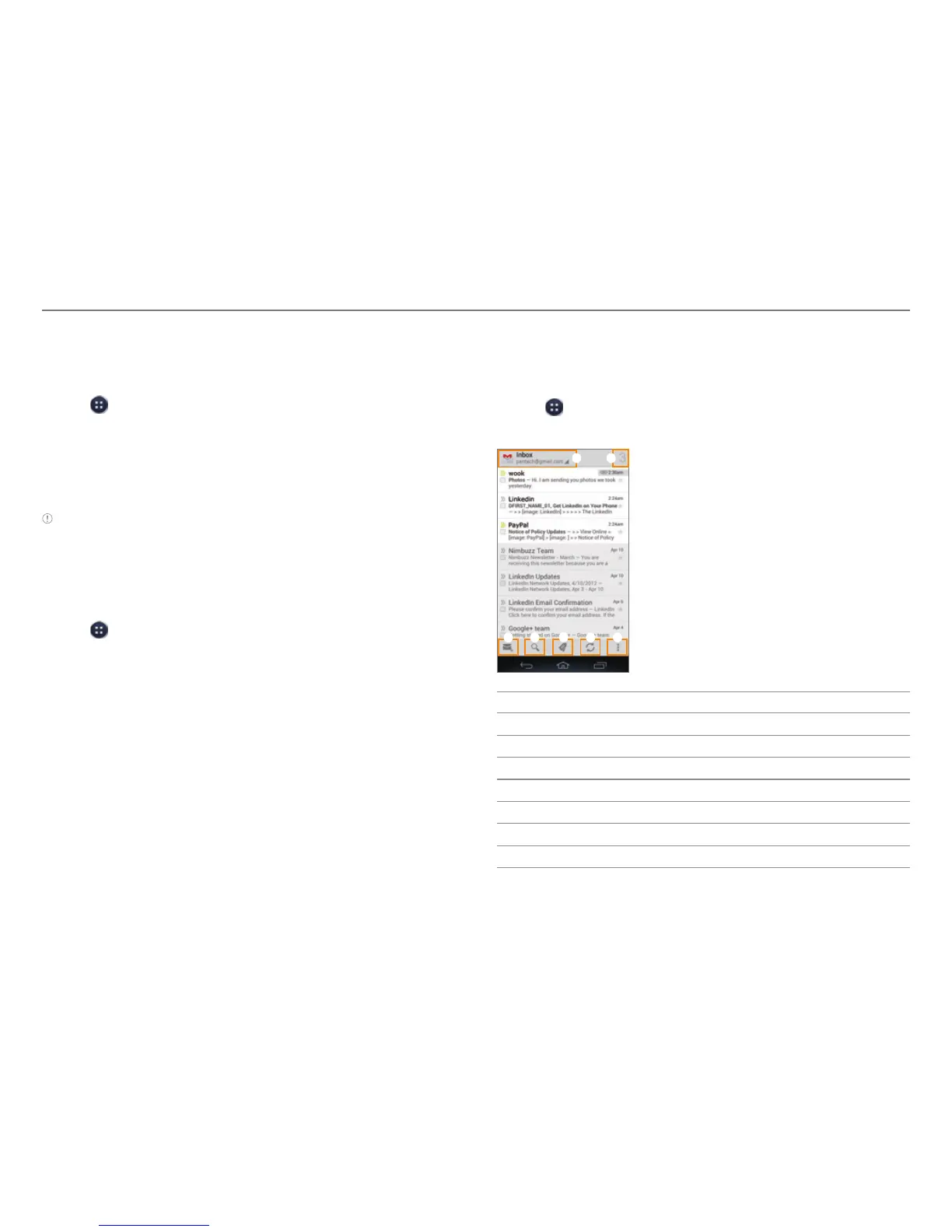
1. Tap > Gmail.
2. From the Gmail inbox, tap a message to view it.
1
3 4
5
6 7
2
No. Description
1
Switch to another account or mailbox.
2
Number of unread messages.
3
Create a message.
4
Search for mail.
5
Show all labels.
6
Refresh
7
Label settings, Settings, Help, Send feedback



 To Next Page