81
MENU FUNCTIONS
Notepad
Create and share memos.
Creating a New Memo
1. Tap > Notepad.
2. Tap
to add a new memo.
3. Enter the text using the on-screen keypad.
4. Tap Done to save the memo.
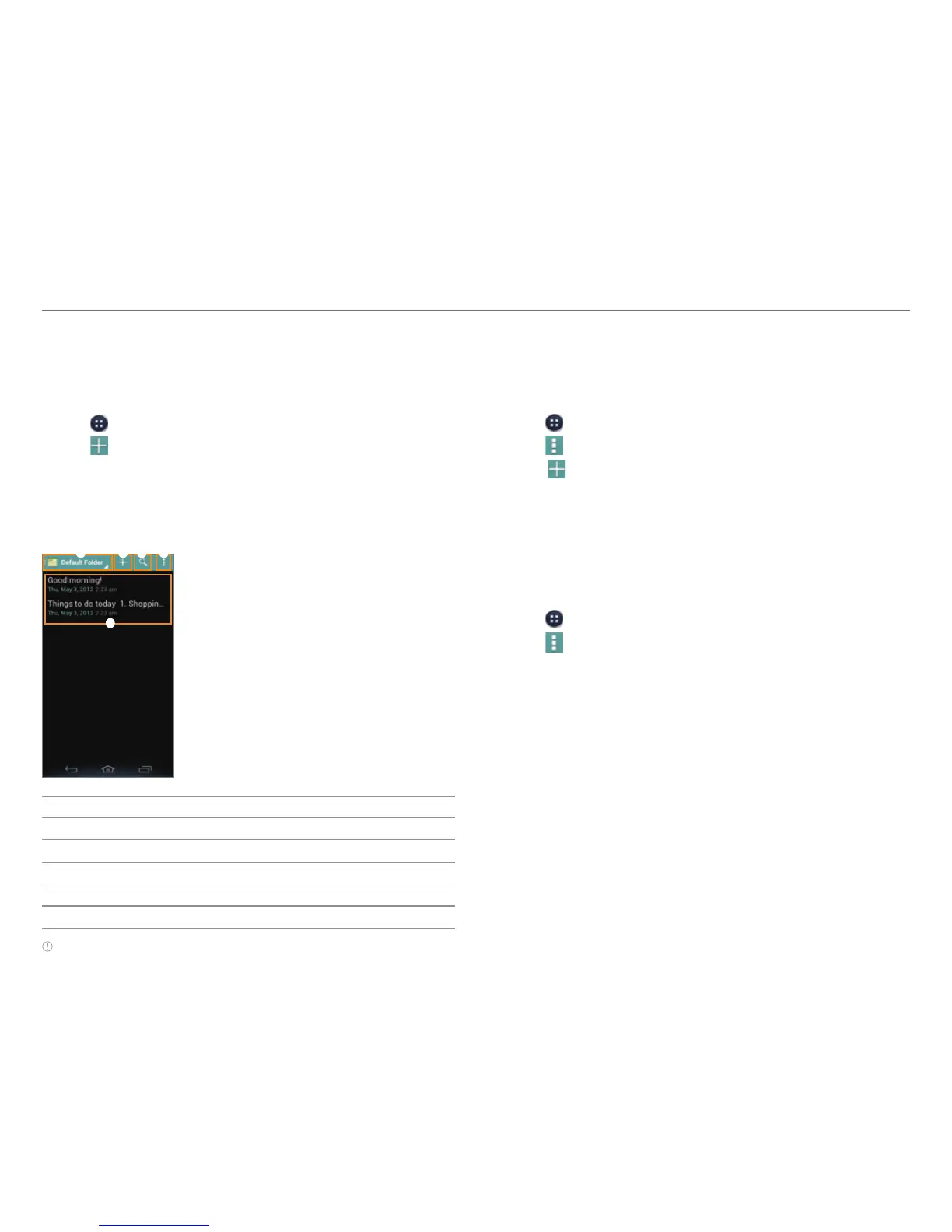
Layout of the Memo List Screen
21 3 4
5
No. Description
1
Select a folder.
2
Create a memo.
3
Search for a memo.
4
Delete, sort, or move memos.
5
Memo list
Note Tap and hold a memo to edit, share, move, or delete it.
Setting a Folder
You can create a folder or change the name of an existing
folder. When you first start Notepad, only the Default Folder
exists.
1. Tap
> Notepad.
2. Tap
> Setting.
3. Tap
to add a folder or tap an existing folder.
4. Enter the name of the folder and select a color of the folder.
5. Tap Done.
Locking or Syncing Memos
You can lock your memos or sync them with your Google
account.
1. Tap > Notepad.
2. Tap
> Lock & sync.
3. To lock memos, tap Set password, and then configure
settings.
x To sync memos, tap Add account, and then configure
account settings.



 To Next Page