63
MEDIA CENTER
Using Options for Recording Videos
Configure the camera settings to match shooting conditions.
1. Tap
> Camera.
2. Tap
.
3. Tap a menu > an item.
x Tap and hold an item, and then drag it into an orange
box to add a shortcut.
x Tap and hold a shortcut, and then drag it off of the menu
bar to delete it.
Menu Setting (when you use the rear camera)
Options
Exposure, Time Lapse, Flash, Resolution,
White Balance, Scene Mode
Effects Color Effect, Time Lapse Effect
Settings
Review Screen, Voice Rec., MMS Rec., GPS,
Shutter Sound, Save Location
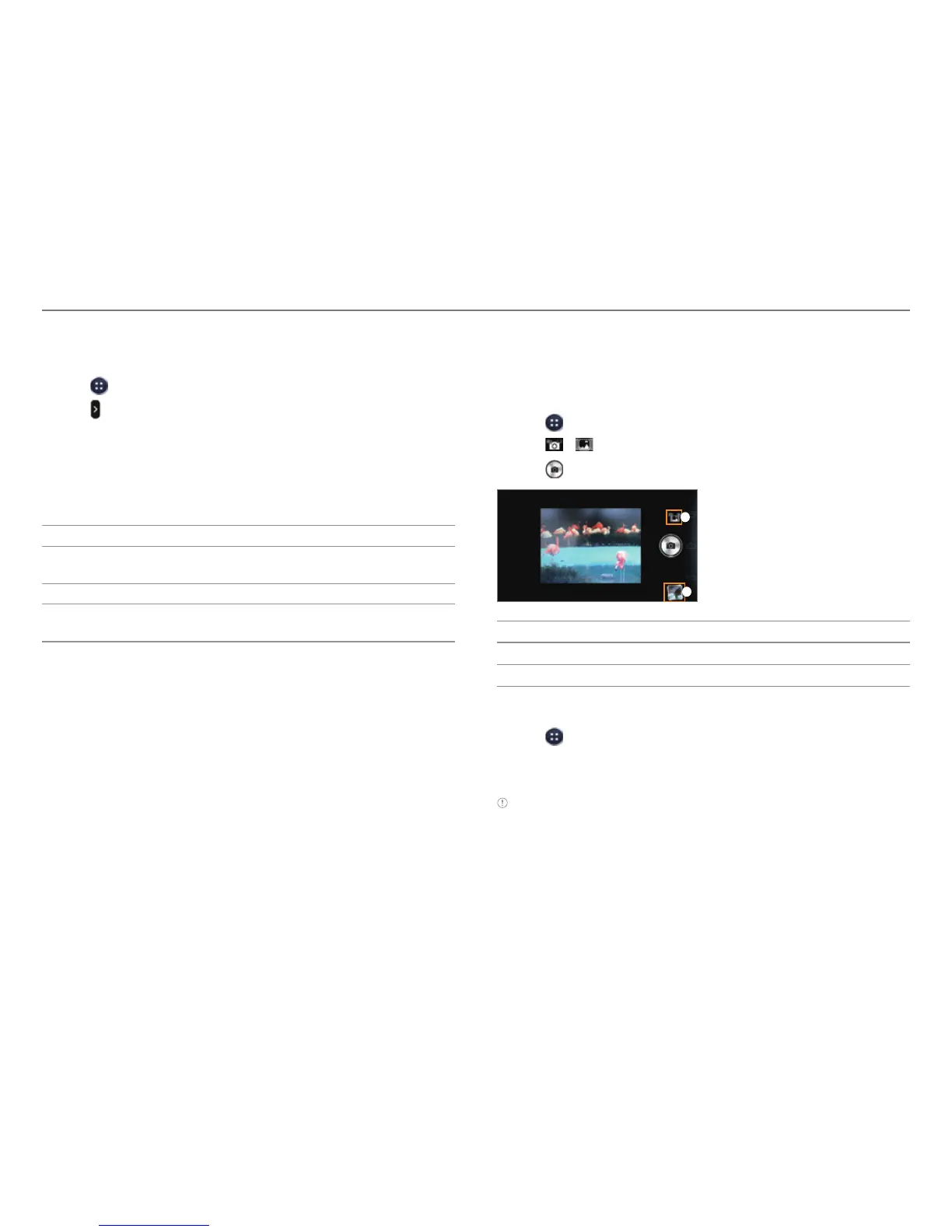
Taking Panoramic Pictures
Take a wide panoramic scene in a single picture. Captured
pictures are saved in the Camera folder under the Gallery
application.
1. Tap
> Camera.
2. Tap
> to switch to panorama mode.
3. Tap
.
1
2
No. Description
1
Switch to picture or video mode.
2
View captured pictures.
Viewing Captured Picture or Videos
1. Tap > Camera.
2. After finishing capturing, tap the image viewer at the
bottom right of the screen.
Note The Gallery application starts when you tap the image viewer
(refer to page 64).



 To Next Page