21
GETTING STARTED
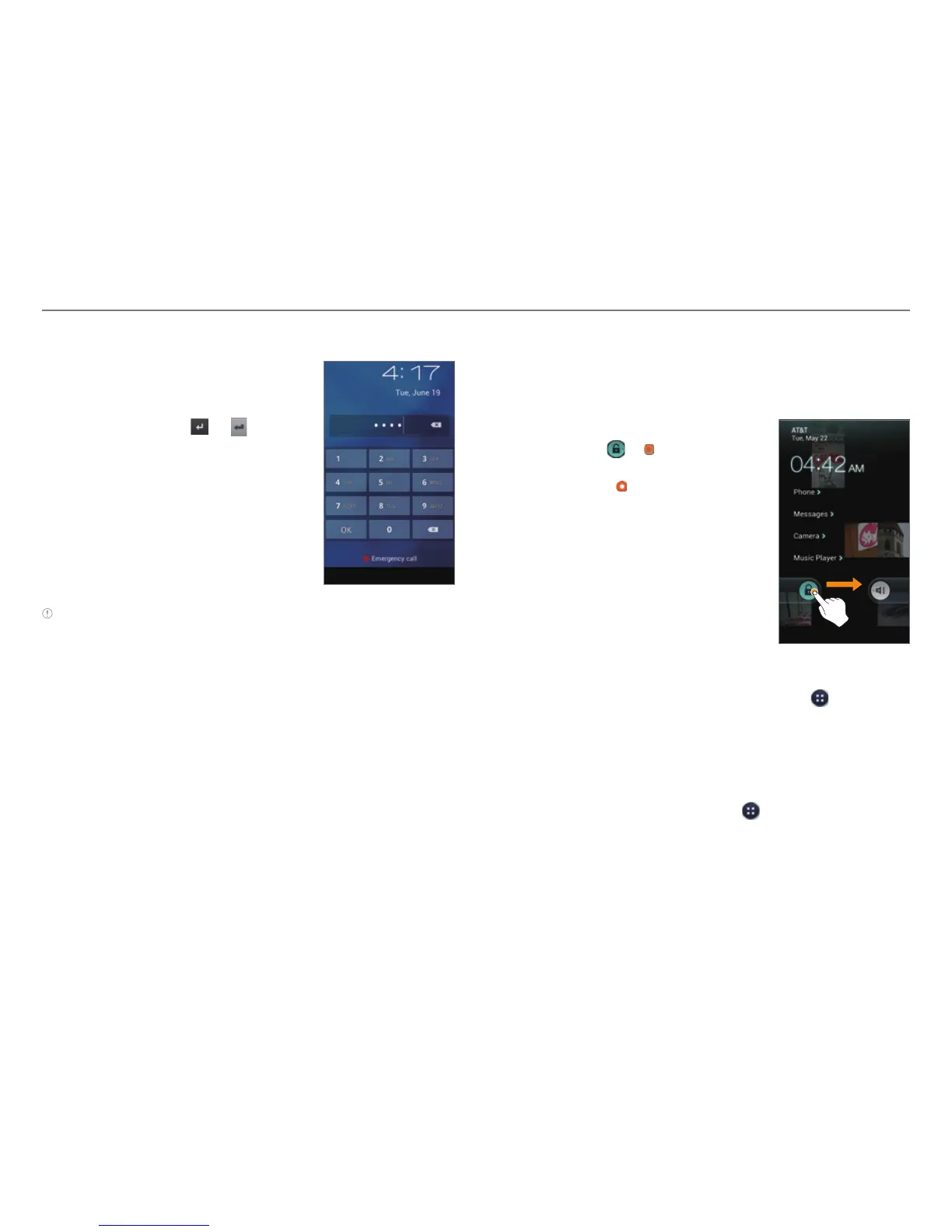
Unlocking the Screen with a PIN or Password
1. Press the LOCK/PWR key if the
phone is automatically locked.
2. Enter your PIN or password, and
then tap OK, Done,
, or .
Note You can make emergency calls without having to unlock the
screen.
If you Forget Your PIN or Password
Visit a Pantech Service Center to unlock the phone.
Unlocking the Screen with Face Recognition
When you set the Face Unlock function, the screen unlocks
when you align your face to the figure on the screen. If the
phone fails to recognize your face, use a secondary unlock
type to unlock the phone.
1. Press the LOCK/PWR key if the phone is automatically
locked.
x The phone is automatically locked after a specified
length of time of inactivity that you set. For more details
about setting the automatic lock, refer to page 95.
2. Align your face with the figure on the screen.
Unlocking the Phone with the Visual Lock
When you do not use the phone for a specified length of time
or press the LOCK/PWR key, the screen turns off and the phone
locks automatically.
1. Press the LOCK/PWR key.
2. Tap and drag
to .
x You can also drag an application
shortcut to
to unlock
the screen and launch the
application.
Adding a Screen Lock Wallpaper
To display a wallpaper on the locked screen, tap > Settings
> User theme > Screen lock > Wallpaper, select a folder that
contains images, and then tap Save. If you do not select a
folder, only the default image will appear.
Changing Screen Lock Shortcuts
To change screen lock shortcuts, tap > Settings >
User theme > Screen lock > Shortcuts. You can change the
shortcuts to your favorite applications on the locked screen.



 To Next Page