Forexample,inordertoprotectyourprivatenetworkfromexternalaccess,youcanset
upafirewallrulebetweentheInternetandyourprivatenetwork.Todoso,navigateto
Network>Firewall>AccessRules.ThenclicktheAddRulebuttonintheInbound
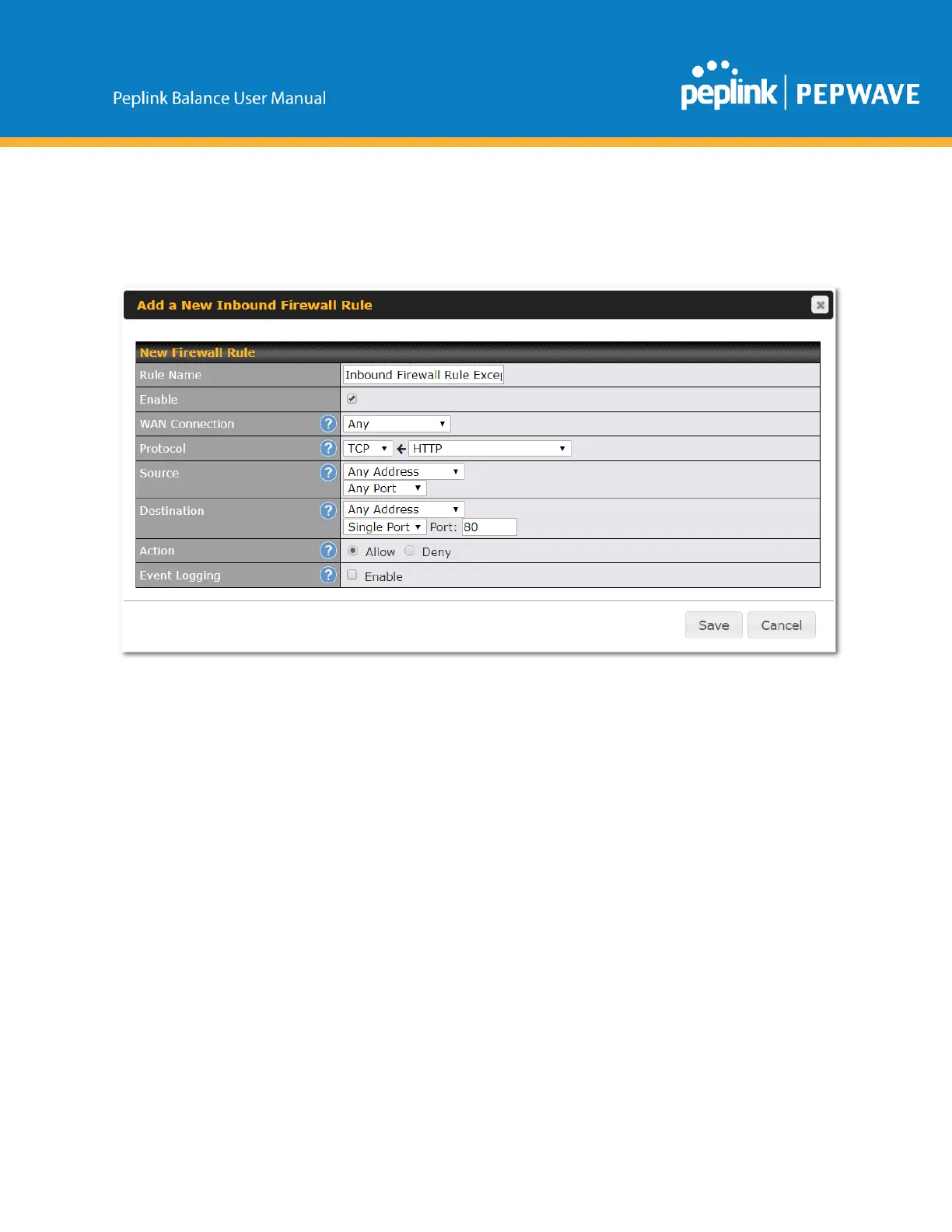
FirewallRulestableandchangethesettingsaccordingtothefollowingscreenshot:
Afterthefieldshavebeenenteredasinthescreenshot,clickSavetoaddtherule.
Afterwards,changethedefaultinboundruletoDenybyclickingthedefaultruleinthe
InboundFirewallRulestable.ClickApplyChangesonthetoprightcornerto
completetheprocess.
OutboundAccessRestriction
Scenario
Forsecurityreasons,itmaybeappropriatetorestrictoutboundaccess.Forexample,
youmaywanttopreventLANusersfromusingftptotransferfilestoandfromthe
Internet.Thiscaneasilybeachievedbysettingupanoutboundfirewallrulewiththe
PeplinkBalance.
Solution
TosetupafirewallbetweenInternetandprivatenetworkforoutboundaccess,navigate
toNetwork>Firewall>AccessRules.ClicktheAddRulebuttonintheOutbound
FirewallRulestable,andthenadjustsettingsaccordingthescreenshot:


 To Next Page