
 To Next Page
U
ugrahamSep 23, 2025
How to open the Phoenix Contact Label Maker?
- CChelsea HuffSep 23, 2025
Release the cover lock via the menu.

How to open the Phoenix Contact Label Maker?
Release the cover lock via the menu.
What to do if the Phoenix Contact Label Maker sheets are not being fed through?
If sheets are not being fed through, it may be that the sheets have become jammed; remove the sheet jam. Alternatively, the sheets may be creased; use sheets that are not creased.
What to do if my Phoenix Contact UM EN BLUEMARK LED Label Maker printer does not print even though it is switched on?
If the printer is switched on but not printing, check the connection to the PC because the interface cable might not be connected or the wrong interface may have been selected. Also, the printer might not be ready; exit the menu, acknowledge any messages, or remove an error and confirm.
Why will my Phoenix Contact Label Maker printer not switch on?
If the printer will not switch on, check the power supply connection because there might be a problem with it.
What to do if Phoenix Contact UM EN BLUEMARK LED displays 'No Print Medium Detected Check and Clear Feeder'?
If the message 'No Print Medium Detected Check and Clear Feeder' appears, it means that there are no sheets in the transport module or a sheet has become jammed. Remove the sheet jam and load the sheets in the feed tray.
What does 'Print Control Internal Error' mean on my Phoenix Contact UM EN BLUEMARK LED and how do I fix it?
If the message 'Print Control Internal Error' appears, it means that an error has occurred in the printer. Switch the device off, then on again. If the error persists, inform Phoenix Contact.
What should I do if the Phoenix Contact UM EN BLUEMARK LED sheets are not being output correctly?
If the sheets are not being output correctly, it means that an error occurred when ejecting the sheets because either the output tray is full or the sheets have become jammed. If the sheet is jammed further inside the device, switch the printer off and on. After being switched on, an automatic evacuation process is carried out during device initialization where any sheets trapped inside the device are ejected.
What does it mean if my Phoenix Contact Label Maker displays 'Transport Module Internal Error'?
If the message 'Transport Module Internal Error' appears, it means that an error has occurred in the transport module. Check whether sheets have become jammed in the transport module. If so, remove them. Acknowledge the message by pressing the • key. Switch the device off, then on again. If the error persists, inform Phoenix Contact.
What to do if my Phoenix Contact UM EN BLUEMARK LED displays 'Fluid System Cleaning Cartridge Full'?
If the message 'Fluid System Cleaning Cartridge Full' appears, it means that the Cleaning Cartridge is full and printing is no longer possible. Insert a new Cleaning Cartridge.
What to do if the Phoenix Contact Label Maker sheets are not being fed in correctly?
If a sheet could not be fed in correctly, either there are no sheets in the transport module or a sheet has become jammed in the transport module. Look in the feed tray at the back of the device to see whether a sheet has been fed in but not transported further. If this is the case, first manually remove the sheet that was fed in incompletely from the back of the device.
Defines the intended audience and their qualifications for using the manual.
Explains the meaning of safety symbols and signal words used throughout the manual.
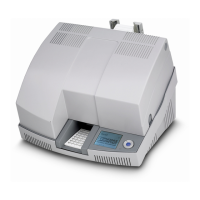
Provides a general overview of the BLUEMARK LED and its capabilities.
Specifies the proper and intended applications for the BLUEMARK LED device.
Highlights important safety notes and warnings for user protection.
Details potential health hazards associated with using the device, including voltage and fluid exposure.
Lists precautions to prevent damage to the BLUEMARK LED from improper handling or environmental factors.
Provides instructions for the correct and environmentally sound disposal of the printer and its components.
Lists the components included in the BLUEMARK LED package.
Guides users through removing protective elements and installing the primary fluid cartridge.
Describes the main operating elements and physical features of the BLUEMARK LED printer.
Provides instructions on selecting a suitable environment and location for printer setup.
Details various methods for connecting the printer to a computer or network.
Explains how to connect the BLUEMARK LED to the power supply.
Details the process for connecting the printer to a PC via USB and installing the necessary drivers.
Guides users on connecting the printer to a network using an Ethernet cable and installing drivers.
Explains how to establish a wireless connection between the printer and a PC using Bluetooth technology.
Describes how to perform an initial test print to verify printer functionality.
Instructs users on how to properly load printing sheets into the printer's transport module.
Explains how to specify sheet type or page size in application programs for printing.
Provides instructions on how to initiate the printing process and handle active print jobs.
Explains the procedure for canceling a print job that is currently in progress.
Details how to access and interpret status information for consumables and the device via the menu.
Describes the layout and information presented on the printer's display screen.
Describes the layout and information presented on the printer's display screen.
Explains the function of each key on the printer's keypad for menu navigation and operation.
Guides users through various settings and configurations accessible through the printer's menu.
Guides users on how to change the display language of the printer's interface.
Provides an overview of the printer's menu system and its various options.
Details how to adjust the contrast of the printer's display for better readability.
Explains how to configure the communication interface (USB, LAN, Bluetooth) for the printer.
Describes how to increase print intensity, noting the impact on print speed.
Instructions for replacing the initial fluid cartridge when setting up the printer.
Step-by-step guide for replacing both the fluid and cleaning cartridges.
Important information regarding the fluid cartridge, including handling and durability.
Detailed steps for removing and installing a new fluid cartridge.
Instructions for removing and installing a new cleaning cartridge.
Procedures for cleaning the printer's printhead to maintain print quality.
Explains how to start a printhead cleaning cycle using the printer driver software.
Guides users on performing a printhead cleaning cycle directly from the printer's menu.
Provides instructions on how to prepare the printer for safe transportation.
Presents a table of common errors, their causes, and recommended remedies.
Lists and explains various error messages displayed by the printer and their associated causes.
Provides steps to resolve common issues and clear error conditions.
Addresses issues where sheets are not being fed correctly into the printer.
Details how to perform a printhead test to check its functionality and print quality.
Explains how to open the printer, potentially for manual error clearing or maintenance.
Guides users on generating and sending a log file to assist customer service with troubleshooting.
Provides detailed technical specifications and performance data for the BLUEMARK LED.
Lists product codes and order numbers for the printer, accessories, consumables, and media.
Contains the EC Declaration of Conformity and relevant standards consulted for compliance.
 General
| Printing Technology | Thermal transfer |
|---|---|
| Resolution | 300 dpi |
| Manufacturer | Phoenix Contact |
| Connectivity | USB |
| Operating System Compatibility | Windows |
| Model | BLUEMARK LED |
| Category | Label Maker |