PHYLINK Covert Network Camera User Manual
If you ever forget your admin password or have any other reason to reset the camera
to its factory settings, please use the following procedure:
2.1.3 Restore Camera back to factory settings
Make sure the camera is powered up.
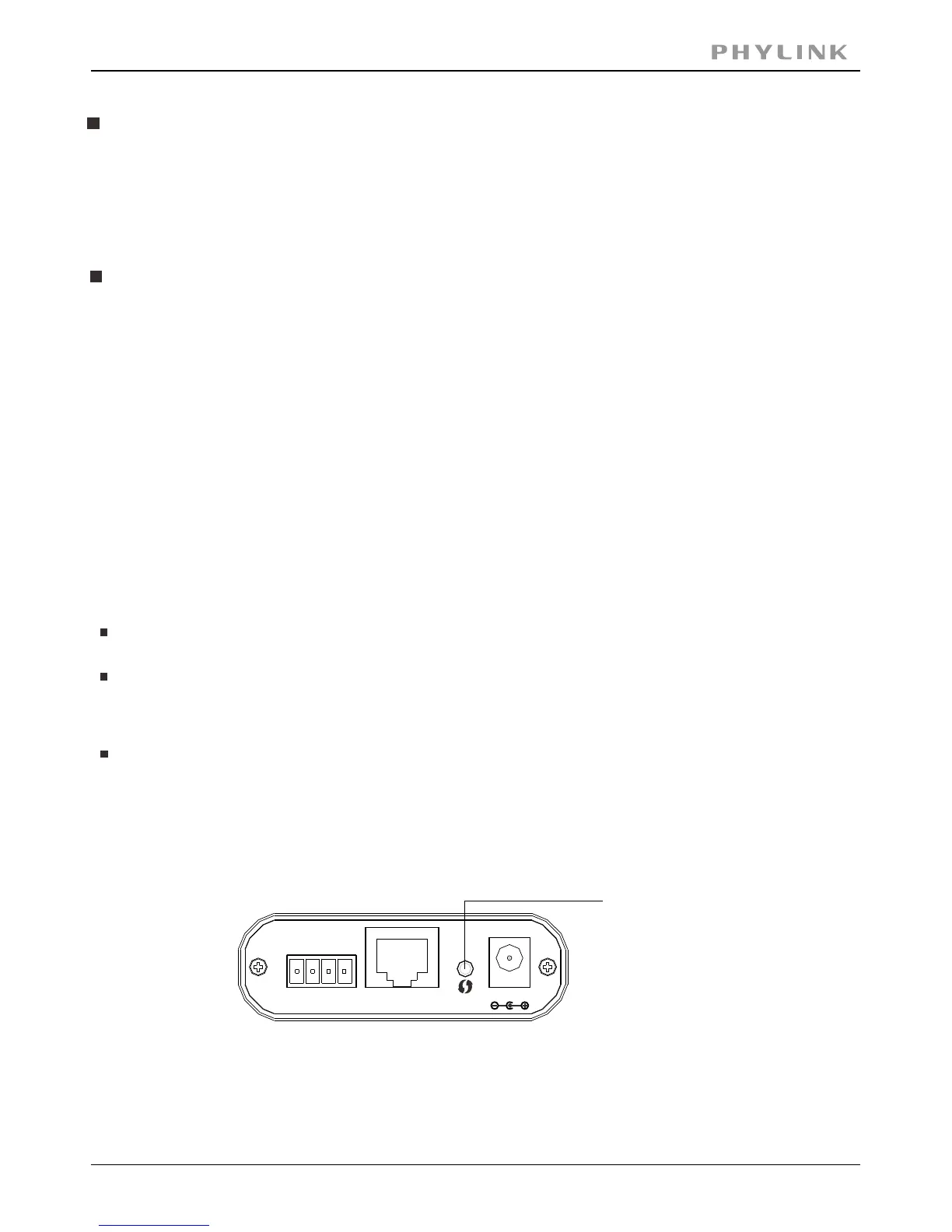
Hold the down for at least 5 seconds, you’ll see theReset/WPS Button
Status indicator LED go off for a few seconds. This indicates reset is in progress.
A few seconds later the camera will restart and is now at factory settings. After reset the
user name and password will both be “admin” again.
Reset/WPS button
It is easier to use the software reset function. Login the web server of camera and
browse to > > .Setting Tools Backup or Reset
If hardware reset is needed, find the on the .Reset/WPS Button Main Unit
DC12V
LAN
Reset
I/O
If using a Wi-Fi connection, the provided external antenna must be mounted to the
SMA connector on the . Please keep the antenna vertical for better signalMain Unit
strength.
The Micro SD Card must be insert to the slot before the Main Unit is powered on.
Note: The camera only supports FAT32, if the SD card is NTFS or Non FAT32 format,
you need to format it in FAT32 on PC.
Mount the Micro SD Card
Mount the antenna



 To Next Page