PHYLINK Covert Network Camera User Manual
The camera refers to motion detection as an“alarm”. You can select what you want the
camera to do once the motion is detected.The factory default setting for motion
detection is a single motion detection window covering the entire visible area.
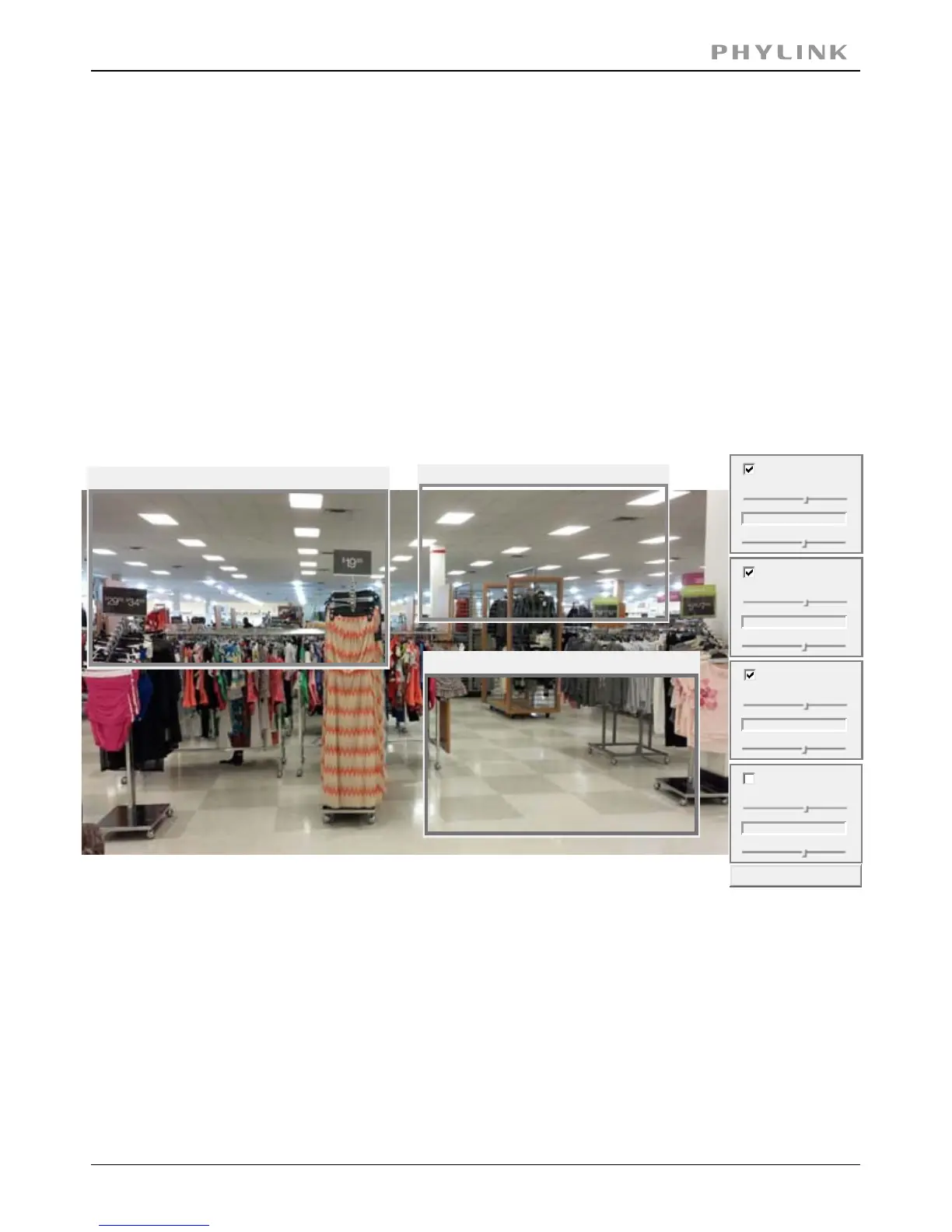
The“Motion Detection”menu allows you to designate up to 4 separate windows with
individually adjustable sensitivity.
[ ] Check this box to enable the window.Window
[ ] Determines at what point the alarm is triggered. A lower threshold meansThreshold
less motion is needed to trigger the alarm. A higher threshold means more motion is
needed to trigger the alarm. Threshold is indicated by the blue bar when motion is
detected.
[ ] Determines how easily the camera detects motion. Lower sensitivity meansSensitivity
the camera is less likely to detect motion. Higher sensitivity
means the camera is more likely to detect motion.
Click Apply to confirm your setting.
After selecting“Motion detection”from the main settings screen, you may need to
expand the size of the display window towards the right to see the 4 controls for
individual motion detection windows. Each window can have individually adjustable
sensitivity and threshold.
3.5 Task
3.5.1 Motion Detection
Window 1
Threshold
Sensitivity
Apply
Window 2
Threshold
Sensitivity
Threshold
Sensitivity
Window 3
Window 1
Threshold
Sensitivity
Window 4
Threshold
Sensitivity
Window 1
Window 2
Window 3



 To Next Page