2.4.4 Muliti-viewing on one screen
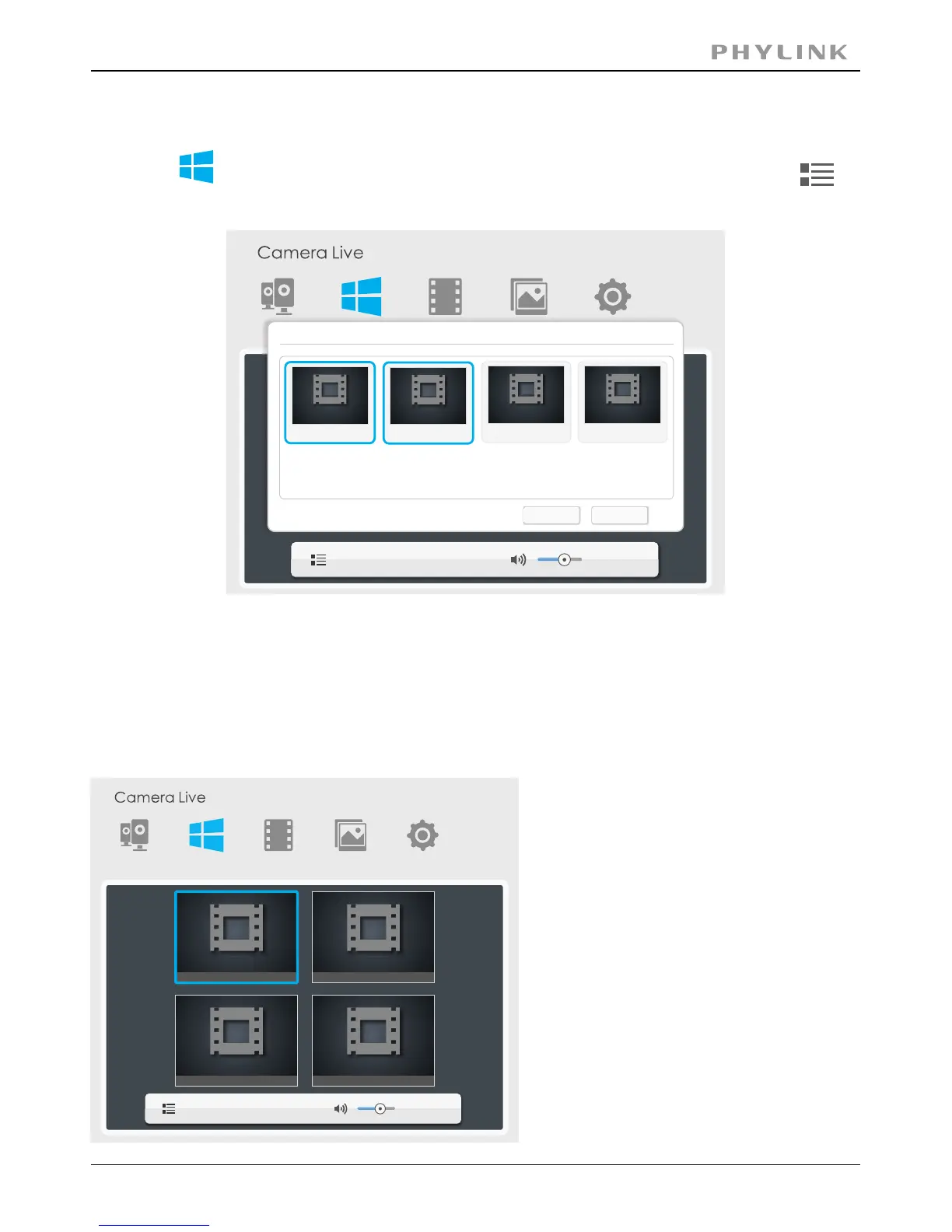
Click on "Muliti-Live" button from Main Toolbar, then click selection icon ,
the Select Camera window pop up as below.
All cameras has been added. will be listed out and then select the right cameras for
Muliti-viewing on one screen.
Click a camera preview the camera will be added for the Muliti-viewing, then the
camera preview will appear a blue border. Click the camera preview again, the blue
border will disappear, that means the camera is deselected from the Muliti-viewing.
Once you have made your selection click on "OK" to save.
If you want to listen to the sound of
camera, you just need to click the live
viewing window of camera, then the
live viewing window will appear a
blue border.
You can only listen one camera audio
at the same time.
Multilive
Setup
Video Album
Select Camera
OK
Cancel
Home
Office
Bedroom
School
Multilive
Setup
Video Album
Camera
home
office
bedroom
school
PHYLINK Covert Network Camera User Manual



 To Next Page