2.3 Quick installation for Android device
2.3.1 Camera installation on Android device
PHYLINK Covert Network Camera User Manual
Option 1
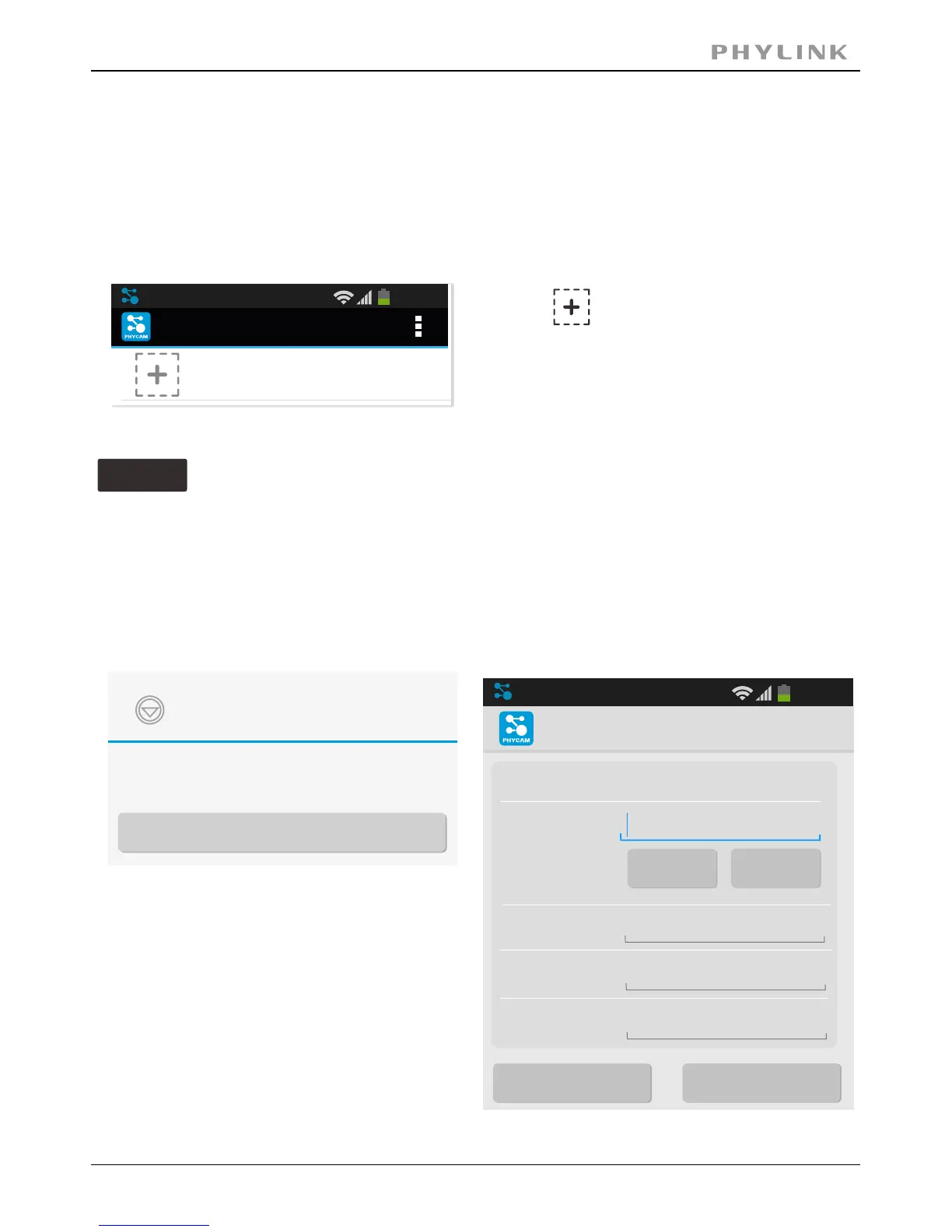
Enable Wi-Fi on Android device, press on“ ” button and the camera UID will shows upSearch
on "Search camera from LAN" screen. Then press the UID for the camera you are setting up.
Search the camera in Local Area Network
20:46
PHYCAM
Click here to add camera
Search camera from LAN
TDGNUX5221EZ11BWC7EJ
192.168.168.105
Refresh
If your camera is in the same Local Area Network with your smart phone,
the App can search the cameras automatically.
Assign a to the camera to help""Name
identify this camera if more than one
camera is in use.
( The default name is "Camera". )
Enter the " ".Password
( The default Password is "admin". )
Search "PHYCAM" App from Google Play, download and install it.
Start the App and then the following screen will appear.
Press " " button and then the cameraOK
will show up under the “Camera List”.
Press to add a new camera.
There are three ways to add a camera
on the Android device.
Add Camera
Device Setting
UID:
Search
Scan
20:46
Account:
admin
Password:
Name:
Camera
OK
Cancel
TDGNUX5221EZ11BW



 To Next Page