Camera
Multilive Video Album
Setup
20140108_092905.mov
20140208_102605.mov
20140206_102606.mov
20140108_092903.mov
school
Office
Bedroom
Home
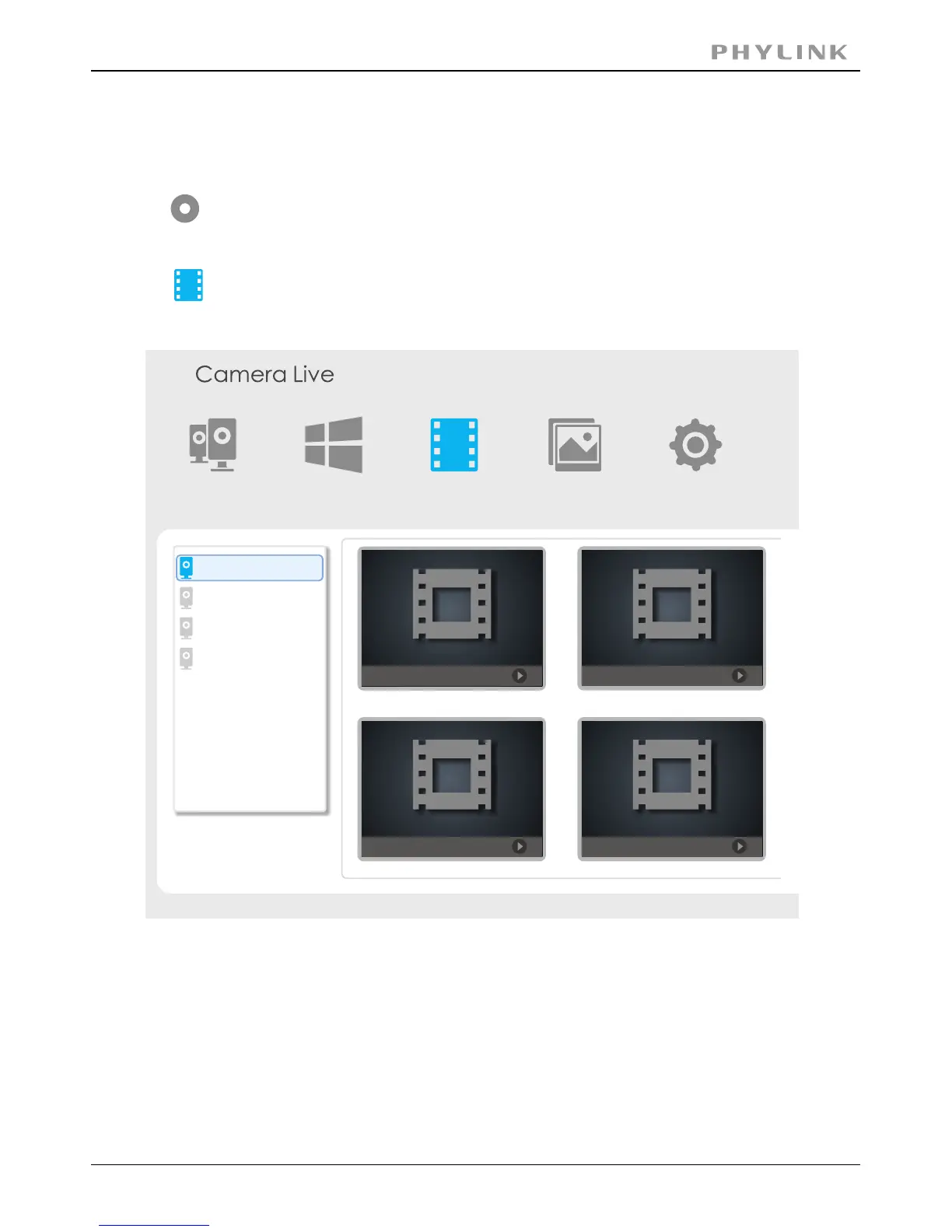
2.4.5 Video recording, Storage and Viewing
Note: The recorded video file will be automatically created and you can
find these files in Camera Live folder in My Documents on desktop.
Click on “Video recording” icon on Play Control Pane to start the video recording
and then click on the icon again to stop the recording.
Click ”play” button or double click on a camera preview, enter the live viewing window.
Click on “Recorded video” icon from Main Toolbar, and select the camera from
the list, then you can view and playback the recorded video.
PHYLINK Covert Network Camera User Manual



 To Next Page