52
Customer Support 1-855-IMI-POGO (464-7646) • www.presspogo.com
Code
JZSK
Pair POGO Automatic
®
with Your Phone Using Bluetooth
Your POGO Automatic Meter includes Bluetooth connectivity,
which allows you to transfer your glucose results from the meter to
your smartphone or computer. You can view your results and other
health information in the Patterns
®
for POGO Automatic app (iOS
and Android) and Patterns website. Patterns is designed to let you
quicky upload, review and share results to easily spot trends and
adjust your diabetes management.
Patterns for POGO Automatic is available free for download
at the Apple and Android app stores or online access at
www.patternsforpogo.com. To transfer your data from POGO
Automatic to the Patterns website without using Bluetooth,
you can use a standard micro USB cable.
How to Pair Your POGO Automatic
®
First, be sure that you have downloaded the Patterns app on
your smartphone. You should also have Bluetooth enabled ON
the phone. The POGO Automatic Meter will automatically turn on
Bluetooth when you start the pairing process. To pair your POGO
Automatic, use the following steps:
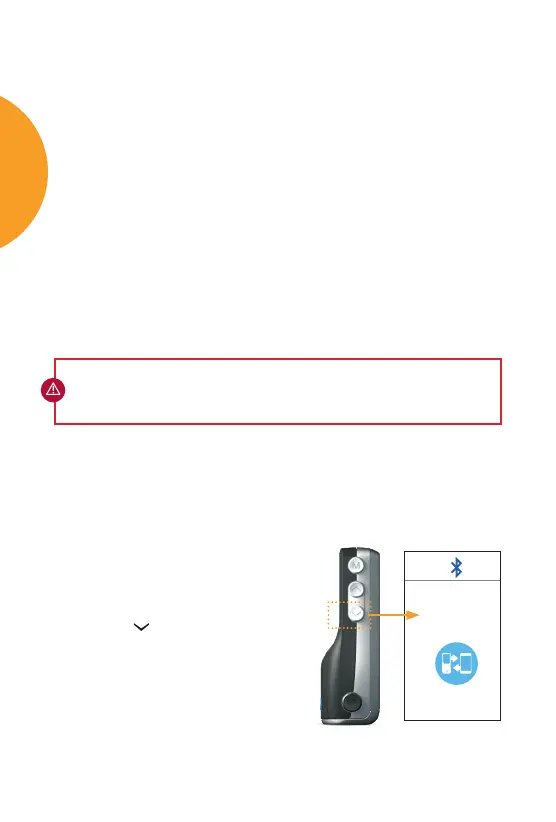
Step 1:
• Push the button for 4 seconds.
• A code using all letters will appear
on the meter to show that the meter
is in pairing mode. You will not need
this code.
IMPORTANT: While the POGO Automatic Meter is connected to your
computer, blood glucose testing functionality is disabled. Do not attempt
to perform a test with POGO Automatic during this time.
Syncing Results with the Patterns App
Hold button
down for pairing mode
Code appears
SYNCING
RESULTS


 To Next Page