EasyManua.ls Logo

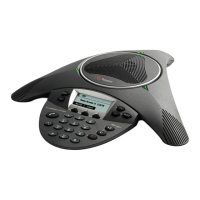
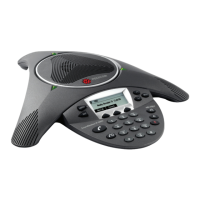
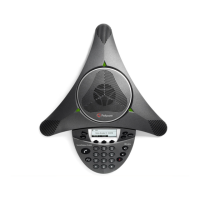
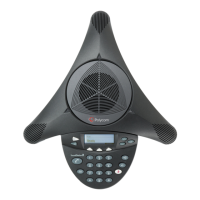
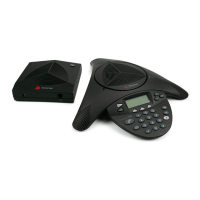
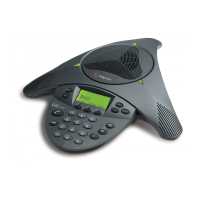
Polycom SoundStation IP 6000 - User Manual

Polycom SoundStation IP 6000
100 pages
Print Icon
To Next Page IconTo Next Page
Loading...
UC Software 4.0.1 | March 2012 | 1725-15645-001 Rev.F
User Guide for the
Polycom
®
SoundStation
®
IP 6000
Phone

Table of Contents

Other manuals for Polycom SoundStation IP 6000

Questions and Answers

  • J
    Janice JohnsonSep 9, 2025
    What does a hollow phone icon mean on my Polycom Conference Phone?
    • K
      Kelly JenkinsSep 9, 2025
      If a 'hollow' phone icon displays at the top of the screen of your Polycom Conference Phone, it means the phone is not registered to a server. Ask your system administrator to register the phone to a server.
  • D
    david18Sep 8, 2025
    What to do if the dial pad does not work on my Polycom SoundStation IP 6000?
    • J
      Janice SmithSep 8, 2025
      If the dial pad on your Polycom Conference Phone does not respond, check for a response from other feature keys or from the dial pad. Place a call to the phone from a known working telephone to check for display updates. Also, verify if the LAN port is active by pressing the Menu key, then selecting Status > Network > Ethernet, and checking the Ethernet screen. Ensure the switch/hub port is operational.
  • R
    Richard BlackburnSep 6, 2025
    How to fix no audible sound from the speaker on my Polycom Conference Phone?
    • L
      Lisa RodriguezSep 7, 2025
      If there is no audible sound from the speaker on your Polycom Conference Phone, the speaker volume may be low. Adjust the speaker volume by pressing the volume keys during a call.
  • M
    Michael GoodwinAug 22, 2025
    What to do if my Polycom SoundStation IP 6000 shows 'Network Link is Down'?
    • A
      Angela SchmidtAug 23, 2025
      If your Polycom Conference Phone displays 'Network Link is Down', the network cable may not be properly connected. Check the cable termination at the switch or hub. Ensure the switch or hub is operational by checking for flashing link/status lights. You can also verify if the LAN port is active by pressing the Menu key, then selecting Status > Network > Ethernet. From the Ethernet screen, scroll to LAN port and verify that it is Active. Rebooting the phone may also help re-register with the call server.
  • R
    Rose AtkinsonSep 4, 2025
    How to solve Polycom SoundStation IP 6000 Conference Phone installation configuration is not supported?
    • A
      Albert SanchezSep 4, 2025
      Verify that you have correctly installed the Polycom Conference Phone and its components: * Check that no more than two microphones are installed. * Contact your system administrator.
  • R
    Rebekah MaySep 3, 2025
    Why does the display of Polycom Conference Phone appear to flicker?
    • W
      William MorrisSep 3, 2025
      If the display on your Polycom Conference Phone appears to flicker, it might be due to the fluorescent lighting. Try these steps: * Move the phone away from the lights. * Replace the lights.
  • K
    Karen ColeSep 2, 2025
    What to do if Polycom SoundStation IP 6000 Conference Phone is not registered to a server?
    • M
      Mia Frank DDSSep 2, 2025
      Ask your system administrator to register the Polycom Conference Phone to a server.
  • M
    Mrs. Haley Fernandez MDSep 1, 2025
    How to fix low ringer volume on Polycom SoundStation IP 6000?
    • A
      Andrea WilliamsSep 1, 2025
      If the ringer volume on your Polycom Conference Phone is low, check the following: * To adjust the ringer volume, press either of the volume keys when the phone is in the idle state. * Check that the Ring Type is not set to Silent Ring.
  • T
    Timothy BoothAug 30, 2025
    How to adjust speaker volume on Polycom SoundStation IP 6000?
    • R
      Robert JuarezAug 31, 2025
      To adjust the speaker volume on your Polycom Conference Phone, press the volume keys during a call.
  • M
    mark26Aug 29, 2025
    How to fix the network cable if it is not properly connected to Polycom Conference Phone?
    • S
      Sharon SchneiderAug 29, 2025
      To resolve network cable connection issues with your Polycom Conference Phone, check the following: * Check the cable termination at the switch or hub (furthest end of the cable from the phone). * Ensure the switch or hub is operational (look for flashing link/status lights). * Verify if the LAN port is active or inactive. Press the Menu key, and then select Status > Network > Ethernet. From the Ethernet screen, scroll to LAN port and verify that it is Active. * Reboot the phone to attempt re-registration with the call server. For more information, see your system administrator.

Summary

Getting Started with Your Phone

Setting Up the Phone

Guide on connecting the phone to network and power sources.

Features of the Phone

Overview of the primary hardware features of the Polycom SoundStation IP 6000 phone console.

Navigating Menus and Entering Data

Instructions on how to navigate phone menus and input data using the console.

Configuring Your Phone Using the Polycom Web Configuration Utility

Steps to remotely configure phone settings via a web browser interface.

Customizing Your Phone

Configuring Basic Settings

Adjusting essential phone settings like language, time, and display preferences.

Managing Contacts

Adding, editing, and viewing contacts in the phone's local directory.

Searching for Contacts

How to search for contacts in both local and corporate directories.

Rejecting Calls

Configure the phone to send incoming calls from specific contacts directly to voicemail.

Diverting Calls

Set up call diversion for incoming calls from specific contacts to a third party.

Using the Basic Features of Your Phone

Placing Calls

Procedures for initiating calls, both on-hook and off-hook, using various methods.

Answering Calls

How to answer incoming calls, including on shared lines.

Holding and Resuming Calls

Managing active calls by placing them on hold and then resuming them.

Hosting Conference Calls

Instructions for setting up and managing conference calls with multiple participants.

Forwarding Calls

Setting up static and dynamic call forwarding options.

Using Do Not Disturb

Activating and deactivating the Do Not Disturb feature to prevent ringing.

Using Voice Mail

Accessing and listening to voice messages on the phone.

Using the Advanced Features of Your Phone

Handling Multiple Call Appearances

Managing multiple active and held calls on the phone.

Using Buddy Lists

Monitoring the status of contacts and managing presence settings.

Broadcasting Messages Using Push-to-Talk and Group Paging

Sending and receiving audio announcements via PTT channels and page groups.

Accessing Personal Phone Settings with User Profiles

Logging in to access personal settings and contacts from any phone.

Locking the Phone

Securing the phone to prevent unauthorized use and controlling call handling.

Troubleshooting Your Phone

Installation Configuration

Resolving issues related to initial phone setup and component compatibility.

Power and Startup

Addressing problems with the phone's power supply and network connectivity.

Controls

Troubleshooting issues with the phone's dial pad and other controls not responding.

Calling

Diagnosing and resolving problems related to making and receiving calls.

Audio

Troubleshooting issues with sound output, including speaker volume and clarity.

Safety Notices

WARNING Electrical Safety

Precautions to prevent electric shock when connecting teleconference circuits.

Restriction of Hazardous Substances (RoHS)

Information on Polycom product compliance with EU directives on hazardous materials.

Waste Electrical and Electronic Equipment (WEEE)

Guidelines for responsible disposal and recycling of electronic equipment.

End-User License Agreement for Polycom Software

1. GRANT OF LICENSE.

Outlines the non-exclusive license granted for the Polycom Software Product.

6. WARRANTY AND WARRANTY EXCLUSIONS.

Details the limited warranty and specific exclusions for the software product.

7. LIMITATION OF LIABILITY.

Defines the extent of Polycom's liability regarding the software product.

Polycom SoundStation IP 6000 Specifications

General IconGeneral
Network Interface10/100 Ethernet
Power over Ethernet (PoE)Yes, IEEE 802.3af
SIP Protocol SupportYes
Connectivity TechnologyWired
Echo CancellationYes
Noise ReductionYes
SpeakerphoneFull-duplex
Microphones3 cardioid microphones
Microphone TypeCardioid
DisplayBacklit LCD display
Audio TechnologyHD Voice, Acoustic Clarity Technology
ProtocolsSIP
Network Ports1
Power SourcePoE or optional AC adapter
Weight1.75 lbs
ComplianceFCC
Dimensions14.5 x 12.25 x 2.5 in (36.8 x 31.1 x 6.4 cm)

Related product manuals