EasyManua.ls Logo

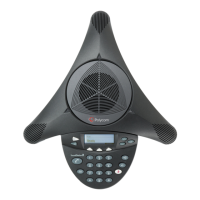
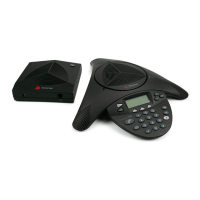
Polycom SoundStation IP 6000 - User Manual

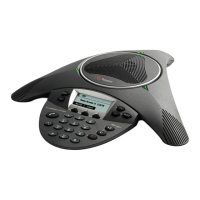
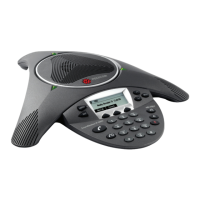
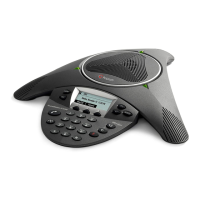
Polycom SoundStation IP 6000
100 pages
Print Icon
To Next Page IconTo Next Page
Loading...
UC Software 4.0.1 | March 2012 | 1725-15645-001 Rev.F
User Guide for the
Polycom
®
SoundStation
®
IP 6000
Phone

Table of Contents

Other manuals for Polycom SoundStation IP 6000

Questions and Answers

  • I
    idennisAug 28, 2025
    How to fix Polycom Conference Phone when power is not correctly applied?
    • D
      Dustin MyersAug 28, 2025
      If your Polycom Conference Phone isn't getting power, verify the following: * Check that the display is illuminated. * Ensure the network cable is correctly inserted on the underside of the phone. Try unplugging and re-inserting the cable.
  • K
    Kristin AustinAug 27, 2025
    What to do if there is no response when pressing a feature key on Polycom SoundStation IP 6000 Conference Phone?
    • A
      Austin WilliamsAug 27, 2025
      If your Polycom Conference Phone doesn't respond when you press a feature key, it might not be in an active state. Try the following: * Press the keys more slowly. * Call the phone to confirm that inbound call display and ringing is normal. If successful, try to press feature keys within the call to access the Directory or Buddy Status screens, for example. * To confirm the line is actively registered to the call server, press the Menu key, and then select Status > Lines > Line Information. From the Line Information screen, verify that your phone line is registered. * To attempt re-registration with the call server, reboot the phone. For more information, see your system administrator.
  • E
    Eric ShermanAug 26, 2025
    What to do if the dial pad on Polycom Conference Phone does not respond?
    • L
      lholdenAug 27, 2025
      If the dial pad on your Polycom Conference Phone isn't responding, try these steps: * Check if other feature keys are working. * Call the phone from a known working telephone to see if the display updates. * Check if the LAN port is active or inactive by pressing the Menu key, then select Status > Network > Ethernet. From the Ethernet screen, scroll to LAN port and verify that it is Active. * Check the network LAN cable connection at the switch or hub. Ensure the switch/hub port is operational. Contact your system administrator if you cannot access the switch/hub. Before restarting your phone, contact your system administrator, who may want to troubleshoot the phone in more detail.
  • K
    Katherine KramerAug 25, 2025
    What to do if my Polycom SoundStation IP 6000 display is incorrect or has bad contrast?
    • E
      Elizabeth MunozAug 26, 2025
      If there is no display, or the display is incorrect or has bad contrast on your Polycom Conference Phone, verify that power is correctly applied to the phone. Check that the display is illuminated and ensure the network cable is properly inserted on the underside of the phone. Try unplugging and re-inserting the cable. If your phone uses Power over Ethernet (PoE), ask your system administrator to check that the switch is supplying power to the phone.
  • G
    gregoryrobinsonAug 25, 2025
    What to do if there is no dial tone on my Polycom Conference Phone?
    • J
      Jeffrey SmithAug 25, 2025
      If there is no dial tone on your Polycom Conference Phone, ensure that power is correctly applied to the phone. Check that the display is illuminated and that the network cable is properly inserted on the underside of the phone. Try unplugging and re-inserting the cable.

Summary

Getting Started with Your Phone

Setting Up the Phone

Guide on connecting the phone to network and power sources.

Features of the Phone

Overview of the primary hardware features of the Polycom SoundStation IP 6000 phone console.

Navigating Menus and Entering Data

Instructions on how to navigate phone menus and input data using the console.

Configuring Your Phone Using the Polycom Web Configuration Utility

Steps to remotely configure phone settings via a web browser interface.

Customizing Your Phone

Configuring Basic Settings

Adjusting essential phone settings like language, time, and display preferences.

Managing Contacts

Adding, editing, and viewing contacts in the phone's local directory.

Searching for Contacts

How to search for contacts in both local and corporate directories.

Rejecting Calls

Configure the phone to send incoming calls from specific contacts directly to voicemail.

Diverting Calls

Set up call diversion for incoming calls from specific contacts to a third party.

Using the Basic Features of Your Phone

Placing Calls

Procedures for initiating calls, both on-hook and off-hook, using various methods.

Answering Calls

How to answer incoming calls, including on shared lines.

Holding and Resuming Calls

Managing active calls by placing them on hold and then resuming them.

Hosting Conference Calls

Instructions for setting up and managing conference calls with multiple participants.

Forwarding Calls

Setting up static and dynamic call forwarding options.

Using Do Not Disturb

Activating and deactivating the Do Not Disturb feature to prevent ringing.

Using Voice Mail

Accessing and listening to voice messages on the phone.

Using the Advanced Features of Your Phone

Handling Multiple Call Appearances

Managing multiple active and held calls on the phone.

Using Buddy Lists

Monitoring the status of contacts and managing presence settings.

Broadcasting Messages Using Push-to-Talk and Group Paging

Sending and receiving audio announcements via PTT channels and page groups.

Accessing Personal Phone Settings with User Profiles

Logging in to access personal settings and contacts from any phone.

Locking the Phone

Securing the phone to prevent unauthorized use and controlling call handling.

Troubleshooting Your Phone

Installation Configuration

Resolving issues related to initial phone setup and component compatibility.

Power and Startup

Addressing problems with the phone's power supply and network connectivity.

Controls

Troubleshooting issues with the phone's dial pad and other controls not responding.

Calling

Diagnosing and resolving problems related to making and receiving calls.

Audio

Troubleshooting issues with sound output, including speaker volume and clarity.

Safety Notices

WARNING Electrical Safety

Precautions to prevent electric shock when connecting teleconference circuits.

Restriction of Hazardous Substances (RoHS)

Information on Polycom product compliance with EU directives on hazardous materials.

Waste Electrical and Electronic Equipment (WEEE)

Guidelines for responsible disposal and recycling of electronic equipment.

End-User License Agreement for Polycom Software

1. GRANT OF LICENSE.

Outlines the non-exclusive license granted for the Polycom Software Product.

6. WARRANTY AND WARRANTY EXCLUSIONS.

Details the limited warranty and specific exclusions for the software product.

7. LIMITATION OF LIABILITY.

Defines the extent of Polycom's liability regarding the software product.

Polycom SoundStation IP 6000 Specifications

General IconGeneral
Network Interface10/100 Ethernet
Power over Ethernet (PoE)Yes, IEEE 802.3af
SIP Protocol SupportYes
Connectivity TechnologyWired
Echo CancellationYes
Noise ReductionYes
SpeakerphoneFull-duplex
Microphones3 cardioid microphones
Microphone TypeCardioid
DisplayBacklit LCD display
Audio TechnologyHD Voice, Acoustic Clarity Technology
ProtocolsSIP
Network Ports1
Power SourcePoE or optional AC adapter
Weight1.75 lbs
ComplianceFCC
Dimensions14.5 x 12.25 x 2.5 in (36.8 x 31.1 x 6.4 cm)

Related product manuals