955725_4
23
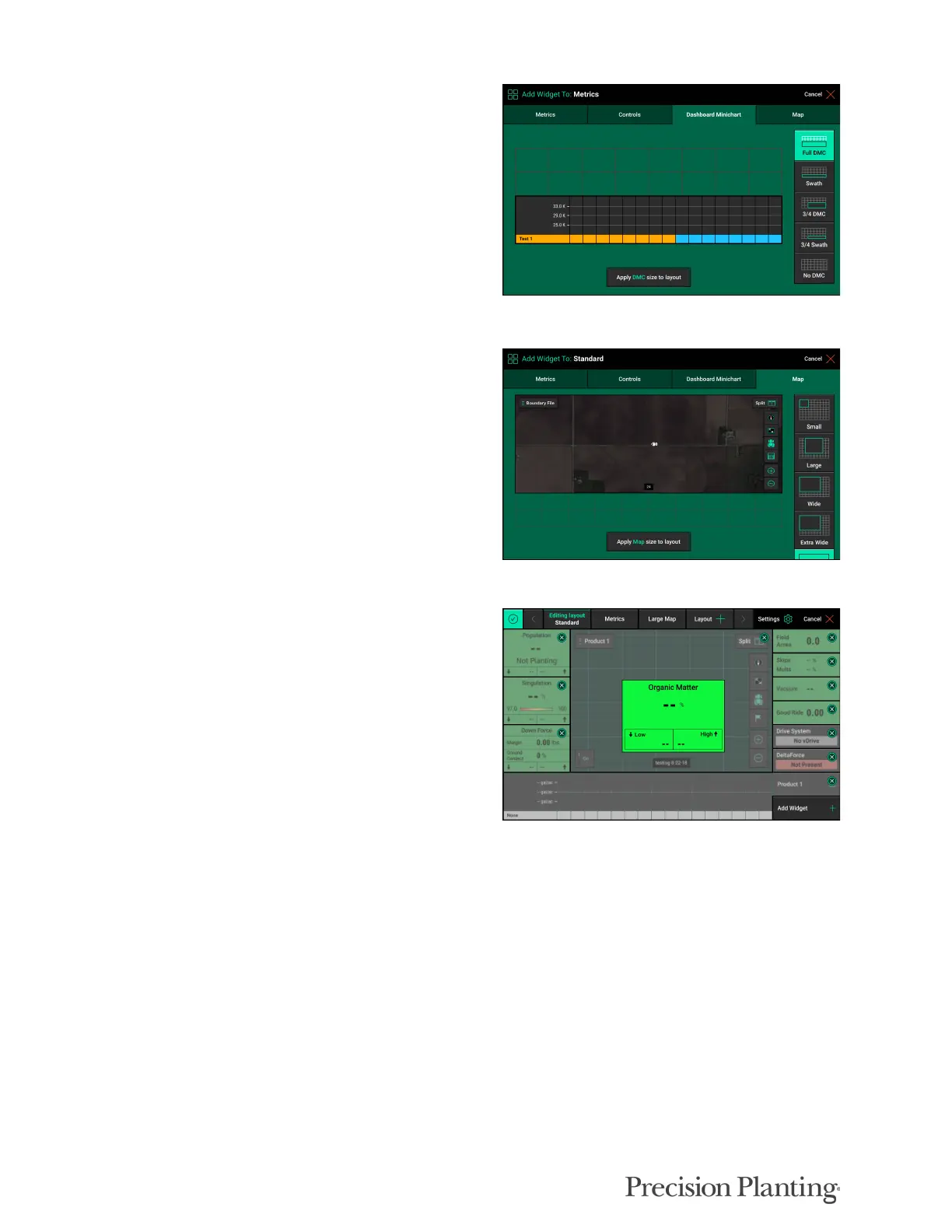
Dashboard Minichart: Add either a Dashboard
Minichart to the home screen or a Swath Control
bar. This page offers both in two different sizes:
full and ¾. The Full size will stretch across the
entire bottom of the display while the ¾ size, will
leave a space on the left side where additional
buttons can be added. The Dashboard Minichart
can be removed by selecting “No DMC”. Once a
selection has been made, press “Apply DMC Size
to Layout”.
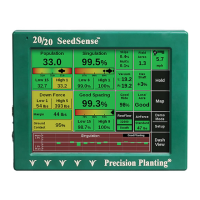
Map: Select the size of map to display on the
home screen. There are four sizes of maps
available: Large (6x6), Small (3x3), Wide (6x7),
or Full (7x10). Additionally, there is a No Map
option. Once the map type is selected press
“Apply Map Size to Layout”.
Placing a Widget on the Home Screen
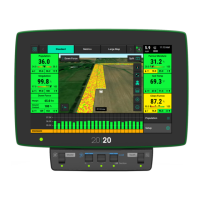
Once a widget has been selected from any of the
four categories, it can be placed anywhere on the
home screen. After selecting a widget, that
widget will be placed directly in the center of the
screen. To move the widget press – hold – drag
the widget to the area of the screen for it to be
placed at. Once the finger is removed from the
screen the widget will be placed in that position.
Note: If the widget is placed on top or on top of part of another widget (e.g. the map) the entire widget
that it was placed on top of will be removed and a blank green area will be left.
After the widget has been set, select “Add Widget” to continue customizing the home screen.
Once finished press the check mark in the top left corner to save the current layout.
Note: When customizing the home screen, only the home screen for the selected tab at the top of
the home screen will be changed.


 To Next Page