.i
PiP (PICTURE-IN-PICTURE) OPERATION
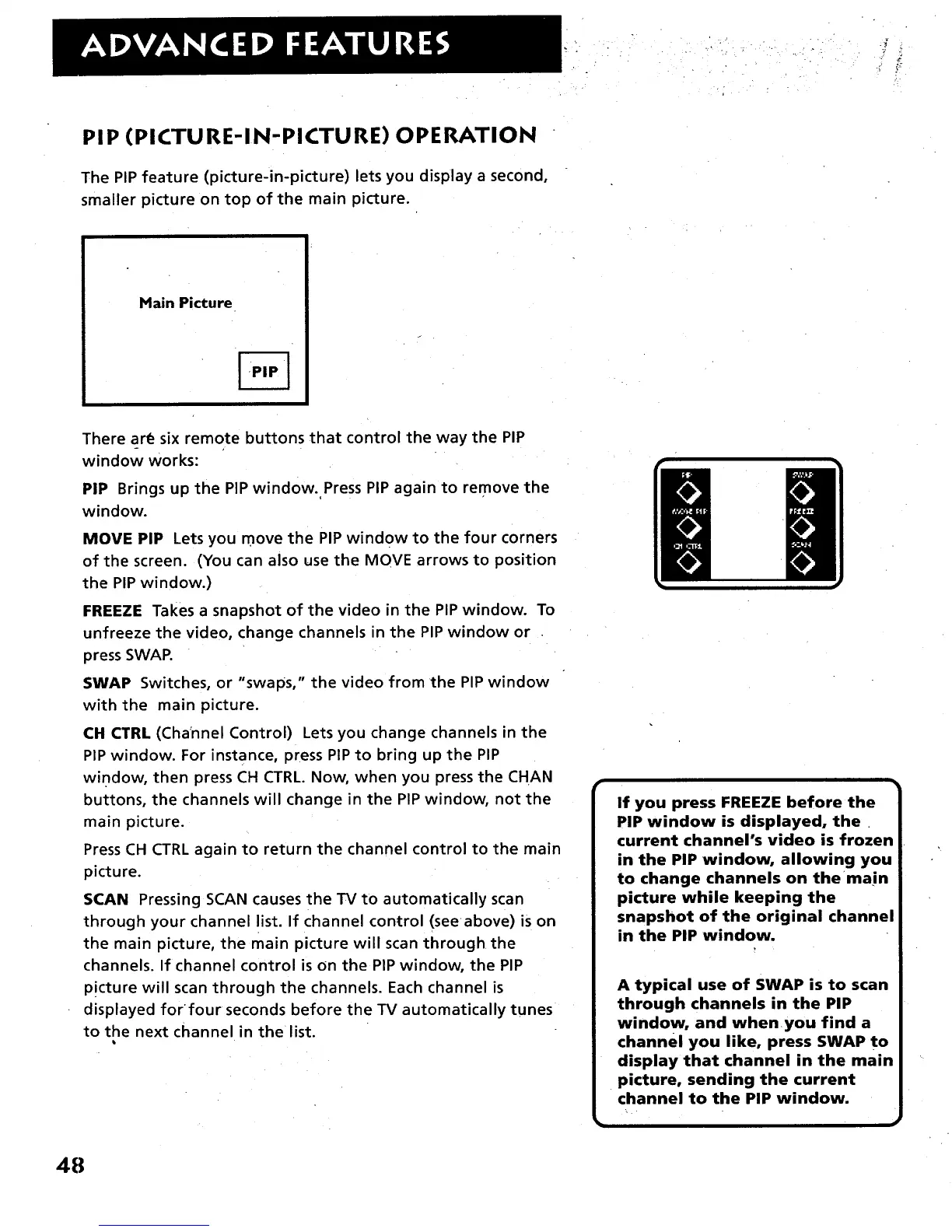
The PIP feature (picture-in-picture) lets you display a second,
smaller picture on top of the main picture.
Main Picture
There ar_ six remote buttons that control the way the PIP
window works:
PIP Brings up the PIP window. Press PIP again to remove the
window.
MOVE PIP Lets you move the PIP window to the four corners
of the screen. (You can also use the MOVE arrows to position
the PIP window.)
FREEZE Takes a snapshot of the video in the PIP window. To
unfreeze the video, change channels in the PIP window or
press SWAR
SWAP Switches, or "swaps," the video from the PIP window
with the main picture.
CH CTRL (Cha'nnel Control) Lets you change channels in the
PIP window. For instance, press PIP to bring up the PIP
window, then press CH CTRL. Now, when you press the CHAN
buttons, the channels will change in the PIP window, not the
main picture.
Press CH CTRL again to return the channel control to the main
picture.
SCAN Pressing SCAN causes the TV to automatically scan
through your channel list. If channel control (seeabove) is on
the main picture, the main picture will scan through the
channels. If channel control is on the PIP window, the PIP
p!cture will scan through the channels. Each channel is
displayed for four seconds before the TV automatically tunes
to the next channel in the list.
If you press FREEZE before the
PIP window is displayed, the
current channel's video is frozen
in the PIP window, allowing you
to change channels on themain
picture while keeping the
snapshot of the original channel
in the PIP window.
A typical use of SWAP is to scan
through channels in the PIP
window, and whenyou find a
channel you like, press SWAP to
display that channel in the main
picture, sending the current
channel to the PIP window.
48



 To Next Page