2. Center Area
Icon Description
Used for writing.
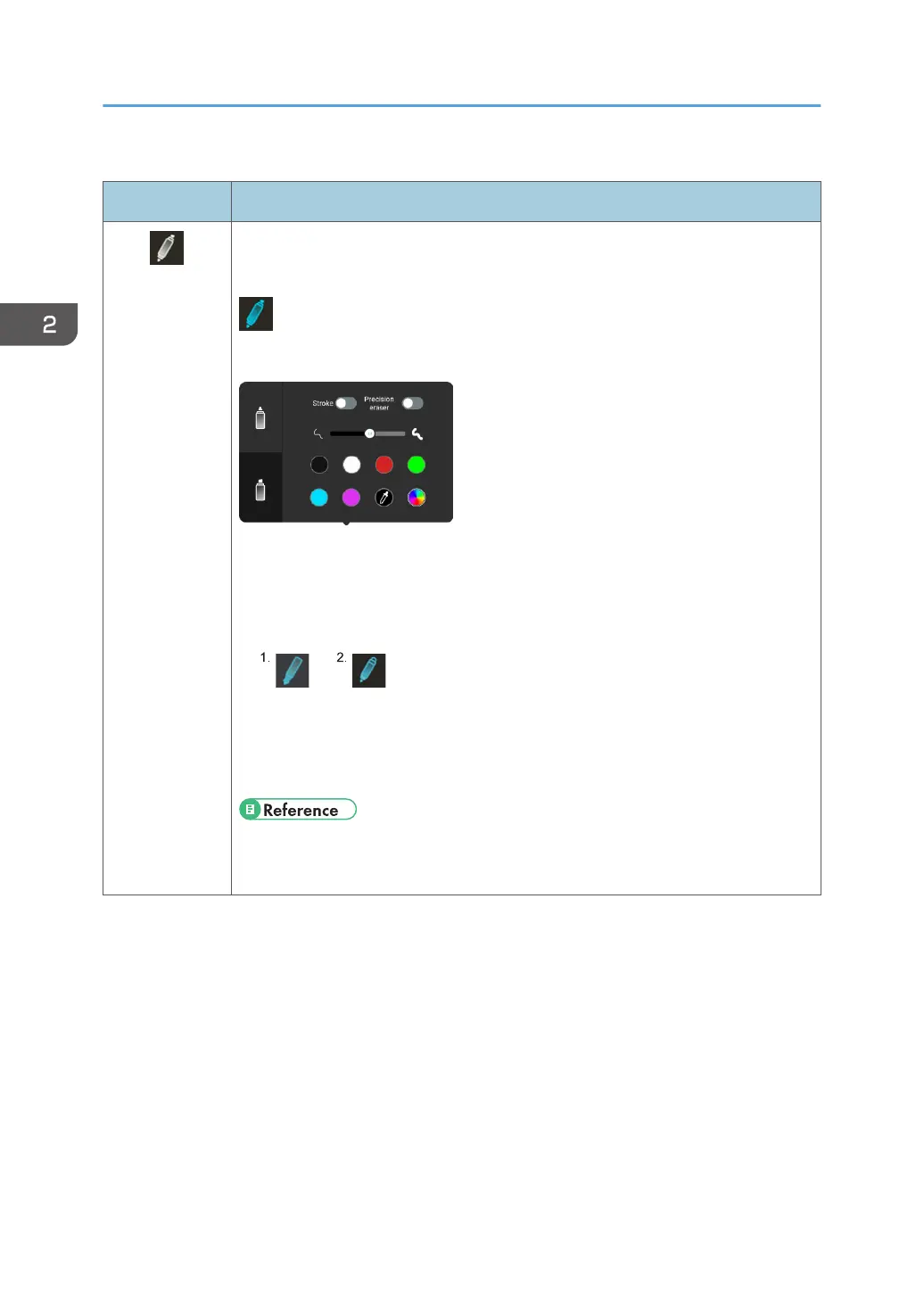
When it is ready to write, the icon will be displayed as follows:
Touching the icon while it is ready to write will display the writing settings.
You can switch between pen/handwriting input and marker input, and you can
change the color and thickness of the writing.
In addition, depending on the writing setting, the following icons will be displayed:
1. When "Stroke" is turned on
2. When "Precision eraser" is turned on
• page 32 "Enabling the stroke"
• page 41 "Erasing with a pen or finger"
2. Using a Whiteboard
26


 To Next Page