Voters scan the QR code with their smart devices and vote by selecting an option/options.
The number of people who have voted will be displayed in real time on the QR code display.
Touch "View results" to see the progress.
4. Touch [Voting over] to finish voting.
A dialog box confirming the finishing of voting will be displayed.
5. Touch [View results] to check the voting results.
Screen capture
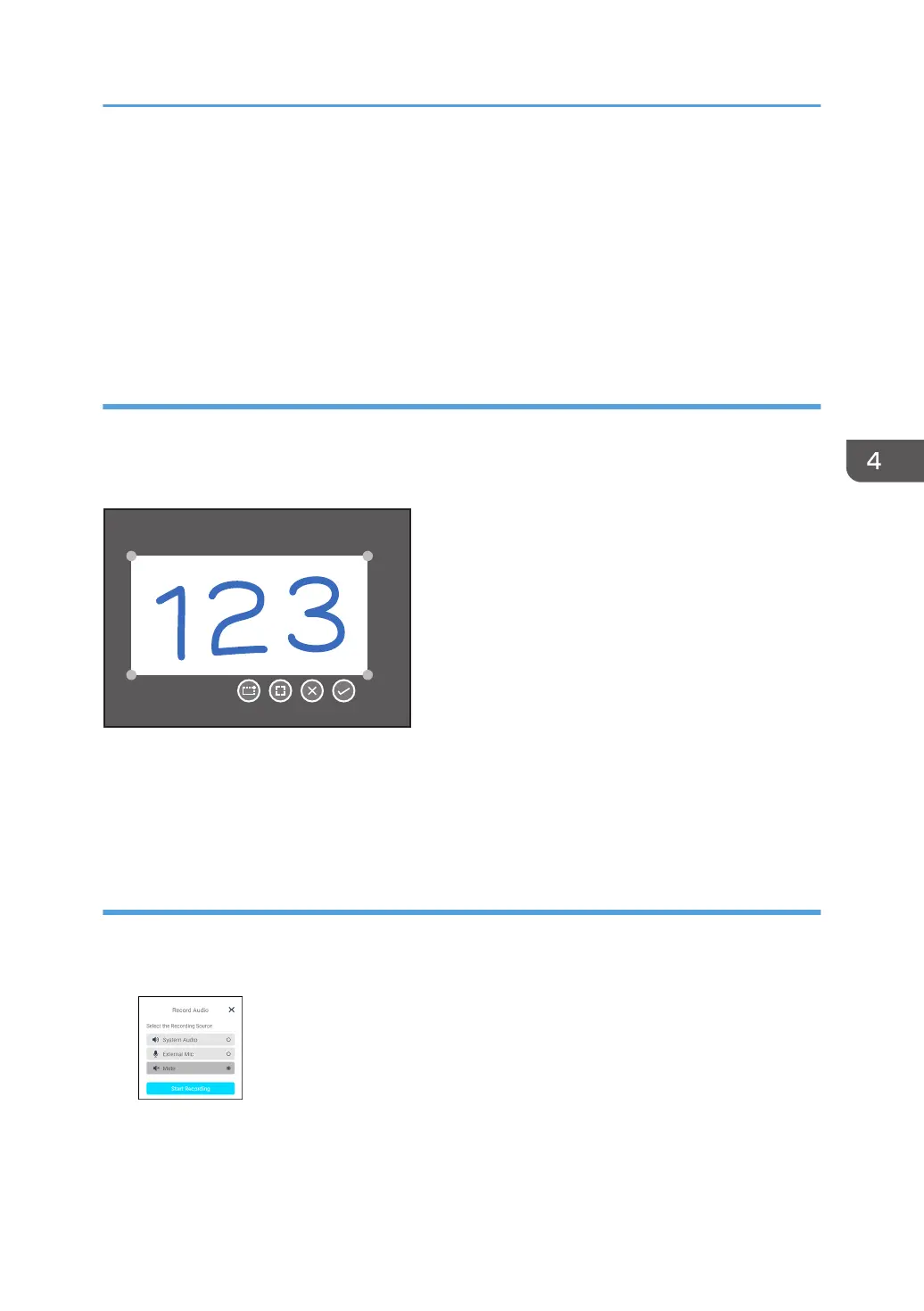
You can capture the screen and save it as an image file.
The capture operation is the same as the capture operation of the annotation. For details, see page 71
"Capturing the Screen and Pasting to the Whiteboard Page".
The display of the captured range will be saved as an image file in a folder on this machine.
You can check the saved image file via File Manager.
You can load a saved image file from the whiteboard app and insert it into a page.
Screen Recorder
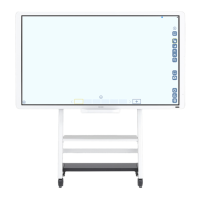
You can record the screen display and save it as a video file.
1. Select the audio to be recorded.
2. Touch [Start Recording].
The recording will start, and the control dialog will appear.
Operate the recording, as necessary.
Using the Tools in the Sidebar Menu
89


 To Next Page