2F-85 & 2F-140 - Instruction Manual
Warning
If the gripper ispowered and activated, it will move assoon asa change to the parameter ismade (position, speed,
force).
Tip
Change speed and force when grasping fragile objects or other specific parts. In all other cases, it is recommended to
use maximum speed and force.
Grip Check node
In order to add and edit a Grip Check node:
For e-Series
1
On the teach pendant, at the top of the screen, tap the Newicon to create a program or the Open icon to load a program.
2
Select Program. The Program window will display.
3
Tap the URCapsmenu in the navigation pane on the left.
4
Tap the Grip Check button.
5
Select the node in the robot program to edit it.
For CB-Series
1
Open a robot program or create one
2
Go to the Structure tab
3
Tap the URCapssubmenu
4
Select Grip Check
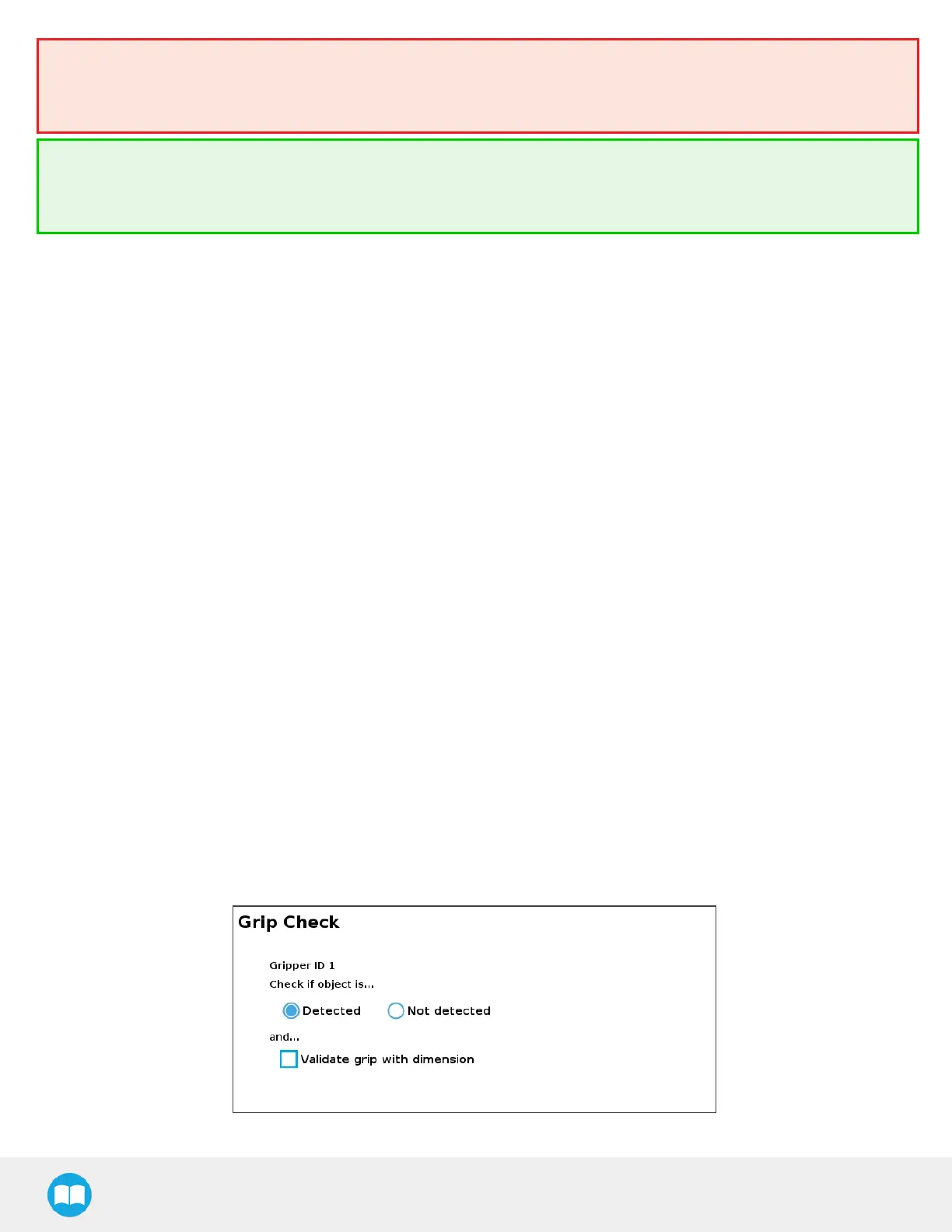
The Grip Check node is pre-packaged asan If statement that prompts the user to select between if the object isdetected and if
the object isnot detected.
Selecting the former option allowsthe user to check a box and choose whether or not the grasp should be validated according to
the object's dimension (in percentage if the gripper isnot calibrated, or in mm/in if the gripper iscalibrated—depending on the
PolyScope configuration).
Fig. 4-32: Grip Check node interface
108



 To Next Page