2F-85 & 2F-140 - Instruction Manual
4.9.3.Gripper Dashboard
Overview
Single Gripper for e-Series
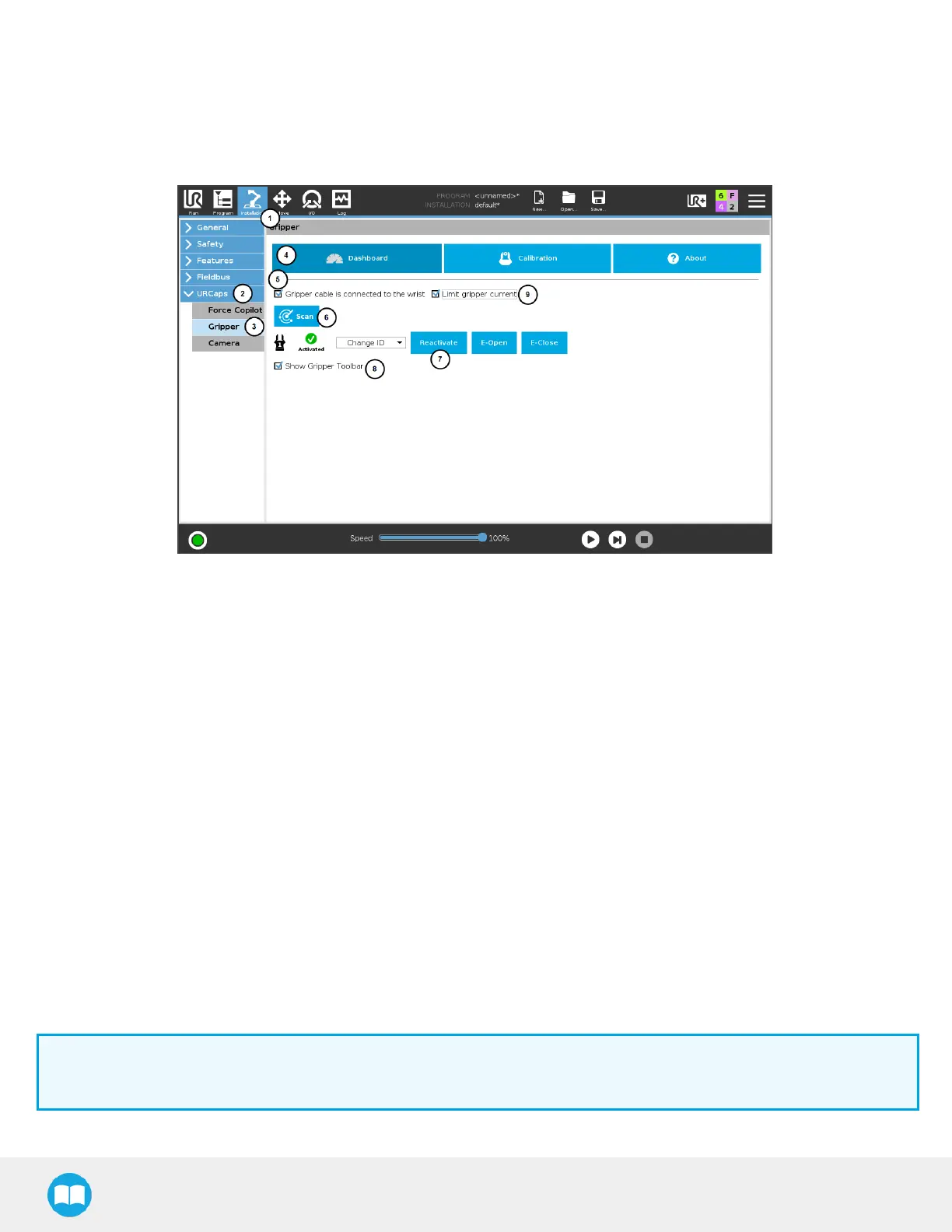
Fig. 4-14: Gripper Dashboard (steps highlighted)
1
On the teach pendant, tap the Installation button.
2
Select URCapsin the navigation pane on the left.
3
Tap the Gripper button.
4
Select the Dashboard tab.
5
If the gripper isconnected to the robot wrist (and not to the robot controller or via a Robotiq Wrist Camera), tick the Gripper
cable isconnected to the wrist box.
6
If no gripper isfound, tap the Scan button to detect any gripper that might be connected to the robot.
7
Tap the Activate/Reactivate button.
8
In order to display the Gripper Toolbar in the UR+ menu of the top ribbon of Polyscope, tick the ShowGripper Toolbar box.
9
In order to prevent overcurrent conditions(for instance when grasping soft objectsor using multiple grippers at the same
time), tick the Limit gripper current box.
a
Limits the current at 600 mA for a single gripper
b
Limits the current at 450 mA for each gripper connected in a multiple gripper configuration
Info
The default gripper ID allocated to the first device connected is 1.
86



 To Next Page