45
Configuring the Access Point
Configuring Network Settings
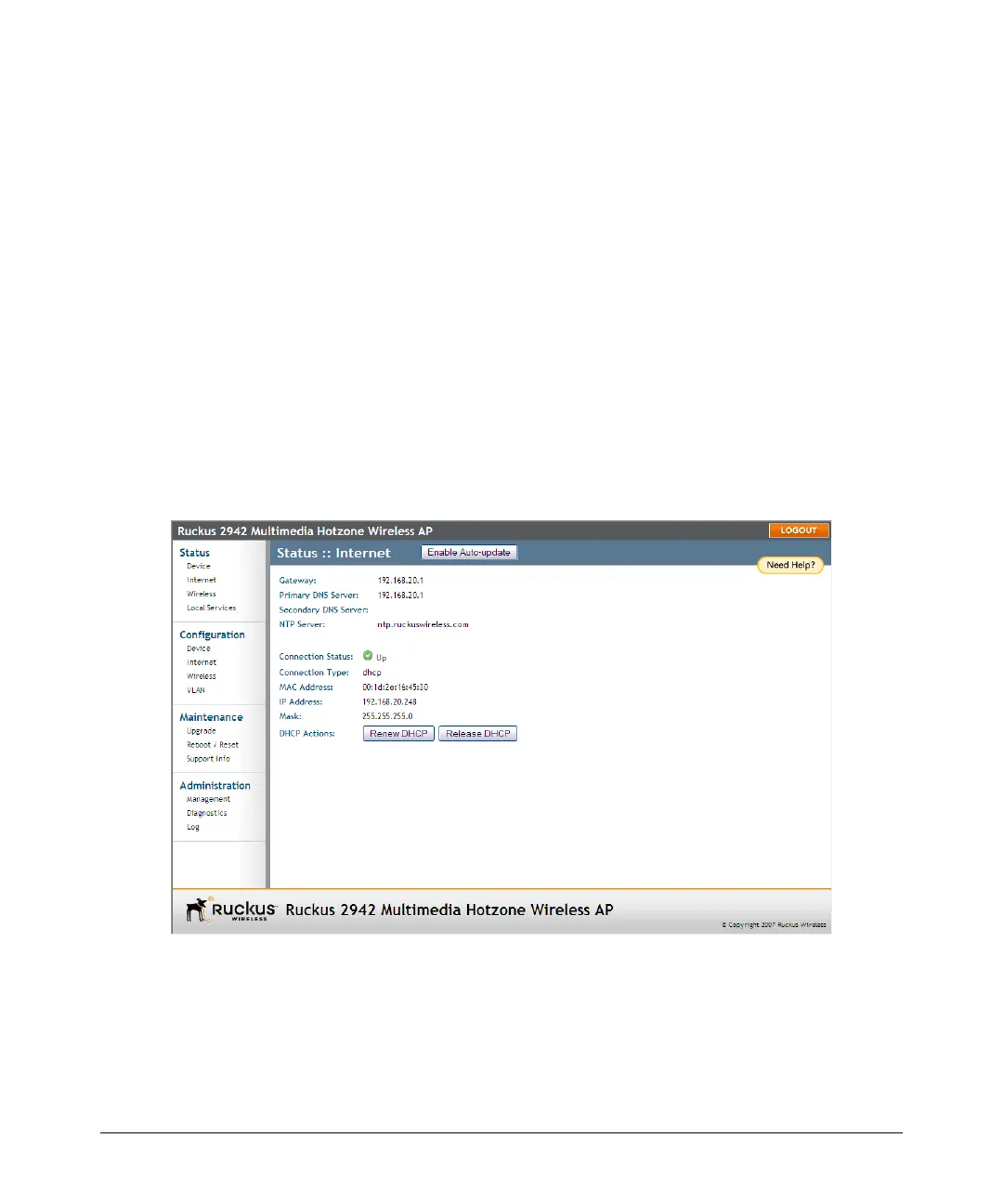
Renewing or Releasing DHCP
This task should be performed only with guidance from your ISP. It serves as a
troubleshooting technique when DHCP addresses to one or more networked devices
prove to be unusable or in conflict with others.
1. Go to Status > Internet.
2. Review the current settings.
3. If the current Connection Type is DHCP, you will be able to see the currently-
assigned IP address and subnet mask listed below.
• To force the DHCP server to assign a new IP address to this AP, click Renew
DHCP. This will cause a slight interruption in network service until the new IP
address has been put in use.
• To force the DHCP server to assign new IP addresses to all networked devices
at the same time (including this AP), click Release DHCP. This will cause a
temporary interruption in overall network service.
4. Click Update Settings to save your settings.
Figure 21. The Status > Internet page










 To Next Page