69
Managing the Access Point
Viewing Local Services
Viewing Local Services
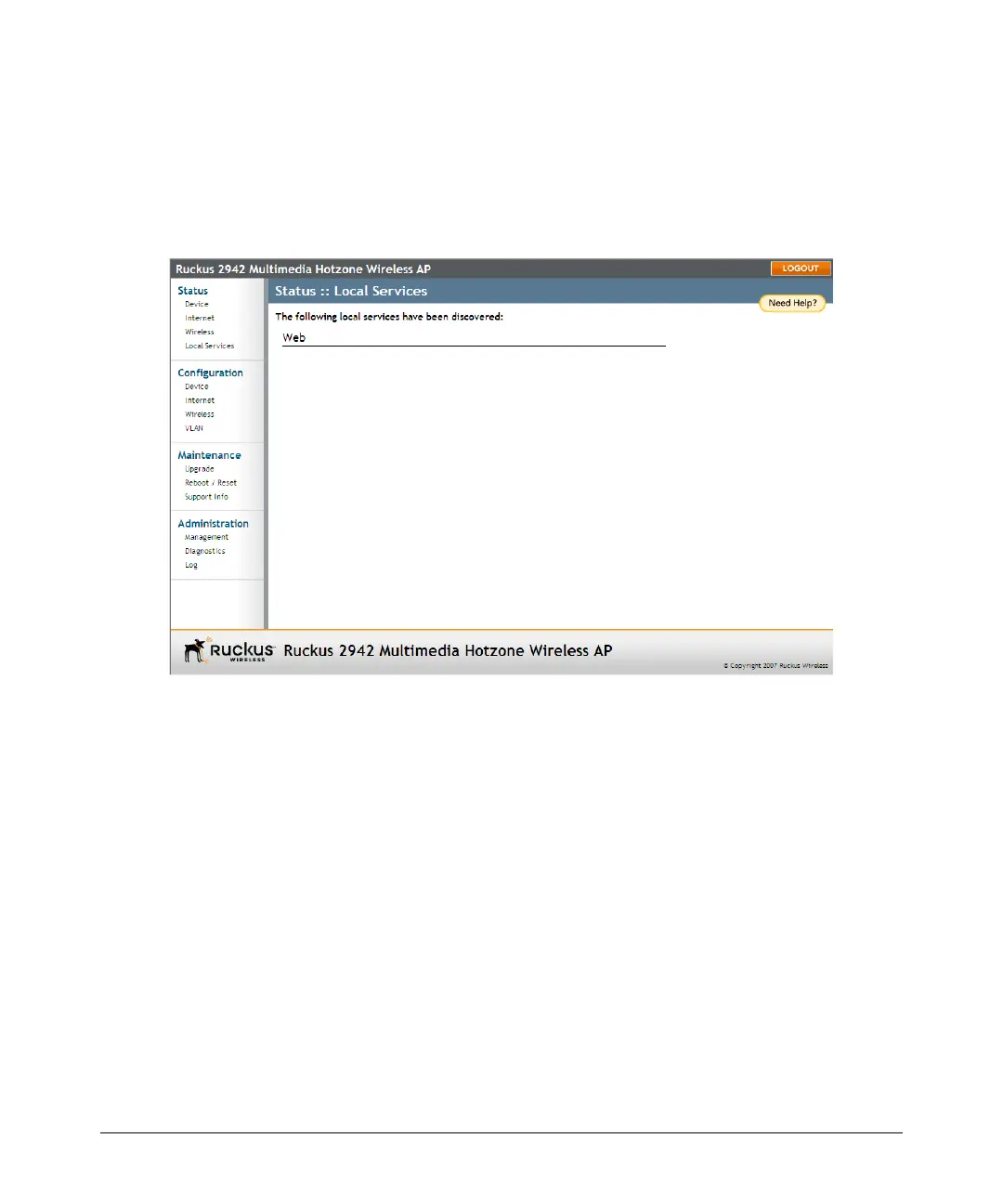
Go to Status > Local Services. The Status :: Local Services page appears, displaying
a list of devices (computers, printers, access points) that are currently connected to
the local network.
Figure 34. The Status > Local Services page
Changing the Administrative Login Settings
The default user name is super and the default password is sp-admin. To prevent
unauthorized users from logging in to the Web interface using these default admin-
istrator login settings, Ruckus Wireless recommends that you change the default Web
interface password immediately after your first login.
To change the default administrator login settings
1. Log into the Web interface.
2. Go to Configuration > Device. The Device page appears.
3. Under Service Provider Login, change the default administrator login settings.
■ (Optional) In Username, type a new user name that you will use to log in to the
Web interface. The default user name is super.
■ In Password, type a new password to replace the default password sp-admin.
■ In Password Confirmation, retype the new password.
4. Click Update Settings. The message Your parameters were saved appears.










 To Next Page