63
Configuring the Access Point
Configuring VLAN Settings
NOTE: If two rows (two networks) are assigned the same VLAN ID, then they are
considered to be the same network.
■ VLAN tagging: Each RJ45 port can be configured to use VLAN tagging. By
default, no RJ45 port is tagged. When the icon contains a white “tag”, that port
is tagged; otherwise it is un-tagged. Clicking on the icon switches between tagged
and un-tagged modes.
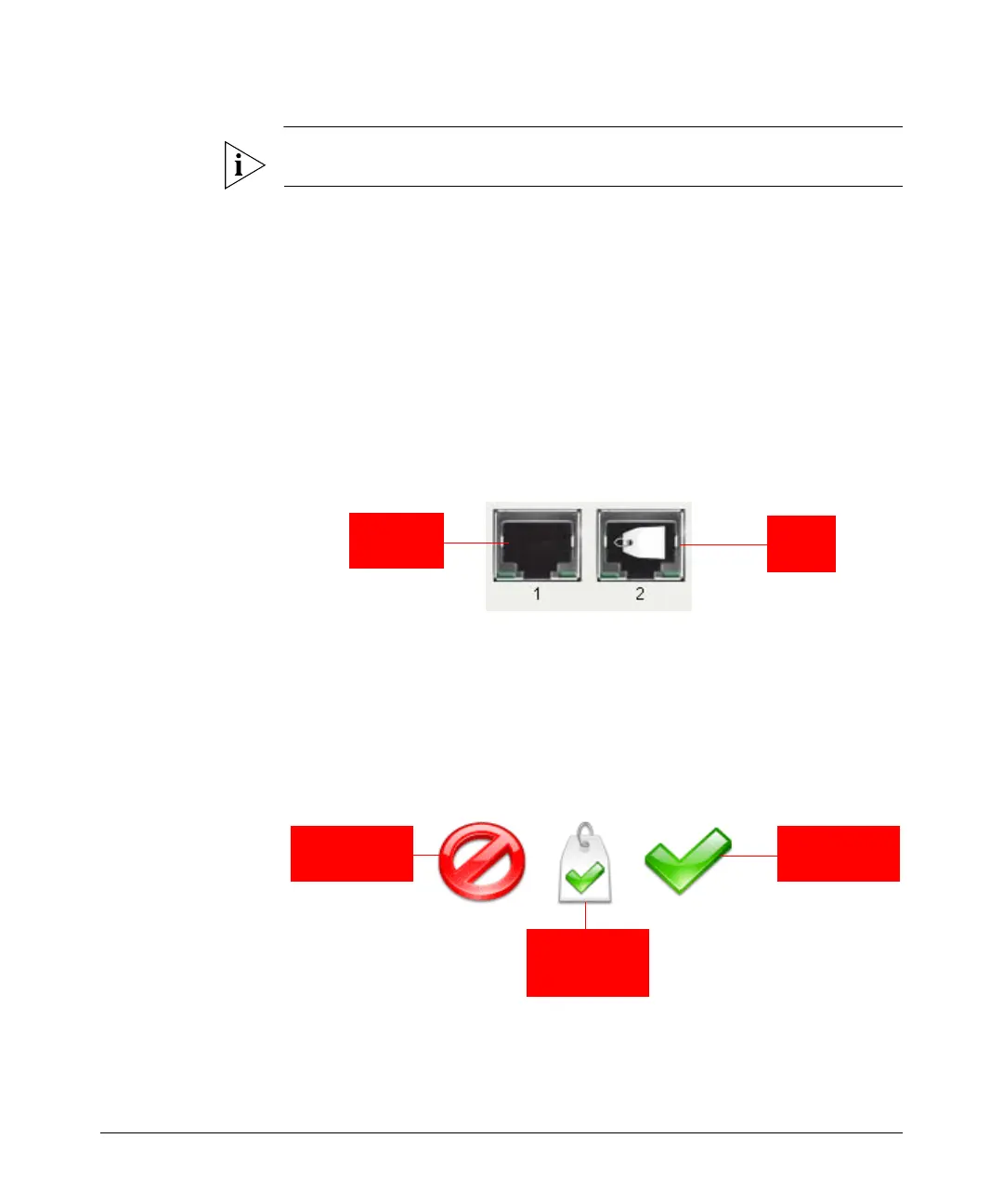
■ RJ45 port state images: The AP may be connected to the same or different
service-provider “uplinks” using the RJ45-type connectors on the back of the AP.
The images of RJ45 connectors represent those RJ45 connectors on the AP. Each
image includes the label of the RJ45 port which it represents. Clicking an icon
switches between “tagged” and “un-tagged” modes. When the icon contains a
white “tag”, that port is tagged; otherwise it is un-tagged. If desired, traffic can
be distinguished with different VLAN IDs, which you configure using this page.
Figure 31. VLAN tagging
■ VLAN port state icons: “Member VLAN ports” allow the network’s traffic to flow
through its associated RJ45 connector. If that port is configured for VLAN-tagging,
then the “tagged member VLAN port” icon will be displayed. A “non-member
VLAN port” does not allow network traffic to flow through the RJ45 connector.
Clicking an icon toggles that VLAN port between “member” and “non-member”
status. The port may automatically be marked as “tagged” where appropriate.
Figure 32. Port state icons
■ Show me an example: Clicking the button labeled Show me an example opens
a few sample configurations, with an explanation of what each shows.
Tagged
member LAN
port
Member LAN
port
Non-member
LAN port












 To Next Page