71
Configuring the Wireless Bridge
Configuring Bridge Settings
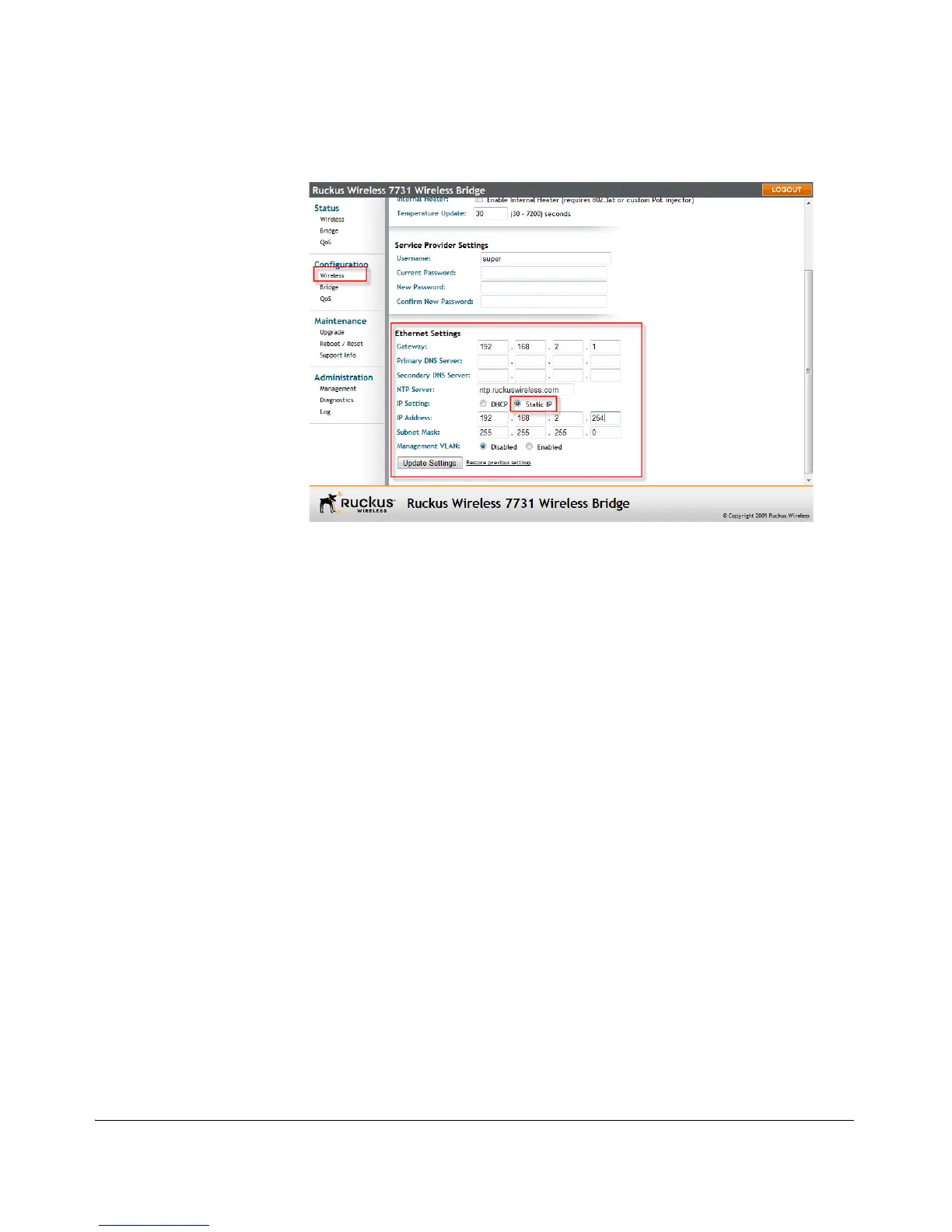
Figure 58. Changing IP address settings
To change the method of acquiring an IP address:
1. Go to Configuration > Bridge.
2. Verify that Connection Type is set to Static IP.
3. When the Static IP options appear, you can make changes to the following
settings:
• Gateway: This is the gateway IP address of the Internet interface.
• Primary DNS Server: The IP address of the primary Domain Name System
(DNS) server.
• Secondary DNS Server: The IP address of the secondary Domain Name
System (DNS) server.
• NTP Server: Hostname of the Network Time Protocol (NTP) server.
• IP Address: The new IP address you will assign to the bridge.
• Subnet Mask: The subnet mask that defines which subnet the bridge is part of.
4. Click Update Settings to save your changes.
Renewing or Releasing DHCP
This task should be performed only if you have access to the DHCP server. It serves
as a troubleshooting technique when IP addresses to one or more networked devices
prove to be unusable or in conflict with others, or when the bridge loses its DHCP-
assigned IP address for some reason.
1. Go to Status > Bridge.
2. Review the current settings.


 To Next Page