English - 55
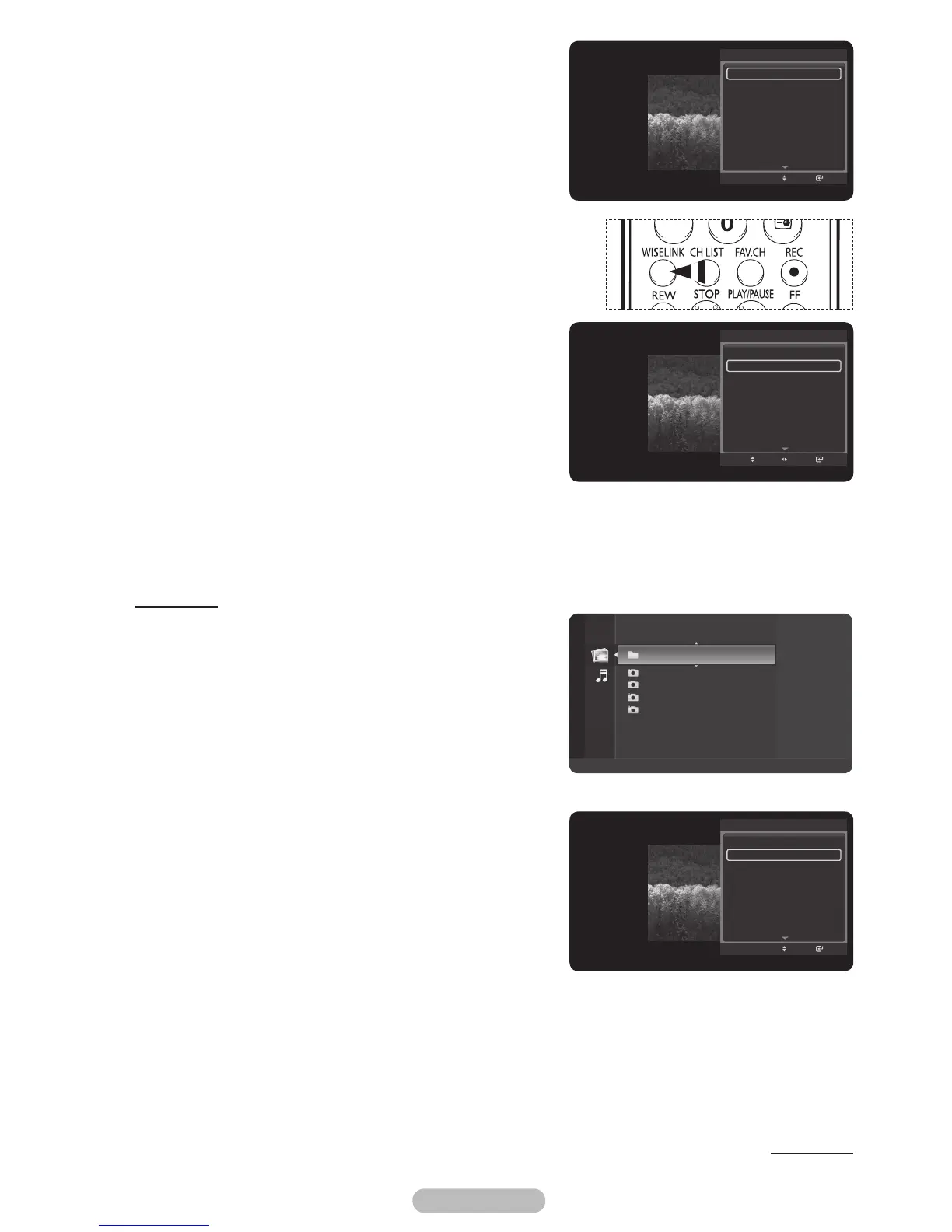
4 Press the TOOLS button during slide show to set the
option.
5 To exit WISELINK mode, press the EXIT button on the
remote control.
➢
Press the WISELINK button on the remote control to turn on
the WISELINK mode.
Slide Show Speed:
Select to control the slide show speed.
Each time the ◄ or ► button is pressed, the speed changes
repeatedly.
(Fast → Slow → Normal)
Zooming-In
1 After switching the mode to WISELINK, select a memory
device that you have installed. (Refer to page 50~51)
2 Press the ENTER/OK button to select Photo.
JPEG files and existing folders are displayed.
3 Press the ▲ or ▼ button to select a photo, then press the
ENTER/OK button.
➢
Pressing the button over a photo icon shows the
currently selected photo in full screen.
4 Press the TOOLS button.
Press the ▲ or ▼ button to select Zoom, then press the
ENTER/OK button.
Each time the ◄ or ► button is pressed, the photo size
decreases or increases.
(x1 → x2 → x4)
x1: Restore the photo to its original size.
x2: Zoom-in to the photo x2.
x4: Zoom-in to the photo x4.
Continued...
Start Slide Show
Start Slide Speed : Normal
Zoom
Rotate
Background Music : On
Background Music Setting
Delete
Picture Mode : Dynamic
Sound Mode : Standard
Adjust
Enter
Move
TOOLS
Folder 1 2007/1/2
File 1.jpg 2007/1/2
File 2.jpg 2007/1/2
File 3.jpg 2007/1/2
File 4.jpg 2007/1/2
USB
Device
Zoom
Option
Photo
Start Slide Show
Zoom
Rotate
Background Music : On
Background Music Setting
Delete
Picture Mode : Dynamic
Sound Mode : Standard
Information
Move
Enter
TOOLS
Start Slide Show
Zoom
Rotate
Background Music : On
Background Music Setting
Delete
Picture Mode : Dynamic
Sound Mode : Standard
Information
Move
Enter
TOOLS
BN68-01314A-02Eng.indd 56 2007-08-22 ¿ÀÀü 10:37:33



 To Next Page