22
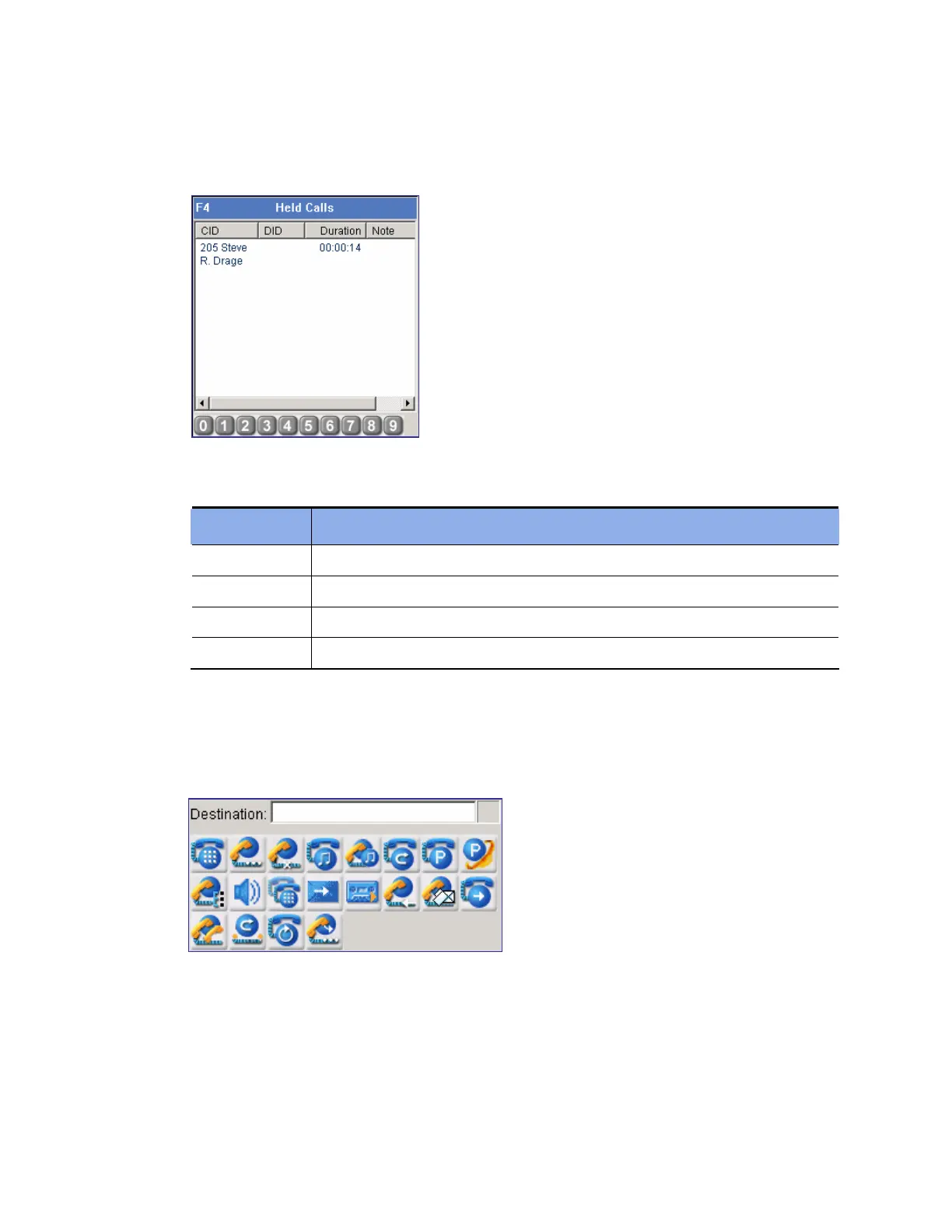
Held Calls Window
When an active call is on hold, the call will be displayed in the <Held Calls> window.
The columns displayed in the <Held Calls> window are described below:
Column Description
CID Phone number and name of the caller
DID Phone number and name connected to the DID
Duration Elapsed time since call hold
Note Notes on call hold
Call Button Window
This window displays the input field for the destination number and call buttons required to
control calls in the OfficeServ Operator.
Press a number of the keyboard without putting the mouse cursor on [Destination] to see the
number entered in the [Destination].








 To Next Page