90
Exporting Phone Book Data to an Excel File
Follow the steps below to export phone book data to an Excel file.
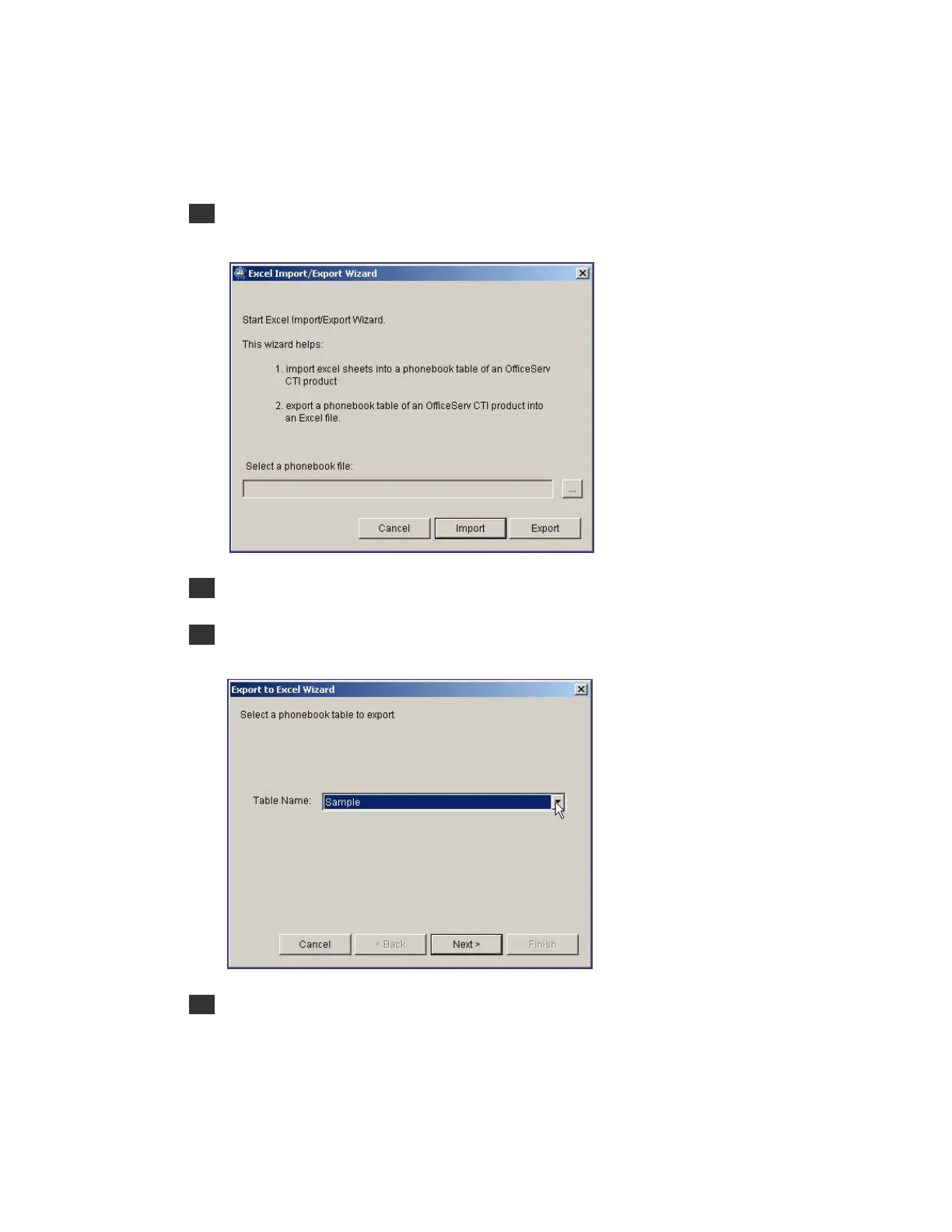
1 Select the [Import/Export Excel Files] from the [Tools] in the main window of the
OfficeServ Operator to see the [Excel Import/Export Wizard] window.
2 Select the PBook.mdb from the phone book files, and click the [Import] button.
3 Select the table name to export, and click the [Next>] button. If the user wants to export
all the tables, select all tables.
4 Select an Excel file where the selected phone book will be stored. When the user wants
to create an Excel file, click the [New] button. When the user wants to store the phone
book into the existing Excel file, click the [Browse] button. Select the selected phonebook
table, and click the [Next>] button.








 To Next Page