73
Leave Message
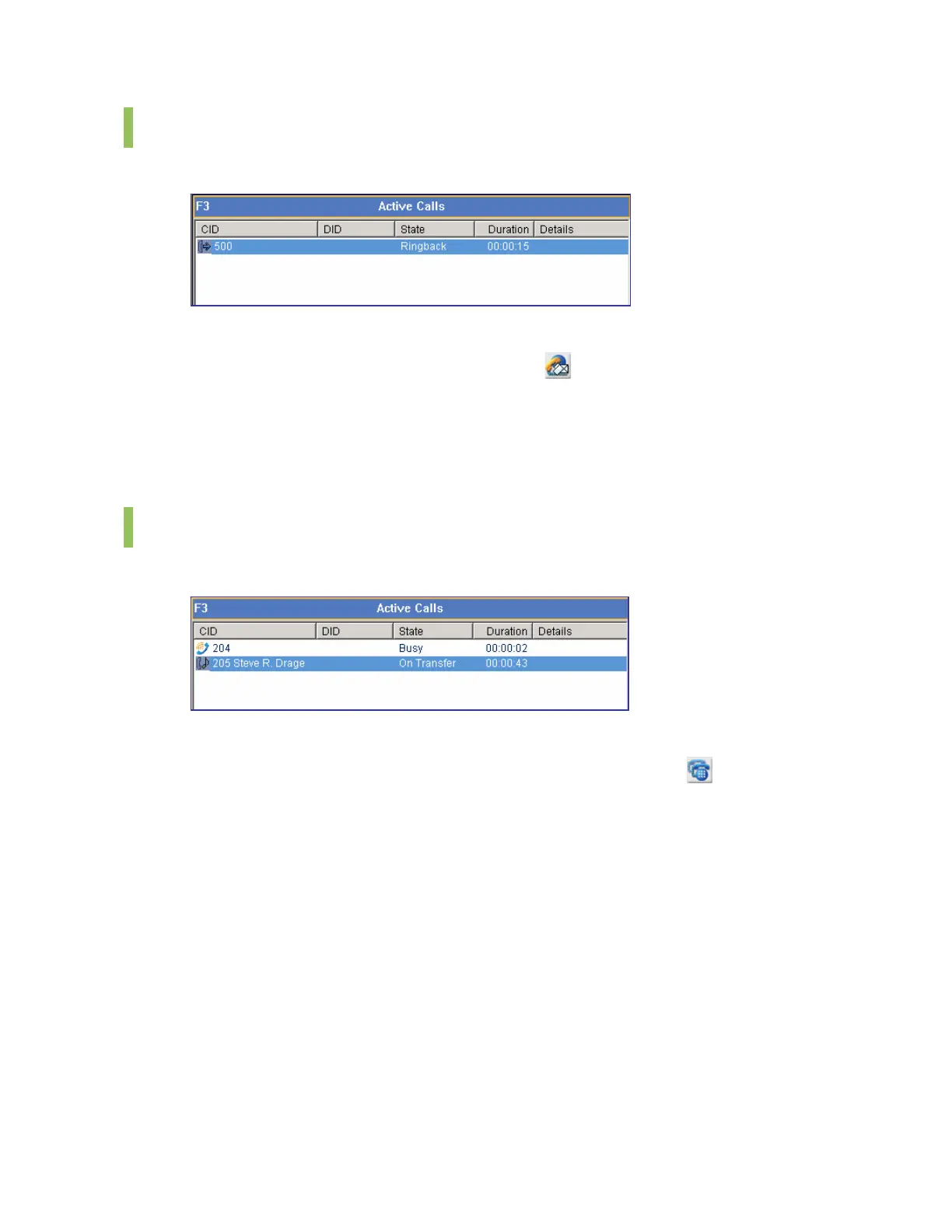
If the target station is busy or does not answer, the caller can leave a message.
Leaving a Message by using the Call Control Button
After dialing the station, click the [Message] button (
) to leave a message.
Leaving a Message by using the Popup Menu
After dialing the station, right-click a device from the <Active> window and then select the
[Leave Message] menu.
Camp On
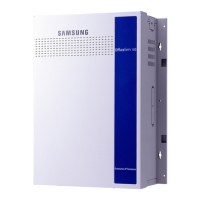
When the user transfers a call to a busy station, the user can set the ‘Camp On’ function.
Setting the ‘Camp On’ Function by using the Call Control Button
When transferring a call to a busy station, click the [Camp On] button (
) to set the ‘Camp
On’ function.
Setting the ‘Camp On’ Function by using the Popup Menu
When transferring a call to a busy station, right-click a device from the <Active> window and
then select the [Camp On] menu to set the ‘Camp On’ function.
Setting the ‘Camp On’ & ‘Drop’ Functions by using the [Enter] Key
When transferring a call to a busy station, press the [Enter] key to set the ‘Camp On’ and
‘Drop’ functions.
Setting the ‘Camp On’ & ‘Drop’ Function by using the Popup Menu
When transferring a call to a busy station, right-click a device from the <Active> window and
then select the [Complete Transfer] menu to set the ‘Camp On’ and ‘Drop’ functions.







 To Next Page