29
Or press CODE to search the code.
Notice: the saving sequence of coding data and measurement can be set in “Setting”.
The settings of recording the code are: Save before, Save after.
Save before: to save the codeblock before the measurement.
Save after: to save the codeblock after the measurement.
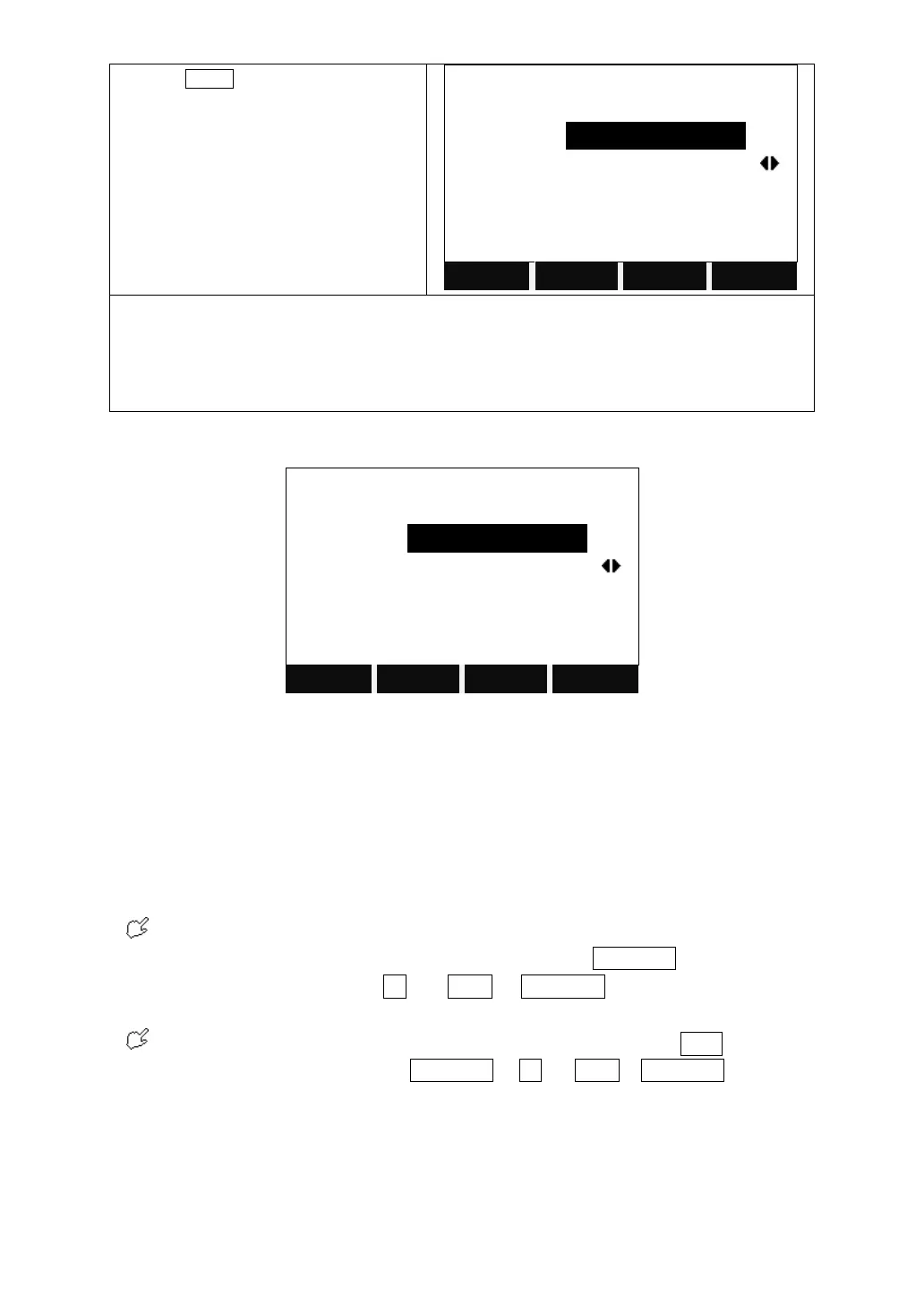
After starting [Coding] function, the coding screen shows as follows:
GSI- code:
CODE: Code name
DESC: Additional remark
Info1: Editable information including more content
……
Info8: Lines
If the code is existed in the storage, it can be edited. Here the edited data
cannot be kept in the storage any more. You may press RECORD to save it as a
single coding data, or press All (or DIST + RECORD) to save it in the file
together with measured data as a single coding data.
If the code entered does not exist, after editing, you may press ADD to add a
new code in the storage, or press RECORD or All (or DIST + RECORD) to keep
it as a single coding data in the job file.
3.3.5 Quick Code
Using the quick code function, a predefined code can be called up directly via
numeric keyboard. The code is selected by entering a two-digit number, then the


 To Next Page