Camera
• From Home Screen, press
OK Key
• Using the
Navigation key
, press
OK key
on
Camera.
To take a picture, point the lens towards the object and press the
OK key
. Your picture will be
saved automatically to the Gallery App. Press the
Left Soft Key
to open the Gallery App.
Zoom In & Out: When pointing the lens towards the object, press the
Left
or
Right
Navigation
key
to Zoom in and Zoom out.
TIP:
By clicking the
Right Soft Key (Options)
you can access a menu to adjust your
camera such as; Auto Review, Self-Timer, Size, Shutter sound and Storage (Storage option is
only available if you have a memory card installed).
SELFIE:
Open Camera App, close phone lid, use secondary display as a viewfinder, press the
Volume Down key
to take the picture.
Gallery
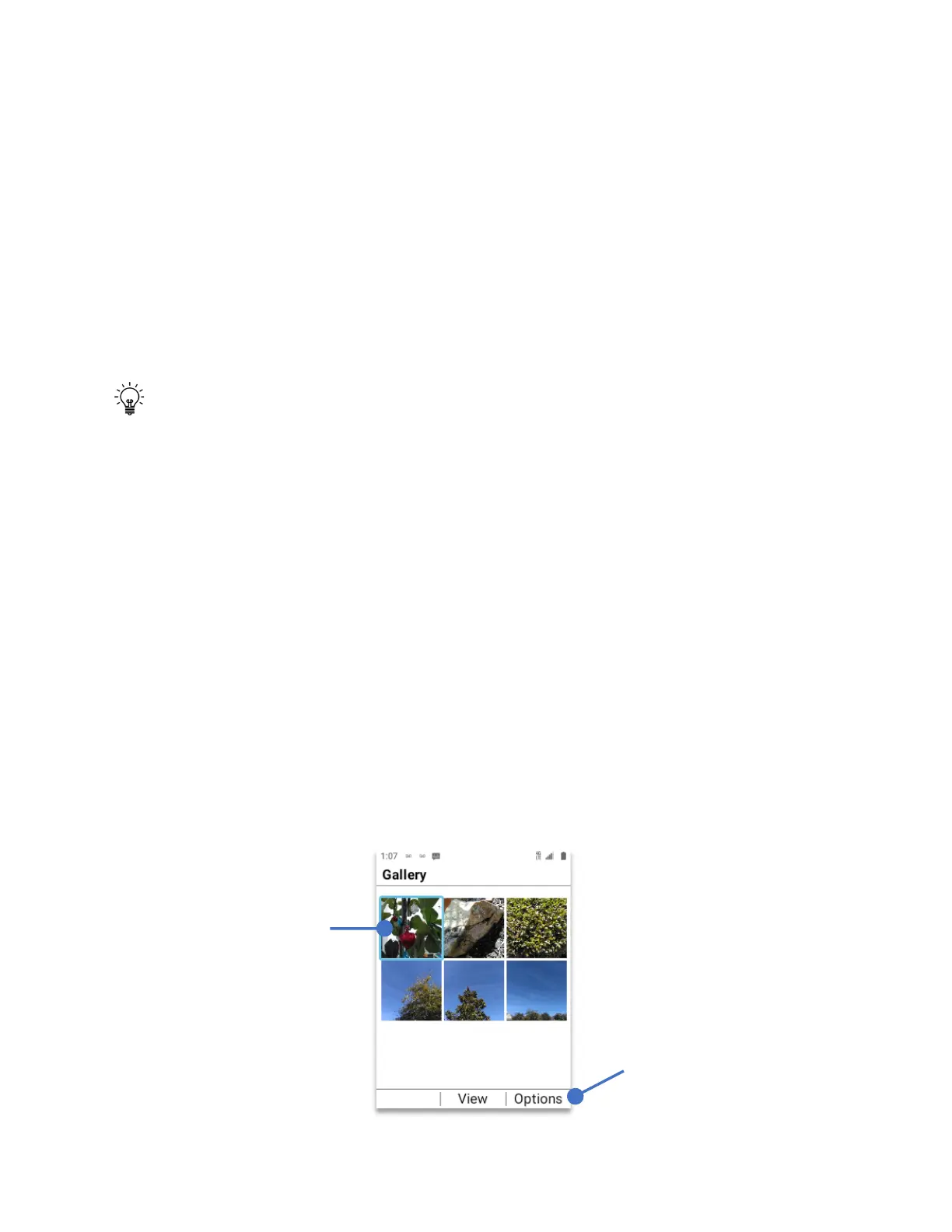
The Gallery app shows all the pictures taken and stored in your device.
• From Home Screen, press
OK key
, navigate to “Gallery”, Click
OK key.
• Using
navigation key
, select the picture that you want to open, click the
OK Key
.
• Pressing the
Right Soft Key (Options)
you can access a menu to crop, delete, get
details, send or set as a wallpaper or contact photo.
• When viewing a picture, press the
Left Soft Key (Guide)
to access, Full Screen view,
Rotate (left), Rotate (right) and Zoom in and out. In order work on a pop-up window
please use the numbers that appear on each option.
Using the Navigation
Key, select the
picture that you
want to see and click
the OK Key (View)
Press
right soft key
to open options



 To Next Page