Aqua Mail
To open Aqua Mail:
• From Home Screen, press
OK Key
• Using the
Navigation key
, press
OK key
on
Aqua Mail.
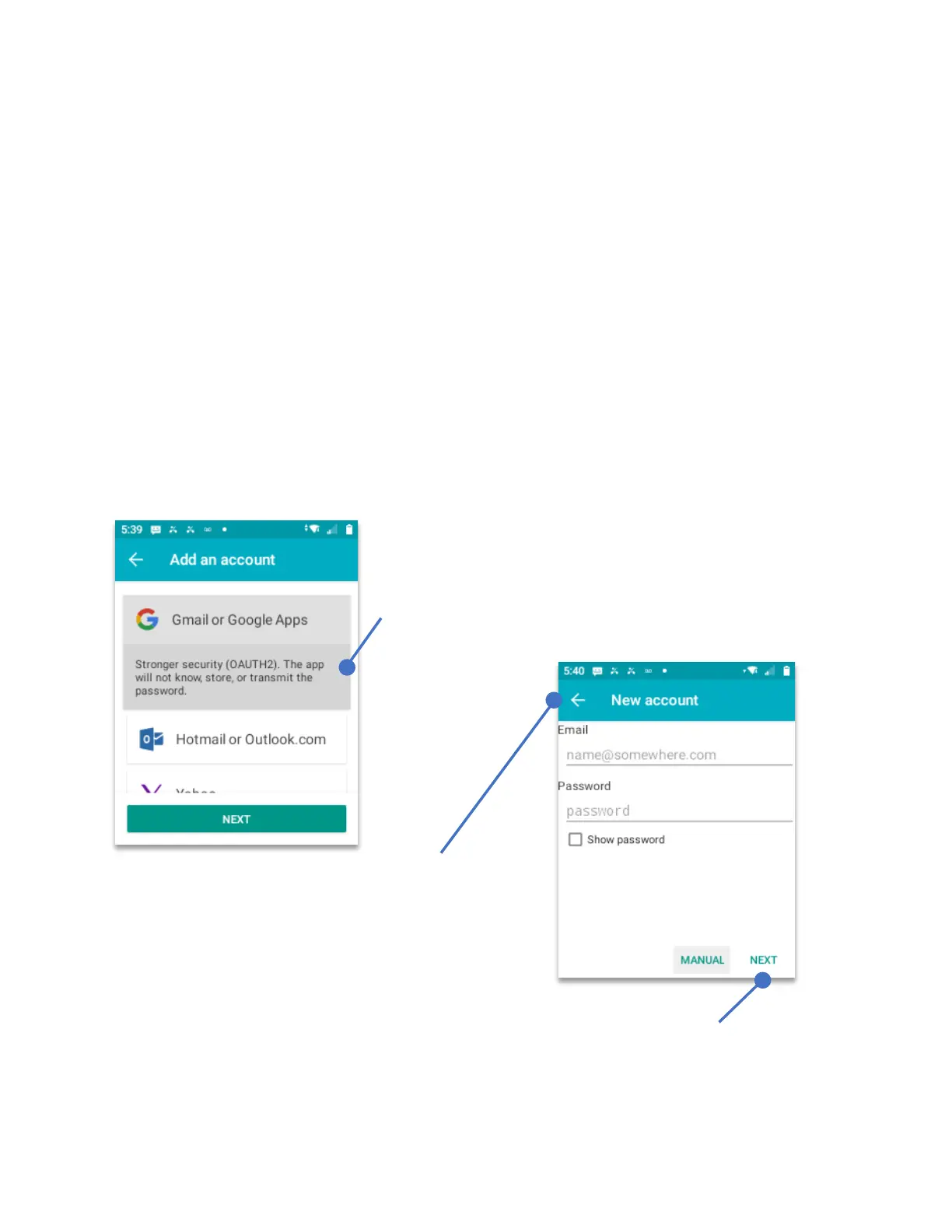
When using Aqua Mail for the first time, you will be prompted to add an email account. Either
choose your mail provider from the listed options or, if your mail provider is not listed, use
Other Mail
to manually configure the account.
NOTE: Aqua mail will not work with email platforms that needs a browser with OAUTH2 to
authorize the user id and password.
Using your
Navigation Key
, select the email platform that you will setup and press the
OK
Key.
When the email account is selected, it will appear a
small explanation of the type of encryption. Then,
using the
Navigation key
scroll down until the
“NEXT”
banner is selected. Press the
OK key
.
After pressing the
OK key
, the
New Account
window
will appear. Using the
Navigation key
select the
“Email line”
and using the
keypad
add your email
address. Using the
Navigation key
select the
“Password”
line and using the
keypad
add your
password (Passwords are always case sensitive).
After adding the Email address and the Password, using the
Navigation key
,
scroll down until
“NEXT”
is selected, press the
OK key
to jump to the next
section.



 To Next Page