Turning On the Mobile Hotspot.
• From Home Screen, press
OK Key
• Using the
Navigation key
, press
OK key
on
Tools & Settings.
• Using the
Navigation key
, press
OK Key
on
Settings
.
• Using the
Navigation key
, press
OK Key
on
Wireless & Network
.
• Using the
Navigation key
, press
OK Key
on
Tethering & Mobile hotspot
• Using the
Navigation key
, press
OK Key
on
Tethering & Mobile hotspot
• Using the
Navigation key
scroll to
“On”
• Press the
OK Key (Set)
The Hotspot sharing disclaimer will appear. After reading it, press
OK key (OK)
. The Mobile
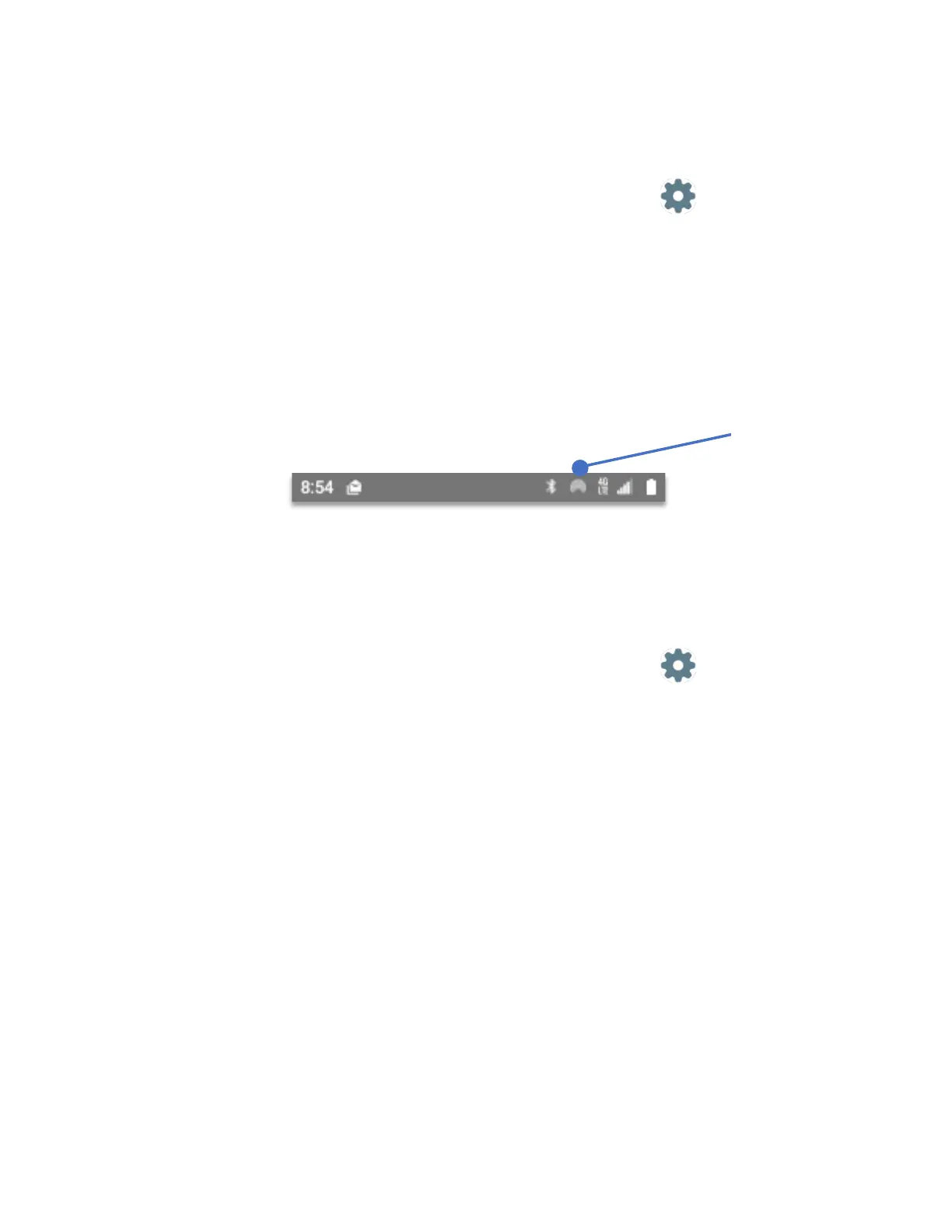
hotspot is now on and active. The device top notification bar shows an Internet sharing logo.
Bluetooth tethering:
The mobile hotspot feature allows you to share the cellular Internet connection to other
devices via Bluetooth.
• From Home Screen, press
OK Key
• Using the
Navigation key
, press
OK key
on
Tools & Settings.
• Using the
Navigation key
, press
OK Key
on
Settings
.
• Using the
Navigation key
, press
OK Key
on
Wireless & Network
.
• Using the
Navigation key
, press
OK Key
on
Tethering & Mobile hotspot
• Using the
Navigation key
, press
OK Key
on
Bluetooth tethering
• Using the
Navigation key
scroll to
“On”
• Press the
OK Key (Set)
Cellular Networks
Cellular networks menu is where you can configure different settings related to the Cellular
network such as:
1. Data Usage
2. Data Roaming
3. Network mode
4. Access Point Names
5. Network operators



 To Next Page