3–10
3.2. DVR Firmware Updates
The firmware version is displayed on the top right corner of every menu. The firmware
update must be obtained from Seon Design. To install a firmware update, a USB
memory device must be formatted by a Windows®-based computer using the FAT file
format.
To install a firmware update on the TL-HD DVR:
1. Load the Program Update file onto the USB memory device formatted by a
Windows®-based computer using the FAT file format.
2. Power up the DVR using the vehicle ignition.
3. Insert the USB memory device with the new firmware version into the USB port on
the DVR. After the DVR has started, go to the System Settings menu > Program
Update.
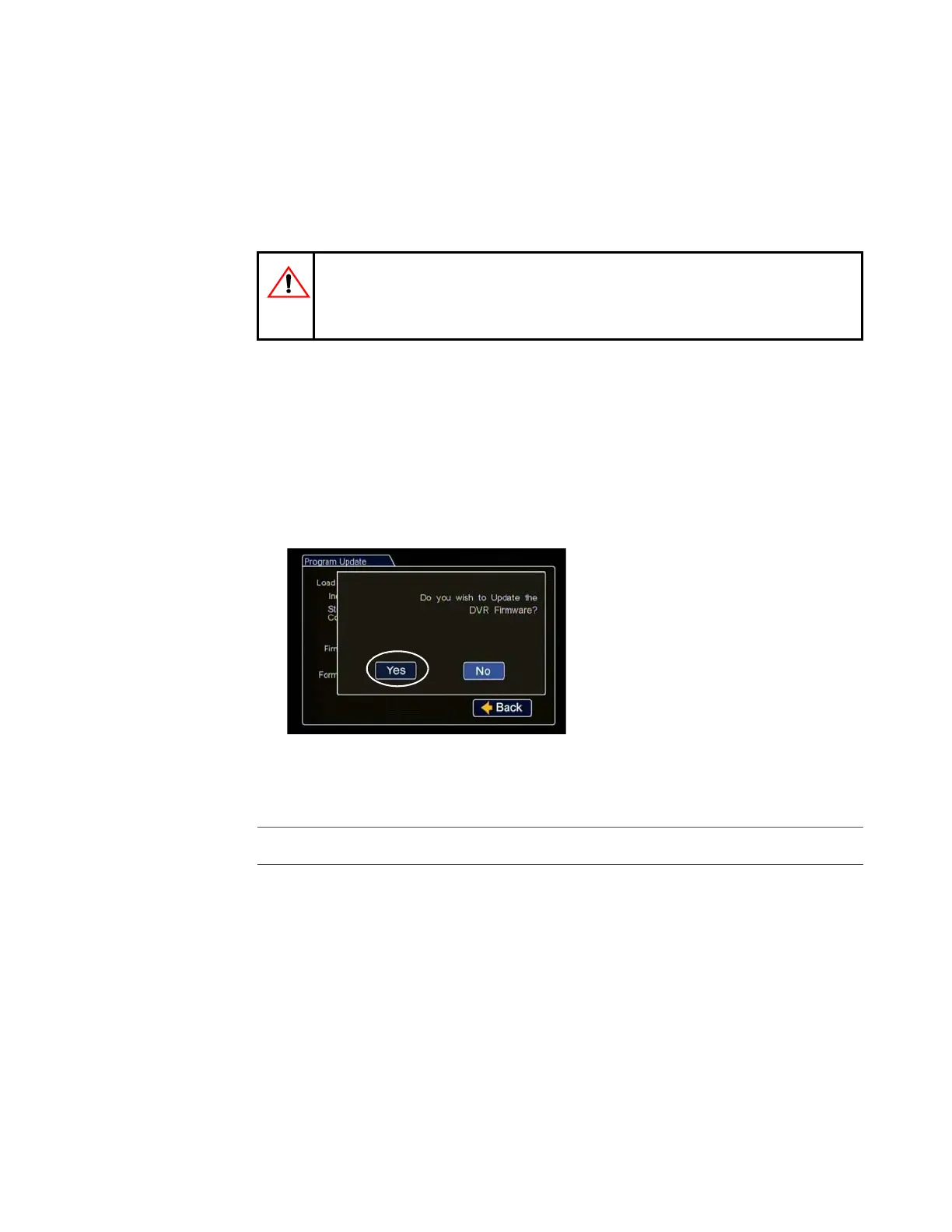
4. Click Update, and in the confirmation window, click Yes to proceed.
5. Once the update is finished, the DVR will automatically restart when the ignition is
on.
6. Confirm the DVR firmware version has updated.
7. Remove the USB memory device.
CAUTION: Equipment damage
Do not crank the vehicle power or remove the power while updating the
DVR firmware. Equipment damage may result.
Figure 3-19
Updating DVR Firmware Dialog Box
Important: On restarting, the DVR will take up to 3 minutes to load as it completes the upgrade process.
Wait until the DVR finishes loading.



 To Next Page