Advanced Setup
3–6 700-1014 R002
3.1.2. Configuration Uploads in vMax Web
To remotely install a configuration update, the configuration file (received from Seon
or created and saved from a DVR in your network) must be on a computer with
network access to the DVR and with Internet Explorer 8, 9, or 10 (32 bit version only)
to access vMax Web.
To upload a configuration update to the TL-HD via vMax Web:
1. On a computer connected to the DVR, copy the DVR configuration file.
2. Power up the DVR using the vehicle ignition.
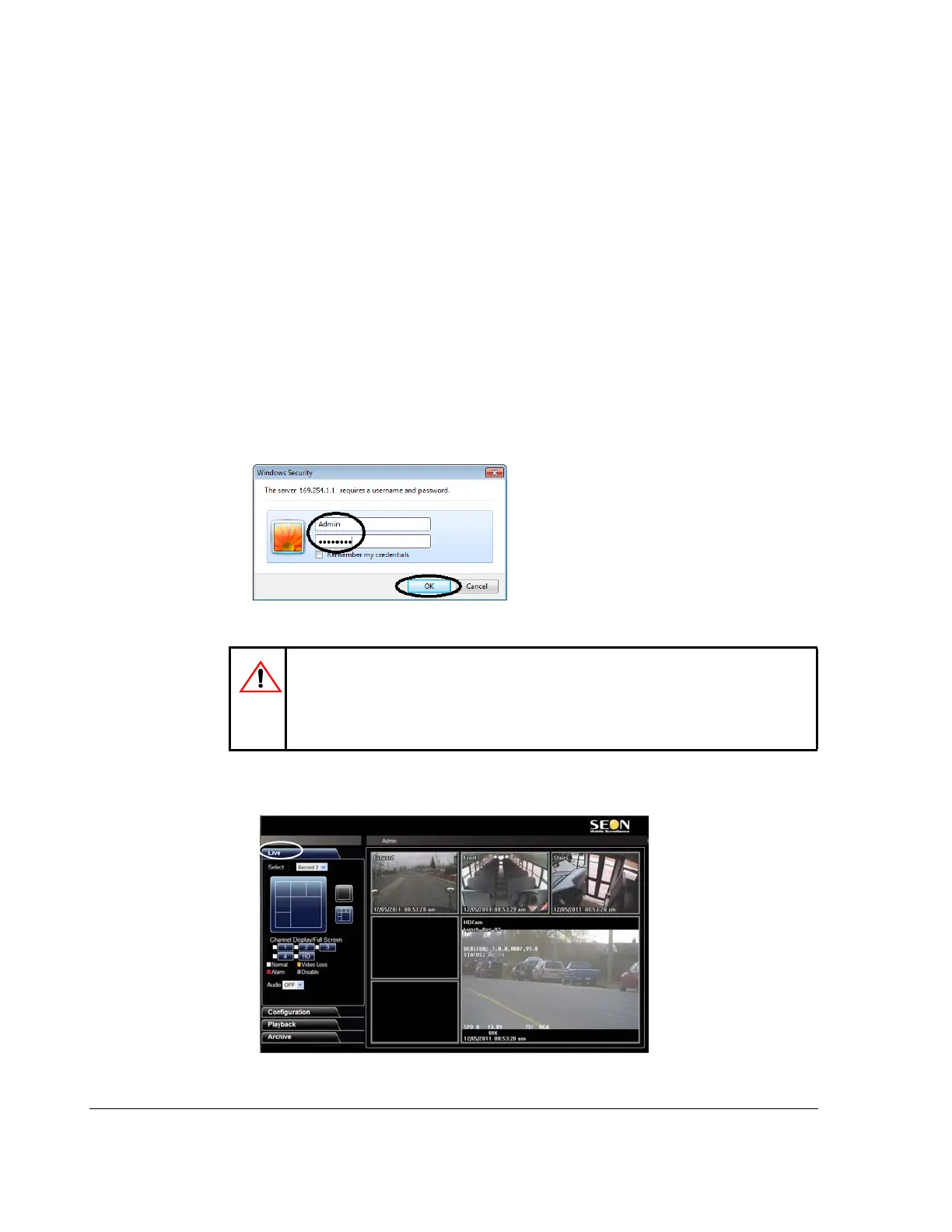
3. Open Internet Explorer and type the DVR IP address in the address bar.
The Seon default IP address is http://169.254.1.1.
4. If necessary, agree to Windows Run Add-On requests.
5. At the login prompt, enter a user name and password. User names and passwords
are case sensitive
.
6. Click Ok.
vMax Web opens with the DVR cameras displaying in Live view.
Figure 3-9
DVR Login Screen
CAUTION: DVR Password Security
The default password is 11111111. For security purposes, Seon recommends that
the user default login and system settings passwords should be changed. Seon is
not responsible if the password is lost or forgotten.
Figure 3-10
vMax Web Live View



 To Next Page