9.5 The Map Display
-15-
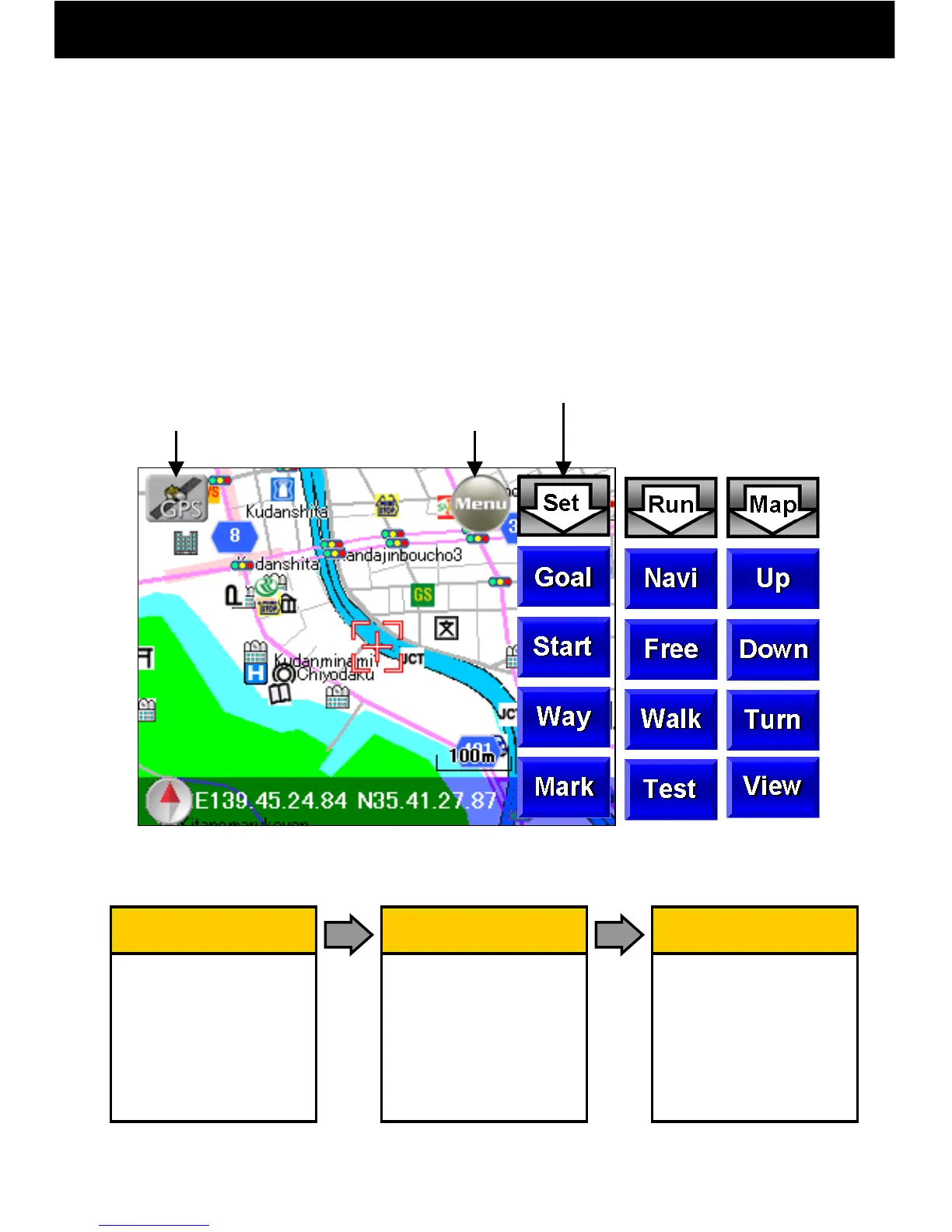
① When navigation is active and the map screen is displayed, the type of
button on the map can be changed by pressing the upper right switching
arrow button.(Order: Set > Run > Map)
② To capture current location using GPS, press the GPS button in the
upper left. When a GPS satellite signal is received, this button changes to
an antenna. To stop GPS reception, push the antenna button again.
③ To search for a goal point by address or station name, press the menu
button and search from the Navi Top Menu.
登録 ボタン
① Switch Button
② Set a Goal Point
③ Set a Start Point
④ Set Waypoints
⑤ Set Mark Points
走行ボタン
① Switch Button
② Navi Drive
③ Free Drive
④ Walk Navi
⑤ Test Navi
地図ボタン
①Switch button
②Show detailed map
③Show wide-area map
④Rotate map to right
⑤Switch to a
bird’s-eye view
Switching Arrow Button
GPS Button
Menu Button
●Button Types
①
②
③
④
⑤
Set Button
Run Button
Map Button


 To Next Page