5. Reset Functions
-5-
Note: The stylus pen is not provided
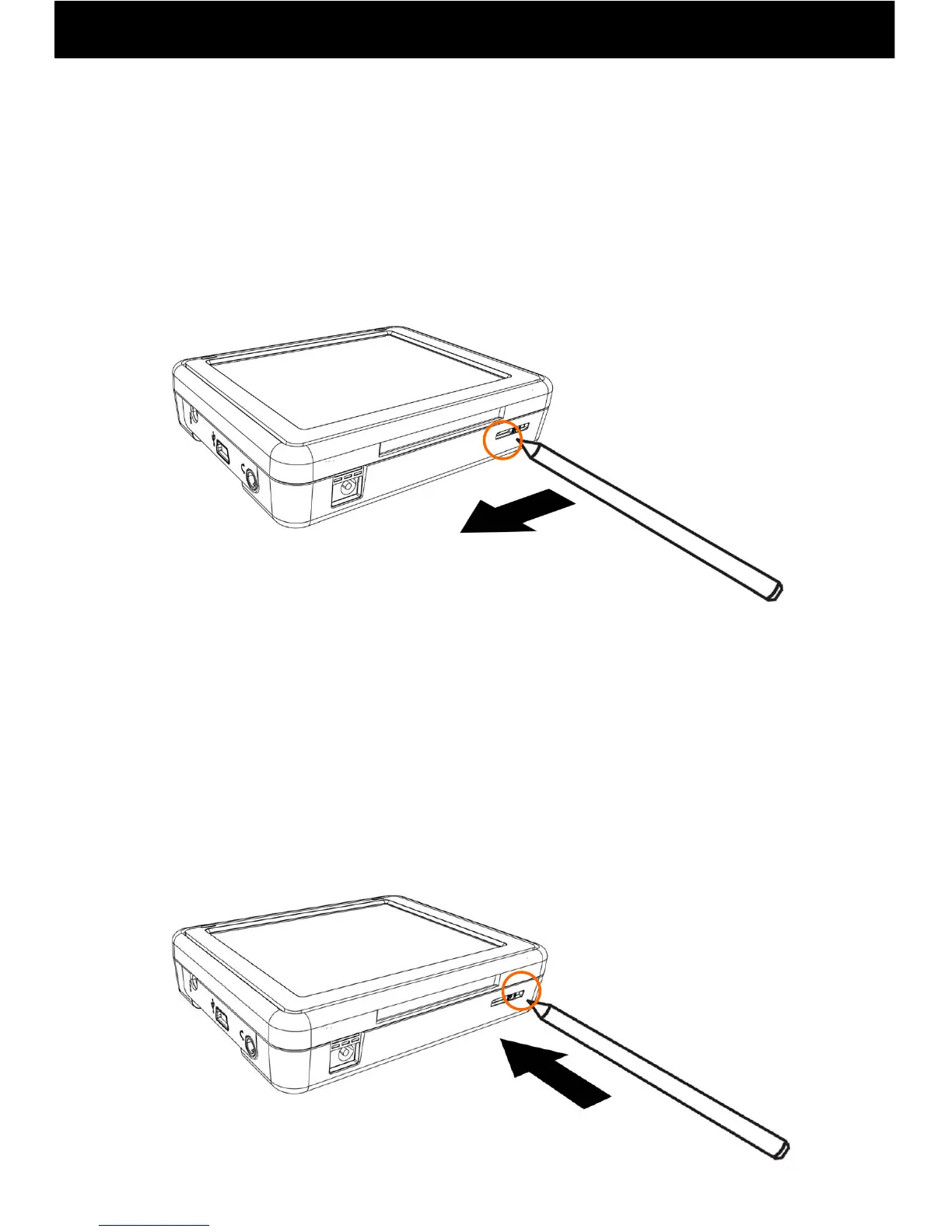
●Hard Reset
●Soft Reset
Note: To carry out a hard reset when some disorder arises in this
machine, use a stylus pen etc. to slide the hard reset switch to the right,
turning it OFF, then move the switch to the left ON position. After a hard
reset, the time will be reset. Please set the time again.
Note: When the software freezes, the display may be returned to its initial
state by inserting the tip of a stylus pen etc. in the soft reset hole and
pressing.


 To Next Page