9.10.7 Editing Mark Points
-34-
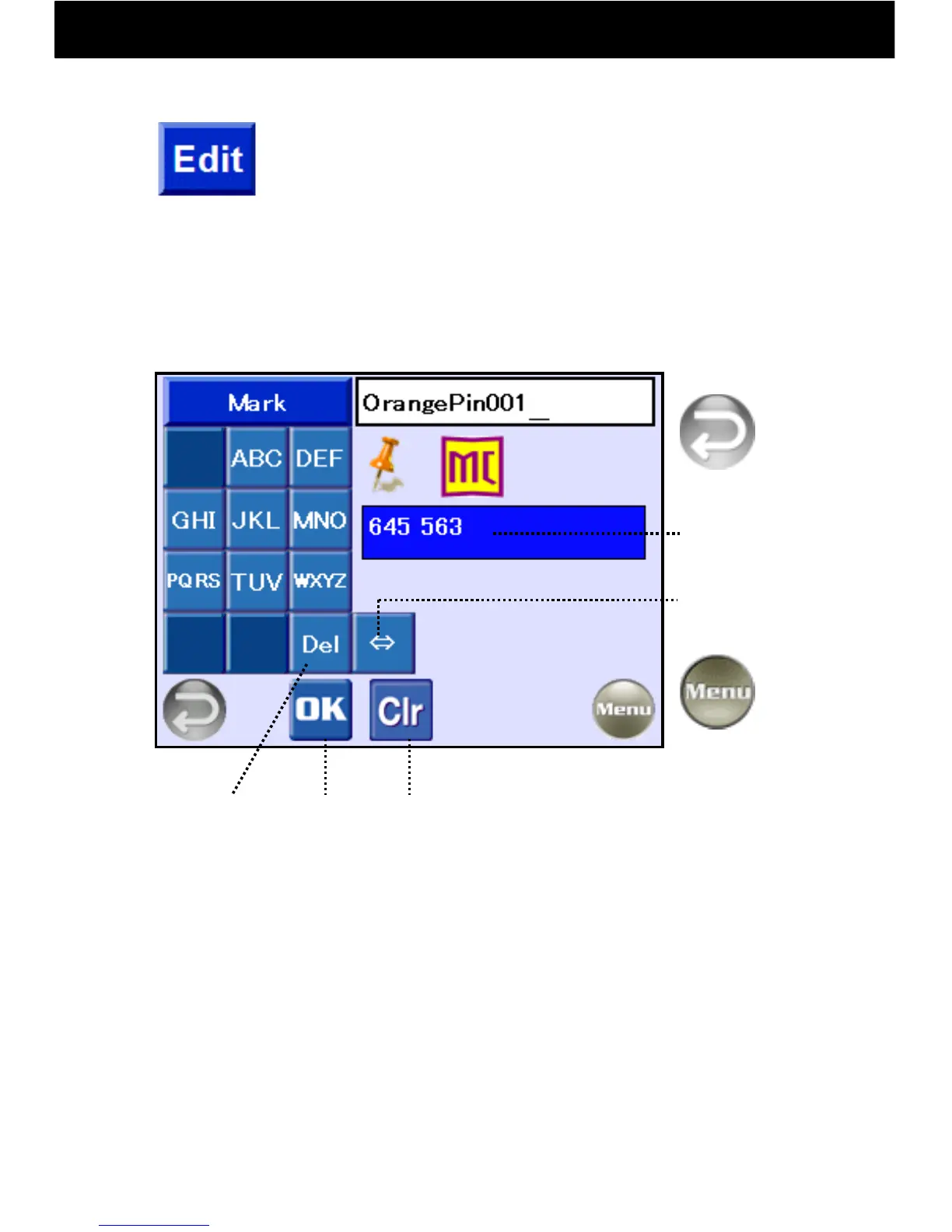
When the Edit button on the Mark Point search
screen is touched, the name of the corresponding
mark can be edited, and the map code for that point
will be displayed.
With the “⇔” button, character type may be changed in the order of
hiragana > katakana > English > numerals.
When the MC (Map Code) button is selected, the map code of that
mark point will be displayed.
Return to
Previous
Screen
Return to
Menu
The map code of
the point is
displayed.
Change
Character
Type
Clear
Setting
Set
Erase
1 letter
① When keys are pressed, letters are displayed in the entry frame on
the right. If no key is pressed for three seconds, the cursor will move
to the right.
② Delete single letters by pressing the “Del” key.
③ In the above example entry, “Tocho,” the “TUV” key was pressed once
to display “t,” the “MNO” key was pressed three times to display “o,” the
“ABC” key was pressed three times to display “c,” the “GHI” key was
pressed twice to display “h,” and the “MNO” key was pressed three times
to display “o.”
④ After entering letters, press OK to set.



 To Next Page