Doc# E145701 6 - 8
6: Using the Shark® 100 Meter
Electro Industries/GaugeTech
The Leader In Power Monitoring and Smart Grid Solutions
Electro Industries/GaugeTech
The Leader In Power Monitoring and Smart Grid Solutions
• To enter a number value, use the Down button to select the number value for a
digit and the Right button to move to the next digit.
NOTE: When you try to change the current setting and Password protection is
enabled for the meter, the Password screen appears. See Section 6.2.4 for instruc-
tions on entering a password.
7. Once you have entered the new setting, press the Menu button twice.
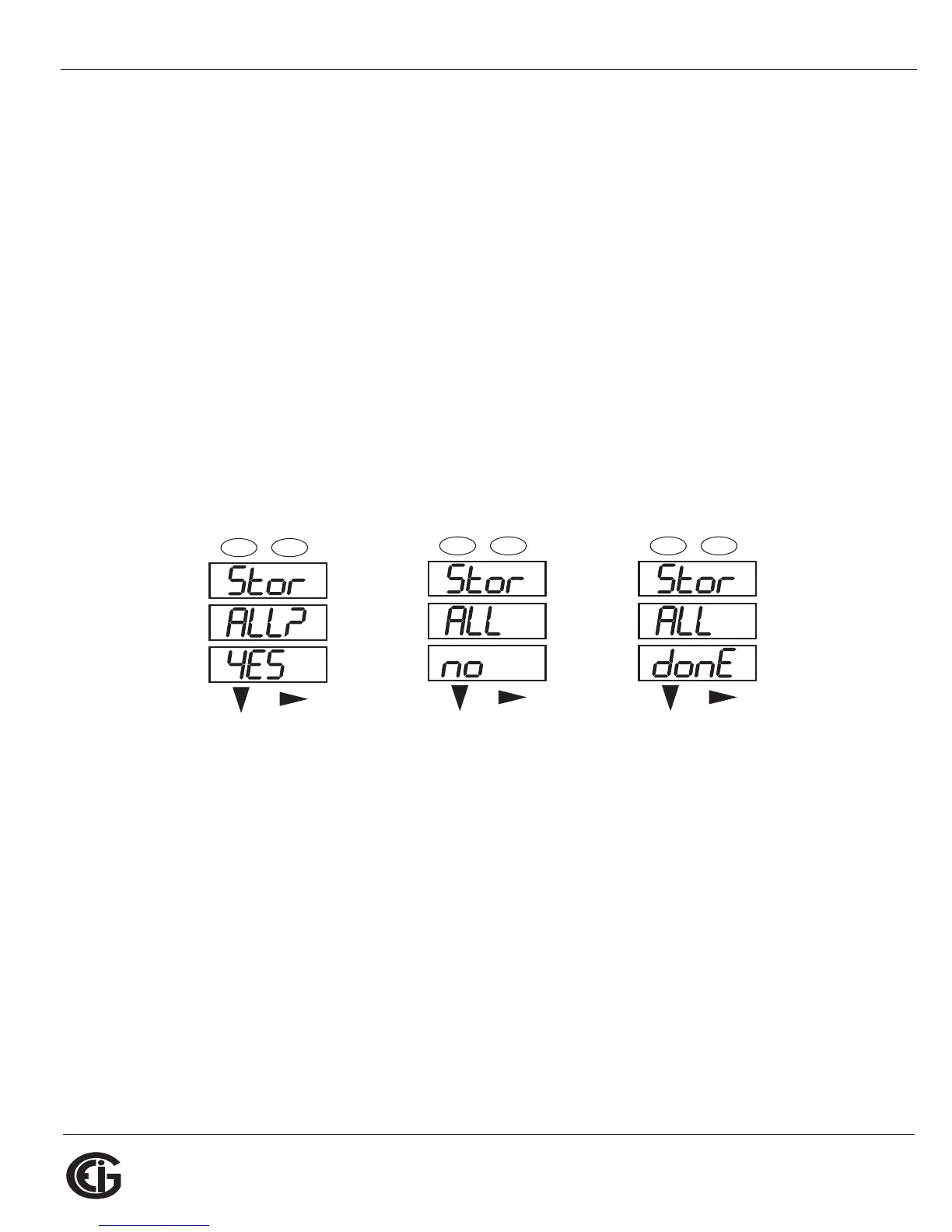
8. The Store ALL YES screen appears. You can either:
• Press the Enter button to save the new setting.
• Press the Right button to access the Store ALL no screen; then press the Enter
button to cancel the Save.
9. If you have saved the settings, the Store ALL done screen appears and the meter
resets.
Press the Enter button to save Press the Enter button to The settings have been
the settings. Press the Right Cancel the Save. saved.
button for Stor All no screen.
A
B
C
-
-
-
MENU ENTER
A
B
C
-
-
-
MENU ENTER



 To Next Page