Doc# E145701 5 - 14
5: Communication Installation
Electro Industries/GaugeTech
The Leader In Power Monitoring and Smart Grid Solutions
Electro Industries/GaugeTech
The Leader In Power Monitoring and Smart Grid Solutions
6. Continue setting up parameters as needed. After you finish your modifications,
make sure to press the "S" key on the keyboard. This saves the new values and
causes a Reset in the Ethernet card.
CAUTION! DO NOT PRESS 'D' as it will overwrite any changes and save the
default values.
5.2.2.2: Resetting the Ethernet Card (INP10)
If the IP Address of the Ethernet card is unknown, you can restore the factory default
settings by pressing the Reset button on the card. The INP10 card's Reset button is
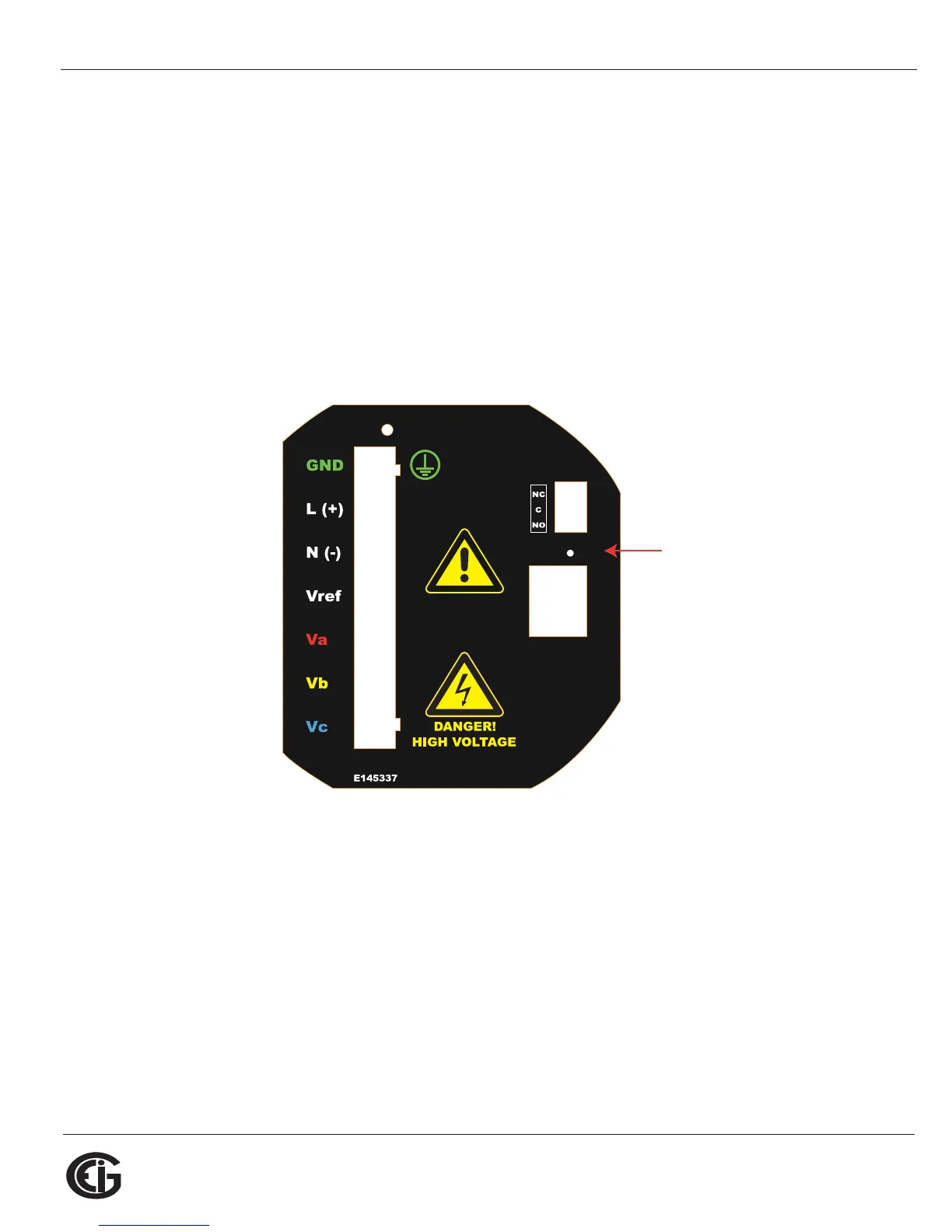
accessed from the back of the Shark® 100 - INP10 meter. See the figure below.
Figure 5.8: Backplate of Shark® 100 - INP10 meter, showing Reset button
Using an implement such as a ballpoint pen tip, press and hold the Reset button for
30 seconds. The INP10 card will be reset to the default settings shown in Section
5.2.2.
5.3: Shark® 100B Meter Ethernet Configuration
See Chapter 7 for detailed instructions on configuring the Shark® 100B meter’s
Ethernet communication.
KYZ
10/100 Base T
LINK
ACTIVE
RESET
2ESET"UTTON



 To Next Page