Doc# E145701 6 - 3
6: Using the Shark® 100 Meter
Electro Industries/GaugeTech
The Leader In Power Monitoring and Smart Grid Solutions
Electro Industries/GaugeTech
The Leader In Power Monitoring and Smart Grid Solutions
• Change Settings
• View Parameter Values
• Scroll Parameter Values
• View Limit States
6.2: Using the Front Panel
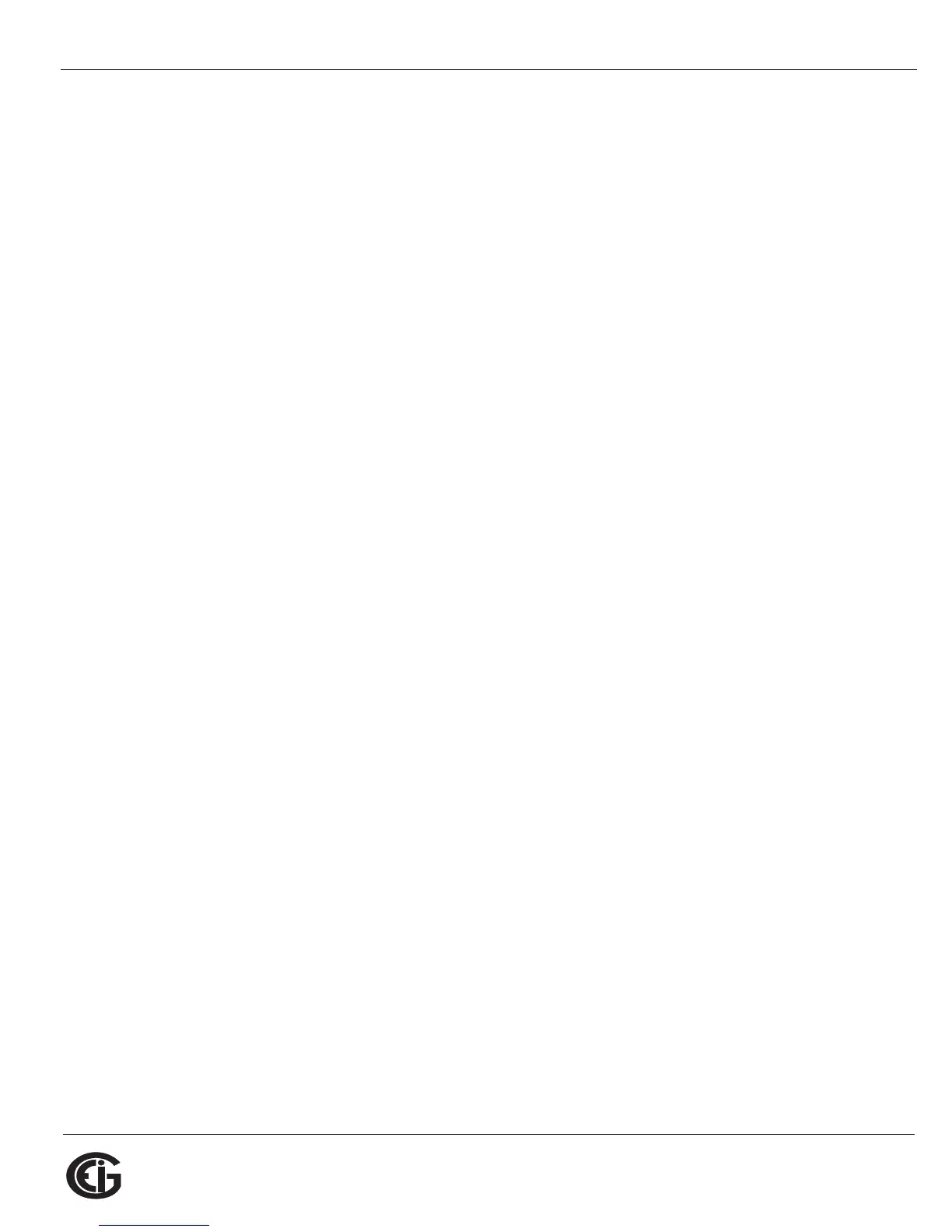
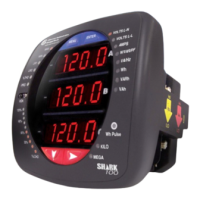
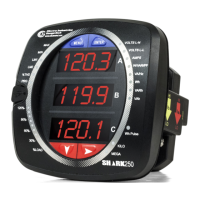
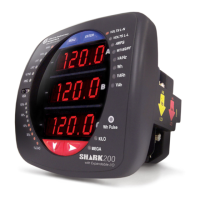
You can access four modes using the Shark® 100/100B/50 meter’s front panel
buttons:
• Operating mode (Default)
• Reset mode
• Configuration mode
• Information mode - Information mode displays a sequence of screens that show
model information, such as Frequency, Amps, V-Switch, etc.
Use the Menu, Enter, Down and Right buttons to navigate through each mode and
its related screens.
NOTES: See Appendix A for the complete display mode Navigation maps.
6.2.1: Understanding Startup and Default Displays
Upon Power Up, the meter displays a sequence of screens:
• Lamp Test screen where all LEDs are lit
• Lamp Test screen where all digits are lit
• Firmware screen showing build number
• Error screen (if an error exists)
After startup, if auto-scrolling is enabled, the Shark® 100/100B/50 meter scrolls the
parameter readings on the right side of the front panel. The Kilo or Mega LED lights,
showing the scale for the Wh, VARh and VAh readings. Figure 6.3 shows an example
of a Wh reading.



 To Next Page