Doc# E145701 5 - 9
5: Communication Installation
Electro Industries/GaugeTech
The Leader In Power Monitoring and Smart Grid Solutions
Electro Industries/GaugeTech
The Leader In Power Monitoring and Smart Grid Solutions
5.2.1: Setting up the Host PC to Communicate with the Shark® 100 -
INP10 meter
Consult with your Network Administrator before performing these steps because some
of the functions may be restricted to Administrator privileges.
The Host PC could have multiple Ethernet Adapters (Network Cards) installed. Identify
and configure the one that will be used for accessing the Shark® 100 - INP10 meter.
The PC's Ethernet Adapter must be set up for point-to-point communication when
configuring the Shark® 100 meter's INP10 option. The Factory Default IP parameters
programmed in the INP10 card are:
IP Address: 10.0.0.1
Subnet Mask: 255.255.255.0
See Section 5.3.2. for additional parameters.
5.2.1.1: Configuring the Host PC's Ethernet Adapter through
Windows©
The following example shows the PC configuration settings that allow you to access
the Shark® 100 - INP10 meter configured with default parameters. Use the same
procedure when the settings differ from the default settings.
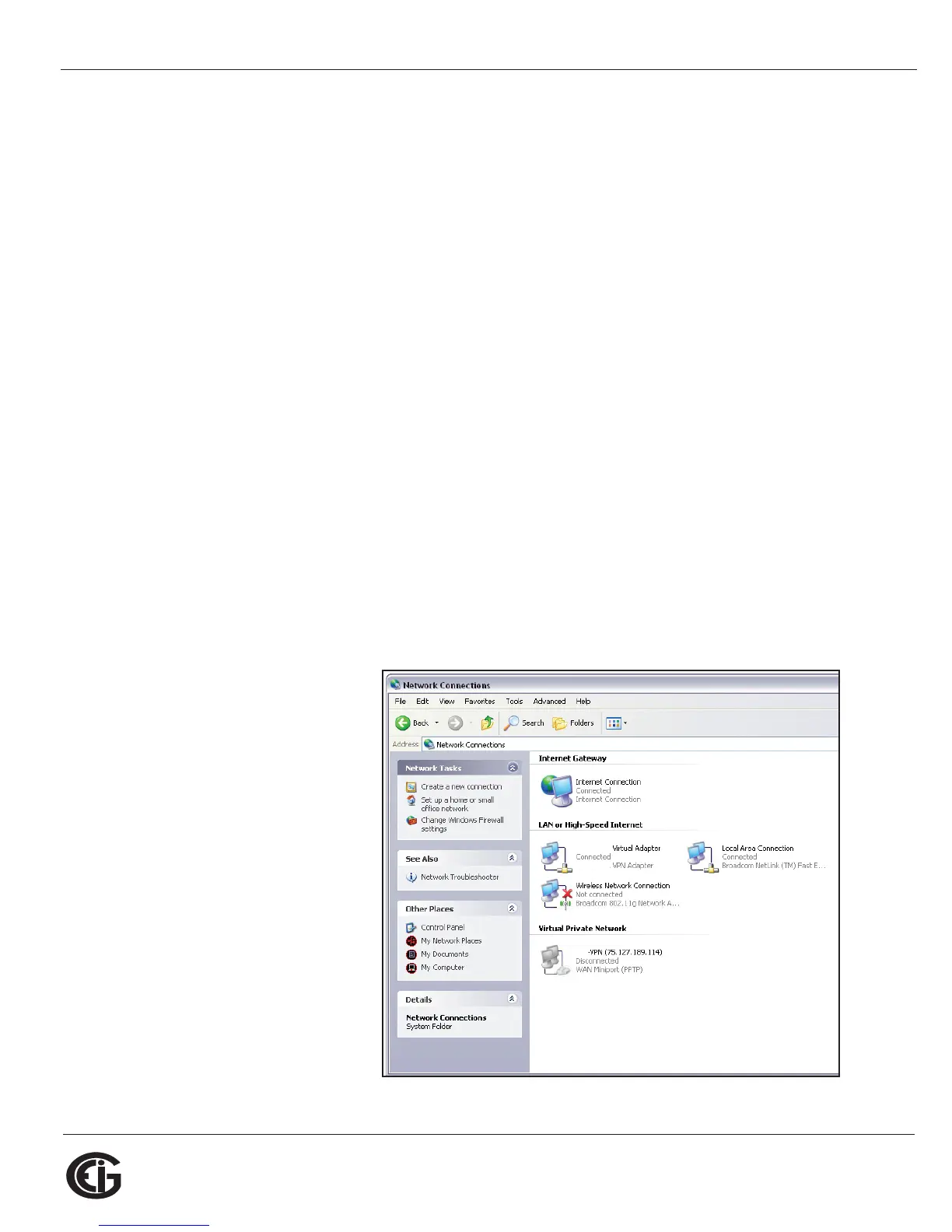
1.From the Start Menu,
select Control
Panel>Network
Connections. You will
see the window shown
on the right.
2. Right click on the Local
Area Network Connec-
tion you will use to con-
nect to the Shark® 100
meter and select Prop-
erties from the drop-
down menu.



 To Next Page