Doc# E145701 6 - 4
6: Using the Shark® 100 Meter
Electro Industries/GaugeTech
The Leader In Power Monitoring and Smart Grid Solutions
Electro Industries/GaugeTech
The Leader In Power Monitoring and Smart Grid Solutions
Figure 6.3: Display Showing Watt-hr Reading
The meter continues to provide scrolling readings until one of the buttons on the front
panel is pressed, causing the meter to enter one of the other modes.
6.2.2: Using the Main Menu
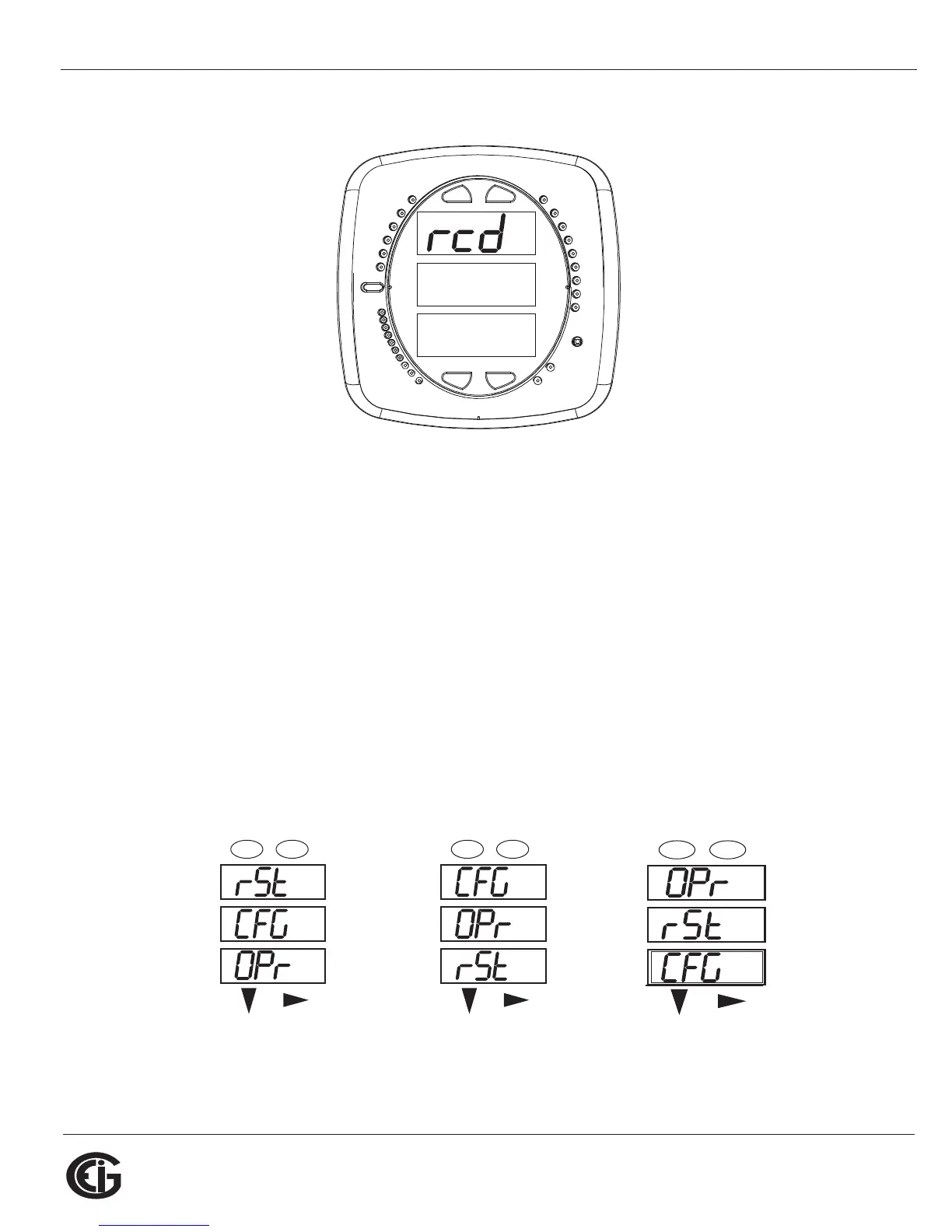
1. Press the Menu button. The Main Menu screen appears.
• The Reset mode (rSt) appears in the A window. Use the Down button to scroll,
causing the Configuration (CFG), Operating (OPr), and Information (InFo) modes to
move to the A window.
• The mode that is currently flashing in the A window is the “Active” mode, which
means it is the mode that can be configured.
For example: Press Down Once - CFG moves to A window. Press Down Once - OPr moves to A
window.
0.659
0000
-
-
-
A
B
C
MENU ENTER
MAX
MIN
LM1
LM2
%THD
PRG
VOLTS L-N
VOLTS L-L
AMPS
WNARP
VA/Hz
lrDA
Wh
VARh
VAh
120%-
90%-
60%-
30%-
%LOAD
MEGA
KILO
Wh Pulse
A
B
C
-
-
-
MENU ENTER



 To Next Page