Doc# E145701 6 - 6
6: Using the Shark® 100 Meter
Electro Industries/GaugeTech
The Leader In Power Monitoring and Smart Grid Solutions
Electro Industries/GaugeTech
The Leader In Power Monitoring and Smart Grid Solutions
6.2.4: Entering a Password
If Password protection has been enabled in the software for reset and/or configuration
(see Section 6.5.3 for information), a screen appears requesting a password when
you try to reset the meter and/or configure settings through the front panel.
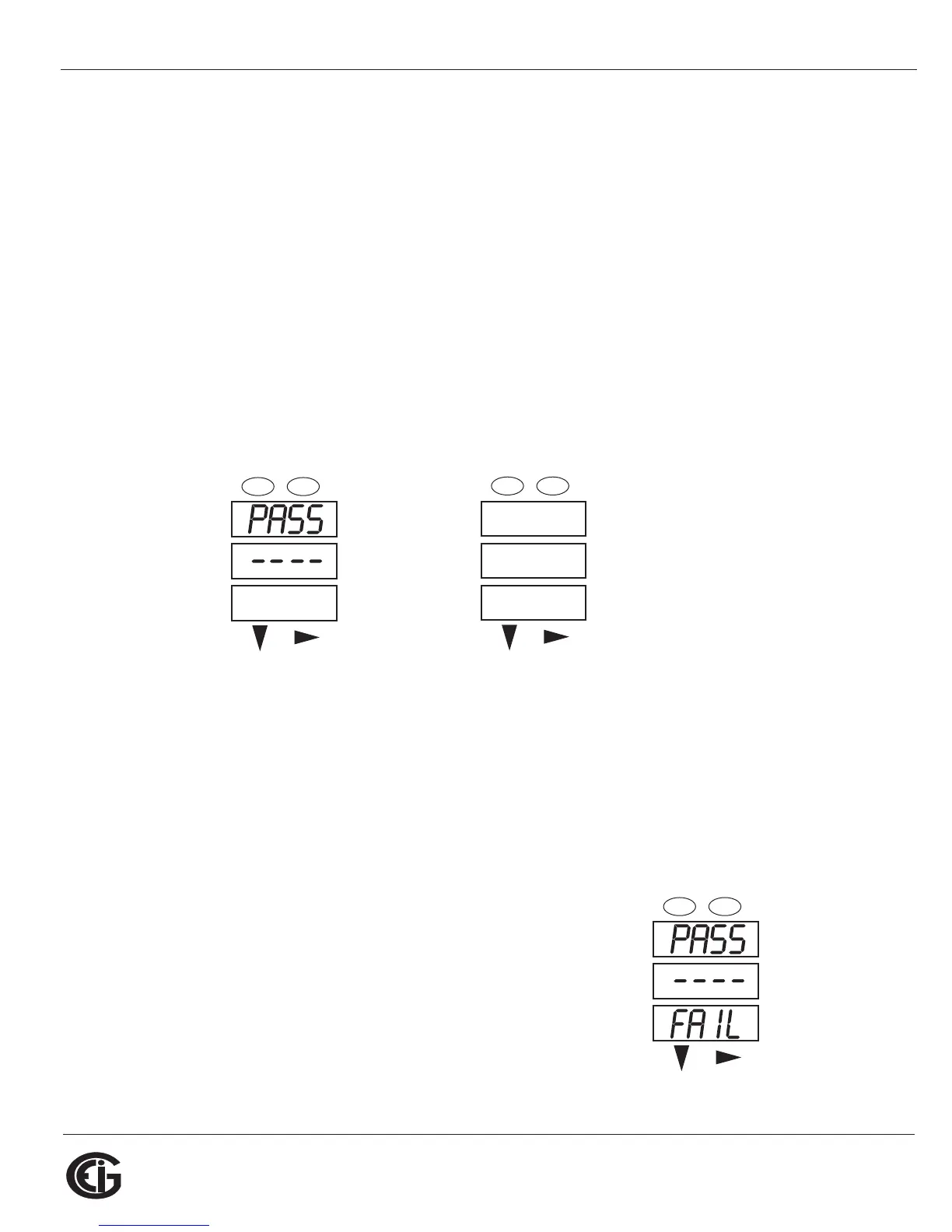
• PASS appears in the A window and 4 dashes appear in the B window. The leftmost
dash is flashing.
1. Press the Down button to scroll numbers from 0 to 9 for the flashing dash. When
the correct number appears for that dash, use the Right button to move to the
next dash.
Example: The left screen, below, shows four dashes. The right screen shows the dis-
play after the first two digits of the password have been entered.
2. When all 4 digits of the password have been selected, press the Enter button.
• If you are in Reset Mode and you enter the correct password, “rSt ALL donE”
appears and the screen resumes auto-scrolling parameters.
• If you are in Configuration Mode and you enter the correct password, the display
returns to the screen that required a password.
• If you enter an incorrect password, “PASS ---- FAIL” appears and:
• The previous screen is re-displayed, if
you are in Reset Mode.
• The previous Operating mode screen is
re-displayed, if you are in Configuration
mode.
-
-
MENU ENTER
MENU ENTER
PASS
12__
MENU ENTER



 To Next Page