36
Watching TV
Selecting a preset AV mode
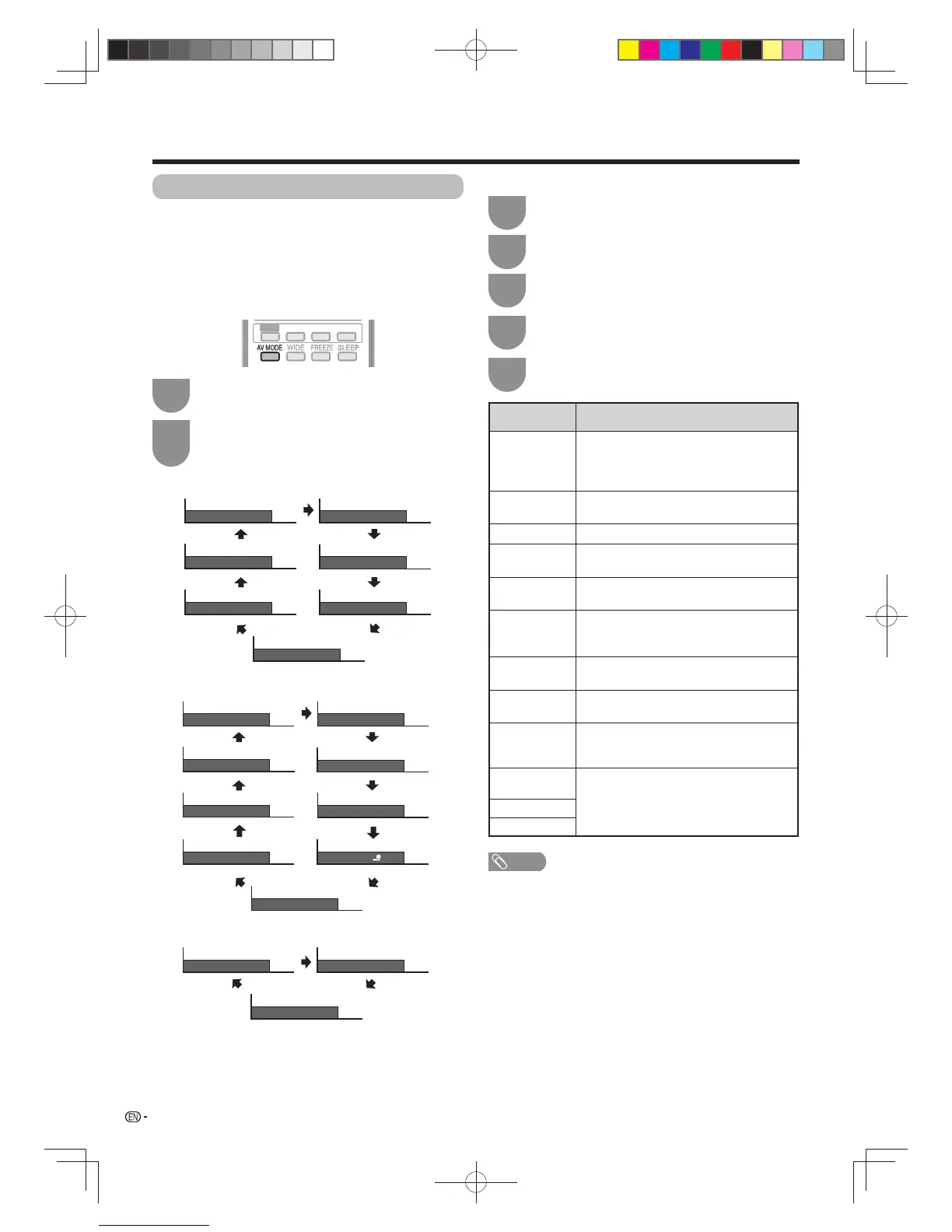
The “AV mode” function enables you to select
appropriate settings for audio and video to account for
the system environment which can vary due to factors
like room brightness, type of programme watched or
the type of image input from external equipment.
Selected item Description
AUTO The TV automatically sets the appropriate
selection from the “AV mode” menu
depending on the lighting conditions and
the type of programme watched.
STANDARD For a highly defi ned image in a normally
bright room
MOVIE For a movie
GAME Lowers image brightness for easier
viewing.
PC* For PC. (Available only when inputting a
PC signal.)
USER Allows the user to customise settings as
desired. You can set the mode for each
input source.
x.v.Colour** Produce realistic colour on the TV screen
unlike any other signal.
DYNAMIC For a clear-cut image emphasising high
contrast for sports viewing.
DYNAMIC
(Fixed)
Changes the image and sound settings to
the factory preset values. No adjustments
are allowed.
STANDARD
(3D)
Refer to page 55 for details.
MOVIE (3D)
GAME (3D)
NOTE
• You can select a different “AV mode” item for each input
mode. (For example, select “STANDARD” for TV input and
“DYNAMIC” for VIDEO input.)
• The item marked with * is available only when selecting
“HDMI 1(ARC)”, “HDMI 2”, “HDMI 3”, “HDMI 4” or “PC”
from the “INPUT” in the “CH list” menu.
• The item marked with ** is available only when accepting
an “x.v.Colour” signal through an HDMI terminal.
Press
AV mode
.
• Present “AV mode” displays.
Press
AV mode
again before the mode
displayed on the screen disappears.
• The mode changes as shown below.
1
2
Using AV MODE on the remote control unit
Press
MENU
and the MENU screen displays.
1
Press
b
/
c
/
d
to select “Picture”.
3
Press
a
/
b
to select “AV mode”, and then
press
ENTER
.
4
Press
a
/
b
to select the desired item, and
then press
ENTER
.
5
Using “AV mode” on the menu screen
AV MODE: STANDARD
AV MODE: AUTO
AV MODE: MOVIE
AV MODE: DYNAMIC (Fixed)
AV MODE: DYNAMIC
AV MODE: USER [TV]
AV MODE: GAME
Press
c
/
d
to select “Setup”.
2
EFFECT BOOST
SURROUND
3D
EFFE




 To Next Page