60
Channel selecting effect
This function sets a screen effect when choosing or
changing channels.
Press
b
/
c
/
d
to select “Option”.
Press
MENU
and the MENU screen displays.
1
3
Press
c
/
d
to select “Yes”.
Press
a
/
b
to select “Channel selecting
effect”.
5
6
2
Press c/d to select “Setup”.
4
Press
a
/
b
to select “Screen effect” and then
press
ENTER
.
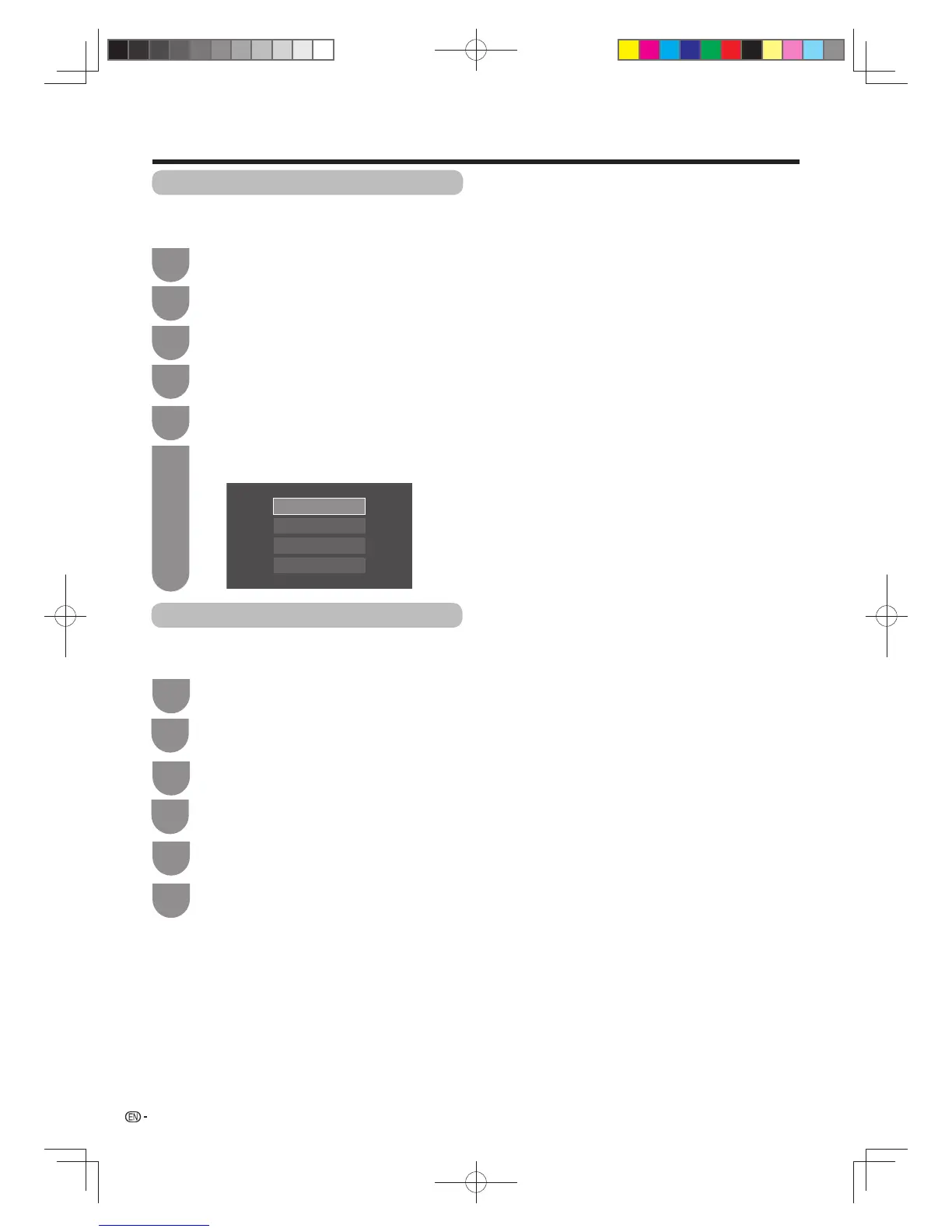
You can change the background colour of the OSD
(menu screen), channel display and programme
information, etc. to the blue, gray, red or green.
1
Press
MENU
and the MENU screen displays.
3
Press
b
/
c
/
d
to select “Option”.
5
Press
a
/
b
to select “Setting display colour”,
and then press
ENTER
.
6
Setting display colour
Press
a
/
b
to select the desired colour, and
then press
ENTER
.
BLUE
GRAY
RED
GREEN
2
Press c/d to select “Setup”.
4
Press
a
/
b
to select “Screen effect”, and then
press
ENTER
.
Settings when using external devices
60X50H_en_ID5.indd 6060X50H_en_ID5.indd 60 2011-6-13 17:20:132011-6-13 17:20:13



 To Next Page