72
Home network setup
Wireless installation
This TV is equipped with a wireless LAN function.
For a wireless LAN connection, you must use “Wireless
setup” on this page to connect the access point and TV.
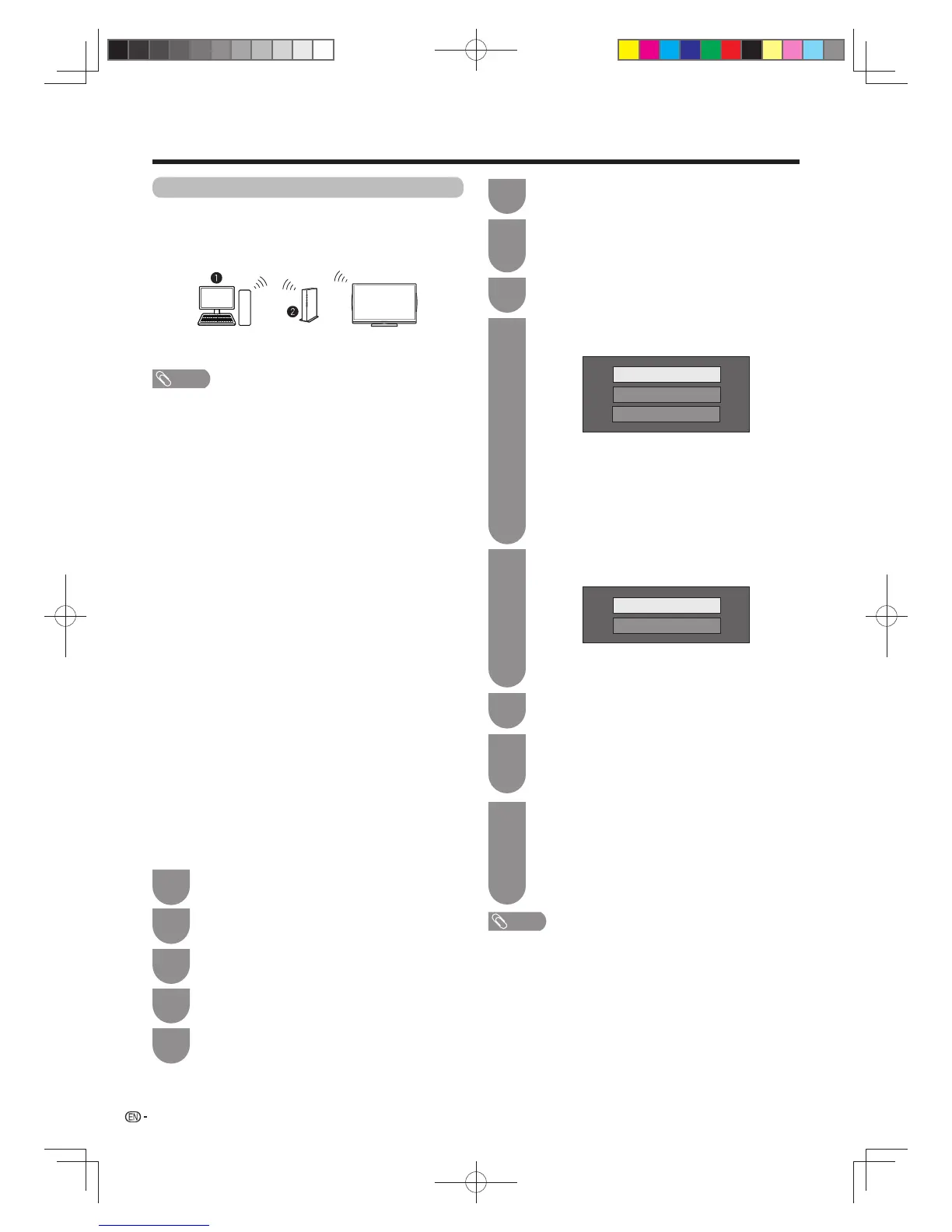
w Wireless connection overview
PC
Wireless LAN router/access point
NOTE
• This TV has a built-in wireless LAN function. Using a
separate wireless USB LAN adapter may result in radio
communications that do not comply with regulations for
radio communications. Therefore, do not use a separate
wireless LAN adapter.
• This TV has received the following certifi cations.
– Wi-Fi CERTIFIED™ (certifi cation programme from the
Wi-Fi Alliance
®
)
– Wi-Fi Protected Setup™ (certifi cation programme from
the Wi-Fi Alliance
®
)
• A wireless LAN connection and performance cannot be
guaranteed for all residential environments. In the following
cases, the wireless LAN signal may be poor or drop, or the
connection speed may become slower.
– When used in buildings made with concrete, reinforced
steel, or metal
– When placed near objects that obstruct the signal
– When used with other wireless devices that emit the
same frequency
– When used in the vicinity of microwave ovens and other
devices that emit a magnetic fi eld, electrostatic charge,
or electromagnetic interference
• Make sure the fi rewalls in your network allows access to
the TV wireless connection.
• Operations cannot be guaranteed when used with access
points that do not have Wi-Fi® certifi cation.
• A stable connection speed is required to play back
streaming content. Use an Ethernet connection if the
wireless LAN speed is unstable.
• Before transferring to a third party or disposal, be sure to
initialise the wireless LAN settings.
w How to connect
Press the WPS button on the router/access
point. When you press the WPS button, a
progress bar will appear on the display. Wait
until the connection is established.
Select “OK” when the connection details are
displayed.
• If you have failed to connect to the network in the
above operation, an error message will appear.
In this case, press
TV/VIDEO
to return to the
normal TV screen and check the relevant settings.
12
13
Press
c
/
d
to select “Setup”.
Press
MENU
and the MENU screen displays.
Selcet “Next” to proceed.
Press
a
/
b
to select “Connection type”, and
then press
ENTER
.
Select “OK” to confi rm.
Press
a
/
b
to select “Wireless setup”, and
then press
ENTER
.
Press
b
/
c
/
d
to select “View setting”.
Press
c
/
d
to select “Change”, and then
press
ENTER
.
Press
a
/
b
to select “WPS”, and then press
ENTER
.
WPS
Search
Manual Setup
• If your router/access point does not support
WPS (= Wi-Fi Protected Setup), select “Search”
and follow the on-screen instructions and the
operation manual of the router/access point.
• To establish the connection manually, select
“Manual setup” and follow the on-screen
instructions and the operation manual of the
router/access point.
Press
a
/
b
to select “Push button”, and then
press
ENTER
.
Push button
PIN code
• To establish the connection manually, select “PIN
code”. Follow the on-screen instructions and the
operation manual of the router/access point.
Press
a
/
b
to select “Network setup”, and
then press
ENTER
.
2
1
11
5
7
3
8
9
10
4
NOTE
• To connect your TV to the network, you must have a
broadband network connection.
• There is no need to enter the security key for subsequent
connections to the wireless network.
• If your access point is set to a stealth mode (that prevents
detection by other devices), you may not be able to
establish a connection. In this case, disable the stealth
mode on the access point.
• To change a wireless LAN connection settings, go to
“Menu”
s
“Setup”
s
“View setting”
s
“Network setup”
s
“Wireless setup”.
Press
c
/
d
to select “Wireless”, and then
press
ENTER
.
6
60X50H_en_ID5.indd 7260X50H_en_ID5.indd 72 2011-6-13 17:20:182011-6-13 17:20:18



 To Next Page