EasyManua.ls Logo

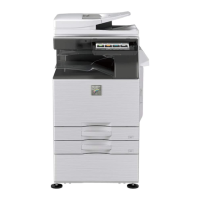
Sharp DX-C200 - User Manual

Sharp DX-C200
448 pages
Print Icon
To Next Page IconTo Next Page
Loading...
DX-C200
Read this manual carefully before you use this machine and keep it handy for future reference. For safe and correct use, be sure to read "Safety
Information" before using the machine.
1
Guide to the Machine
2
Getting Started
3
Using the Printer Function
4
Using the Copier Function
5
Using the Scanner Function
6
Using the Fax Function
7
Configuring the Machine Using the Control Panel
8
Configuring the Machine Using Web Image Monitor
9
Troubleshooting
10
Maintenance
11
Appendix
User Guide
Operating Instructions

Table of Contents

Other manuals for Sharp DX-C200

Questions and Answers

  • A
    Allison CoxSep 9, 2025
    How to align copies from the exposure glass on my Sharp DX-C200?
    • B
      Brittany MartinSep 9, 2025
      When copying from the exposure glass on your Sharp Printer, place the original copy side down, making sure that it is aligned to the rear left corner and pressed flat against the exposure glass.
  • D
    Dr. Edward KnightAug 25, 2025
    How to adjust the scan image that is too dark or too light on Sharp DX-C200?
    • M
      mlongAug 25, 2025
      If the scanned image from your Sharp Printer is too dark or too light, you should adjust the image density.
  • M
    Mr. Matthew JonesAug 25, 2025
    How do I lighten or darken copies on my Sharp Printer?
    • T
      Toni RothAug 26, 2025
      If the copied pages from your Sharp Printer are too dark or too light, you can adjust the image density.
  • M
    Monique BellSep 23, 2025
    Why can't my Sharp Printer receive faxes when it can send them?
    • R
      Raymond HannaSep 23, 2025
      If your Sharp Printer can send but not receive faxes: * Replace the print cartridge if it is empty. * Load paper in the paper tray if it is empty. * If fax reception mode is FAX/TEL Manual mode, you must receive the fax manually.
  • J
    Joseph HollowaySep 9, 2025
    Why won't my Sharp DX-C200 Printer start scanning?
    • B
      Bradley BlackSep 9, 2025
      If your Sharp Printer does not start scanning, check if the ADF or ADF cover is open. If it is, close it completely.
  • C
    Cindy GuzmanSep 14, 2025
    What does 'Check Paper Type' mean on my Sharp Printer?
    • M
      maxwell49Sep 14, 2025
      The 'Check Paper Type' message on your Sharp Printer means that the paper type set for the document differs from the type of the paper in the indicated tray. Press [FormFeed] to begin printing, or press [JobReset] to cancel the job.
  • M
    Marc HendersonSep 4, 2025
    Why is the toner powdery on prints from my Sharp DX-C200 Printer?
    • K
      Kelli CoffeySep 4, 2025
      If the toner is powdery and comes away from the paper, or the printed image has a matte appearance on your Sharp Printer, check if the fusing unit levers are properly set. Pull up the fusing unit levers.
  • K
    Katherine CarterSep 4, 2025
    How to prevent printed envelopes from creasing on my Sharp Printer?
    • E
      Erin SimonSep 4, 2025
      To prevent printed envelopes from coming out creased on your Sharp Printer, check if the fusing unit levers are properly set. Lower the fusing unit levers.
  • K
    Kevin JohnsonSep 23, 2025
    Why is the background of received images dirty on my Sharp Printer?
    • A
      Annette WaltonSep 23, 2025
      If the background of received images is dirty, or images from the rear side of the originals are visible on your Sharp Printer, the image density is likely too high. Adjust the image density.
  • E
    Elizabeth RodriguezAug 29, 2025
    Why does the paper get wrinkles when printing with my Sharp Printer?
    • L
      Lisa WilliamsAug 29, 2025
      If paper gets wrinkles when printing with your Sharp Printer: * Use paper that has been stored properly, as damp paper can cause wrinkles. * Ensure the paper isn't too thin. * Adjust the paper guides to remove any gaps between the paper and the guides.

Sharp DX-C200 Specifications

General IconGeneral
FunctionsPrint, Copy, Scan
Print TechnologyLaser
Print Speed20 ppm
Print Resolution600 x 600 dpi
Scan Resolution600 x 600 dpi
Copy Speed20 cpm
Paper Capacity250 sheets
ConnectivityUSB 2.0
Scanner TypeFlatbed
Paper SizeA4

Related product manuals