EasyManua.ls Logo

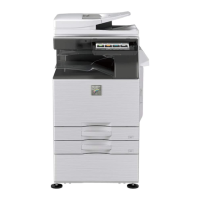
Sharp DX-C200 - User Manual

Sharp DX-C200
448 pages
Print Icon
To Next Page IconTo Next Page
Loading...
DX-C200
Read this manual carefully before you use this machine and keep it handy for future reference. For safe and correct use, be sure to read "Safety
Information" before using the machine.
1
Guide to the Machine
2
Getting Started
3
Using the Printer Function
4
Using the Copier Function
5
Using the Scanner Function
6
Using the Fax Function
7
Configuring the Machine Using the Control Panel
8
Configuring the Machine Using Web Image Monitor
9
Troubleshooting
10
Maintenance
11
Appendix
User Guide
Operating Instructions

Table of Contents

Other manuals for Sharp DX-C200

Questions and Answers

  • C
    chad13Sep 23, 2025
    Why do faxes sent from my Sharp DX-C200 Printer appear spotty or dirty when received?
    • V
      Virginia MarshallSep 23, 2025
      If faxes sent from your Sharp Printer appear spotty or dirty when received: * Clean the exposure glass or ADF. * Before placing originals on the exposure glass, make sure that ink or correction fluid is dry.
  • J
    jeanette14Sep 23, 2025
    Why does a fax I sent from my Sharp DX-C200 appear blank when received?
    • P
      Paula DawsonSep 23, 2025
      If a fax you sent from your Sharp Printer appears blank when received, the original was likely placed upside down. Place the original in the correct orientation.
  • K
    Kevin JohnsonSep 23, 2025
    Why is the background of received images dirty on my Sharp Printer?
    • A
      Annette WaltonSep 23, 2025
      If the background of received images is dirty, or images from the rear side of the originals are visible on your Sharp Printer, the image density is likely too high. Adjust the image density.
  • A
    Alisha BradyAug 31, 2025
    Why is my Sharp Printer canceling print jobs?
    • J
      Jamie MoraSep 1, 2025
      Printing on Legal size paper may be canceled if the printing is performed with a certain print quality setting. If using the PCL printer driver, set [Gradation:] in [Print Quality] to [Speed] or [Standard]. If using the PostScript 3 printer driver, set [Print Quality:] in [Printer Features] to [Standard] or [High Quality]. If [I/O Timeout] under [System Settings] is set to 15 seconds, increase the time period. A print job may be canceled if printing is frequently interrupted by data from other ports, or if printing data is large and takes time for processing.
  • D
    Dr. Edward KnightAug 25, 2025
    How to adjust the scan image that is too dark or too light on Sharp DX-C200?
    • M
      mlongAug 25, 2025
      If the scanned image from your Sharp Printer is too dark or too light, you should adjust the image density.
  • M
    Mr. Matthew JonesAug 25, 2025
    How do I lighten or darken copies on my Sharp Printer?
    • T
      Toni RothAug 26, 2025
      If the copied pages from your Sharp Printer are too dark or too light, you can adjust the image density.
  • C
    Christine StevensAug 26, 2025
    Why is the photocopied paper from my Sharp Printer dirty?
    • B
      Brian SnyderAug 26, 2025
      If the photocopied paper from your Sharp Printer is dirty, consider the following: * Adjust the image density, as it may be too high. * Avoid touching printed surfaces immediately after copying, and remove freshly printed sheets one by one. * Ensure the exposure glass or ADF is clean. * Before placing originals on the exposure glass, make sure that toner or correction fluid is dry.
  • W
    William ClarkAug 27, 2025
    Why is my Sharp DX-C200 Printer feeding multiple sheets of paper?
    • K
      kpriceAug 27, 2025
      If your Sharp Printer is feeding multiple sheets of paper at one time, try the following: * Fan the paper well before loading, and ensure the edges are even. * Make sure the paper guides are in the right position. * Use supported types of paper. * Load paper only as high as the upper limit markings on the paper guide. * Ensure the friction pad, paper feed roller, or registration roller is clean. * Only add paper when there is none left in the tray.
  • M
    Mr. Christopher SmithAug 27, 2025
    How to fix Sharp DX-C200 when paper does not feed smoothly?
    • A
      amanda39Aug 27, 2025
      If the paper does not feed smoothly in your Sharp Printer: * Use supported types of paper. * Load paper correctly, ensuring the paper guides are properly adjusted. * If the paper is curled, straighten it. * Take out the paper from the tray, fan it well, reverse the top and bottom, and put it back in the tray.
  • M
    Michael FowlerAug 27, 2025
    Why is the scanned image from my Sharp Printer dirty?
    • J
      John TerryAug 27, 2025
      If the scanned image from your Sharp Printer is dirty, it might be because the exposure glass or ADF is dirty. Clean them. Also, ensure that toner or correction fluid is dry before placing originals on the exposure glass.

Sharp DX-C200 Specifications

General IconGeneral
FunctionsPrint, Copy, Scan
Print TechnologyLaser
Print Speed20 ppm
Print Resolution600 x 600 dpi
Scan Resolution600 x 600 dpi
Copy Speed20 cpm
Paper Capacity250 sheets
ConnectivityUSB 2.0
Scanner TypeFlatbed
Paper SizeA4

Related product manuals