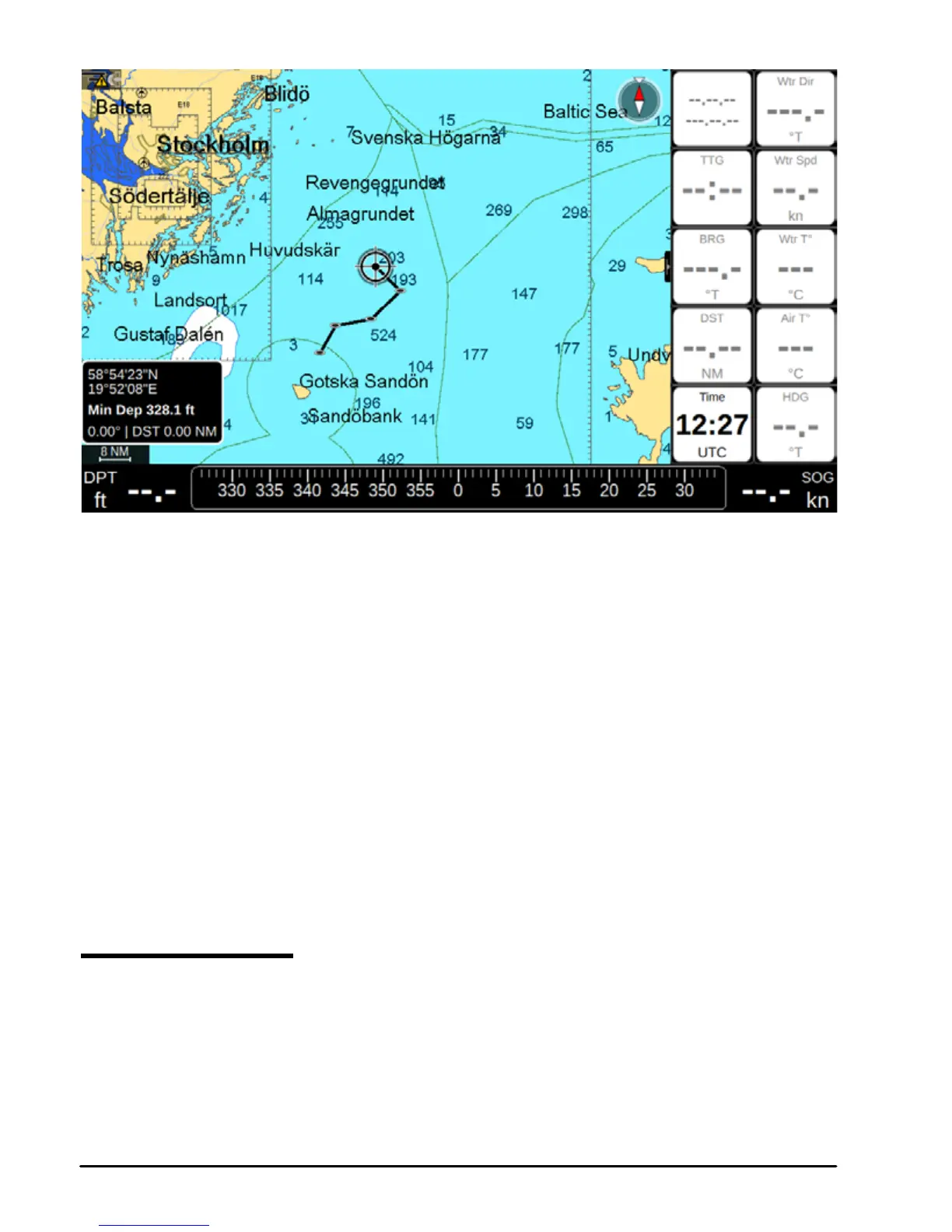
6.2. Map in new route creation mode
After the route has been created, you will see dialog window, asking whether you want to
navigate to newly created route. Press Ok to start the navigation to route.
When you create new route, it has default color and prex “Route” with incrementing number.
You can change default color or prex:
1. In Routes list page select “More” and press [ENTER]
2. Select “Default color” or “Default prex”
3. Save new default color by pressing [ENTER] on the selected color
OR
4. Save new default prex by inserting it into the keyboard and pressing OK.
Read par 7.3.1 about editing a Route
6.3 Route following
A route consists of a set of waypoints. The navigation is activated step by step from a waypoint
to the next one, so when this waypoint is reached, the navigation toward the next one starts.
You can start navigation to the existing route, which is already created and shown on map:
1. Place cursor over one waypoint of the route
2. Press [ENTER]



 To Next Page